Users
5 min
Administrators manage Swimlane Turbine users. To access the User page, access the Admin panel and then select USERS.
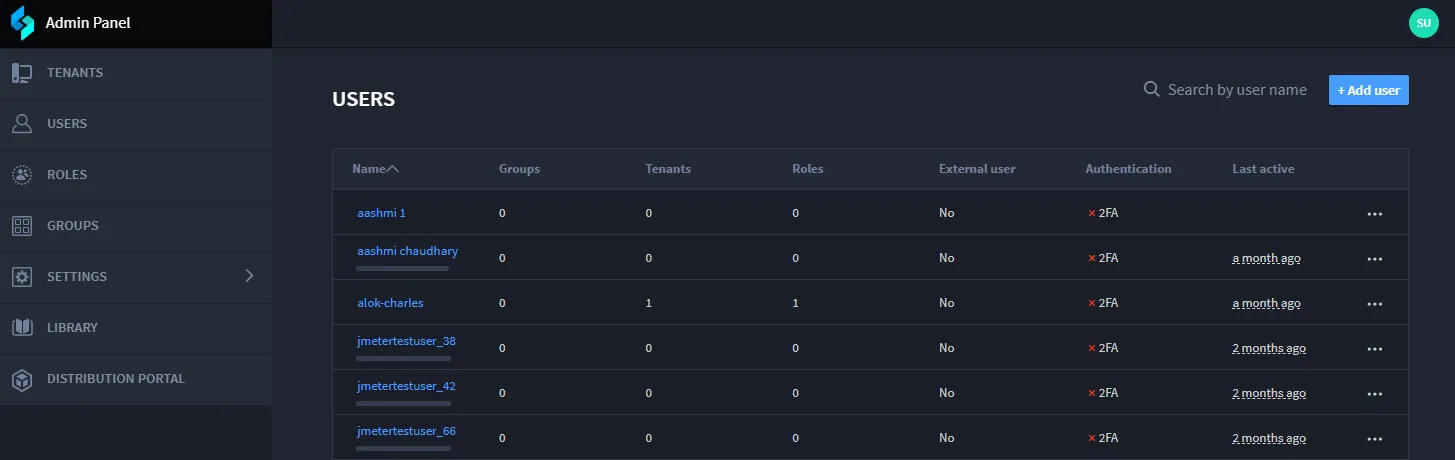
The USERS page displays the following tabs:
- Name: List the all the users with their names. You can filter the list in alphabetical order by clicking Name.
- Groups: Lists the number of groups the user is associated with.
- Tenants: Lists the number of tenants the user is associated with.
- Roles: Lists the number of roles the user is associated with.
- External user: Determines if the user is an external user or if any user outside from your organization logs in.
- Authentication: Determines if the two-factor authentication is enabled or not.
- Last active: Determines the last active time of the user.
Adding a User
To create a new user:
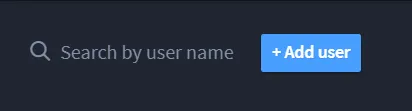
- Click Add user.
- On Add User, set up the new user's profile by completing the required fields:
- Enter the First name, Last name, Username, Display name, and Email.
- Only one character is allowed as an initial in the Initial field.
- If no password is provided, it is automatically generated.
- Username cannot be used to login. You must login using your email.
- You can make the user as account admin by clicking the Account Admin toggle.
- At the user level, admin can exempt the user from forced SSO by clicking the Exempt Force SSO toggle.
- Check the Notify via email checkbox to get notified.
- Select the Groups & Roles tab.
- Use the drop-down menus to assign groups and roles to the user.
- Click Save.
Managing User Permissions
To manage an existing user permissions, on the User page, click their name or by click the ellipsis button and click Edit.
The User Profile page has the following tabs:
- General: Allows you to edit all the general properties of the user.
- Groups and Roles: Access the Groups & Roles tab to assign that user to specific groups and roles. You must associate the user with a role and a tenant in order for the user to be able to access Turbine. Note: Users who do not have permissions set on any applications, but have global permissions set in all other areas of Turbine, are able to view and access applications and applets from the global menu. If you have global permissions for applets, you are able to edit applets. However, since you do not have any permissions set for applications, you will see applications listed, but are unable to edit them or otherwise modify them.
- Password: Allows the turbine administrator to create new password. Individual users are locked out of Turbine after the number of failed attempts specified (3 - 10) in Sessions & Security, Password.
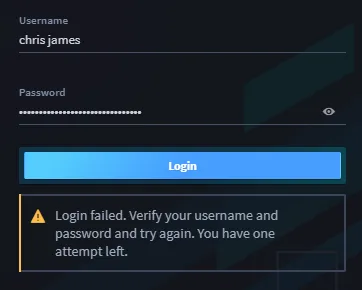
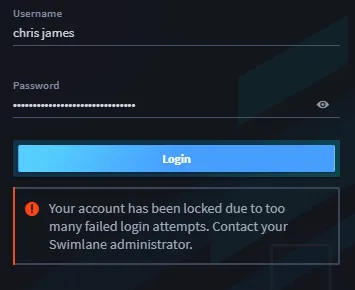
- The Turbine administrator is responsible for unlocking the user profile and prompting the user to reset their password. The locked out user and the Turbine administrator indicated in Turbine Settings, Sessions and Security, Passwords both receive email notifications of the lockout.
- Turbine recommends that the Turbine administrator click the user's PASSWORD tab, select Autogenerate new password and then click Send Message.
- Authentication: Allows you to enable two Two-Factor Authentication. by clicking Enable 2FA.
- Personal access token: You can create a personal token by clicking Generate token. Make sure to copy the personal access token after you generate as it is encrypted once you close the tab. The token can be created only once. You can delete the token by clicking Delete.
- Session: You can override the user session timeout by clicking the Override this user's session timeout toggle. You can configure timeout in either Minute(s) or Hour(s) from the Session Unit drop-down. You can mention the time in the Session Timeout field.
- Note: This override is effected immediately when you click Save.
- Notifications: The Notifications tab under the User Settings panel allows each user to control how and when they receive in-platform notifications via email.
- Email Notifications
- Users can toggle email notifications on or off:
- Enabled (default): Users receive email alerts based on the selected settings.
- Disabled: Users will not receive any email notifications, even if notification actions are triggered.
- Group Email Notifications Together
- This setting controls whether individual notifications are sent immediately or grouped into batched emails:
- OFF: Notifications are sent in real-time as individual emails.
- ON: Notifications are grouped and sent as a digest at regular intervals.
- When this option is enabled, users can select an Email Frequency.
- Email Frequency Options
- The following delivery intervals are available from the drop-down menu:
- Every 15 minutes (default)
- Every 30 minutes
- Every hour
- Every day
- This helps reduce inbox clutter by consolidating similar alerts into a single summary email.
- After adjusting any notification settings, click Save to apply their preferences.
Disabling a User
You can disable a user using the following methods:
- Click on the user, from the user's profile page, click the Disable Account toggle.
- Click the ellipsis button next to the user and click Suspend.
You can enable the user back from the user's profile page.
Deleting a User
To delete a user:
- Click the ellipsis button next to the user and click Delete.
- The Delete Confirmation window appears. Click Ok to delete.