Roles
Administrators manage Swimlane Turbine roles. To access the Roles page, from the Admin panel, select ROLES.
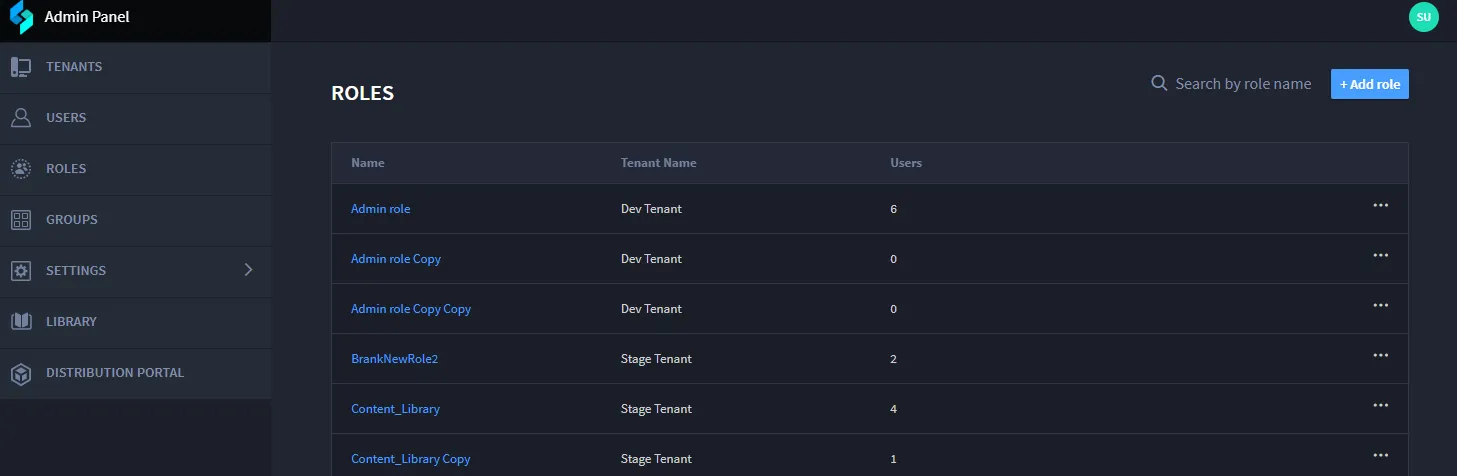
You can view the profile of each role (by clicking on the name) and Search by role name. You can also Edit, Duplicate Role, or Delete a role.
Adding a Role
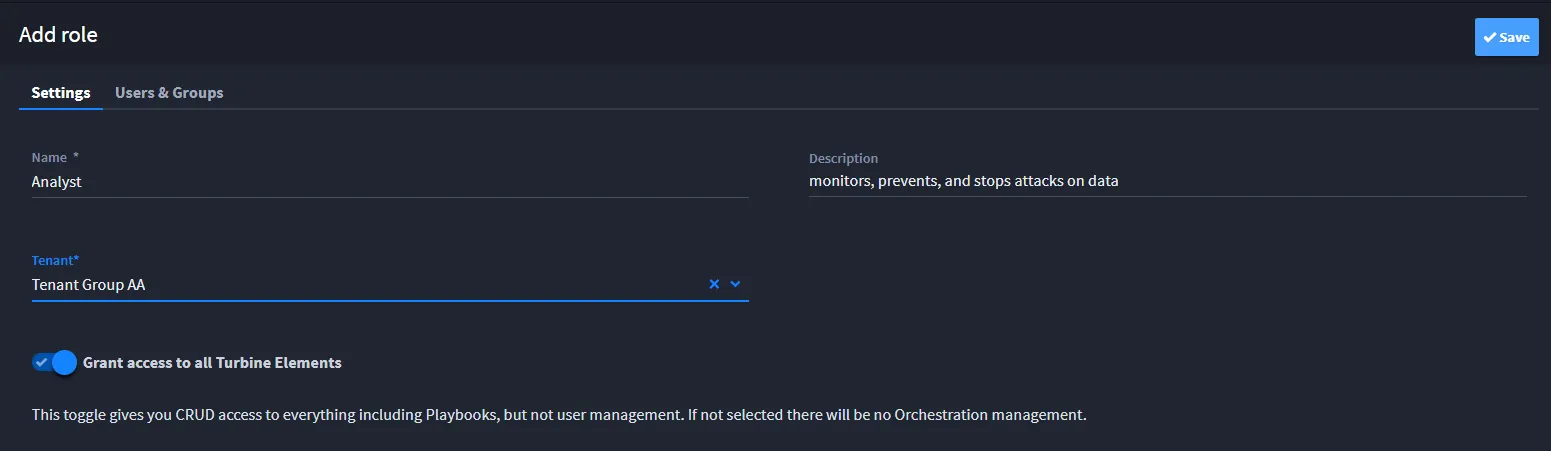
Create a new role by clicking Add Role.
From the Settings tab:
- Name: Enter the role name
- Description: Provide the description for that role
- Tenant: Select the tenant from the drop-down to associate a tenant for that role.
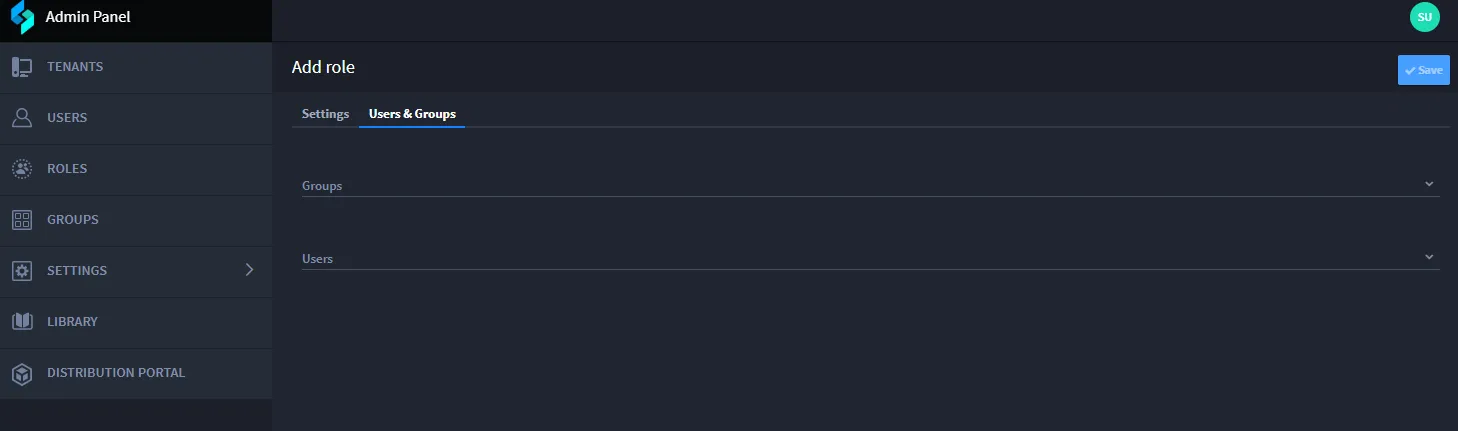
From the Users and Groups tab:
- Click Groups to search for groups, select the group, and add role to that group.
- Click Users to search for users, select the group, and associate that role to that user.
In order for the role to be able to access orchestration, you must toggle on the Grant access to all Turbine Elements toggle.
This role is created at a tenant level and is specific to a tenant.
Editing a Role
You can edit a role by clicking on the role or by click the ellipses button and click Edit.
You can control Role permissions for Workspaces, Dashboards, Applications, Applets, Records, and Reports.
After you change the role or permission of a user, wait for two minutes for it to get updated.
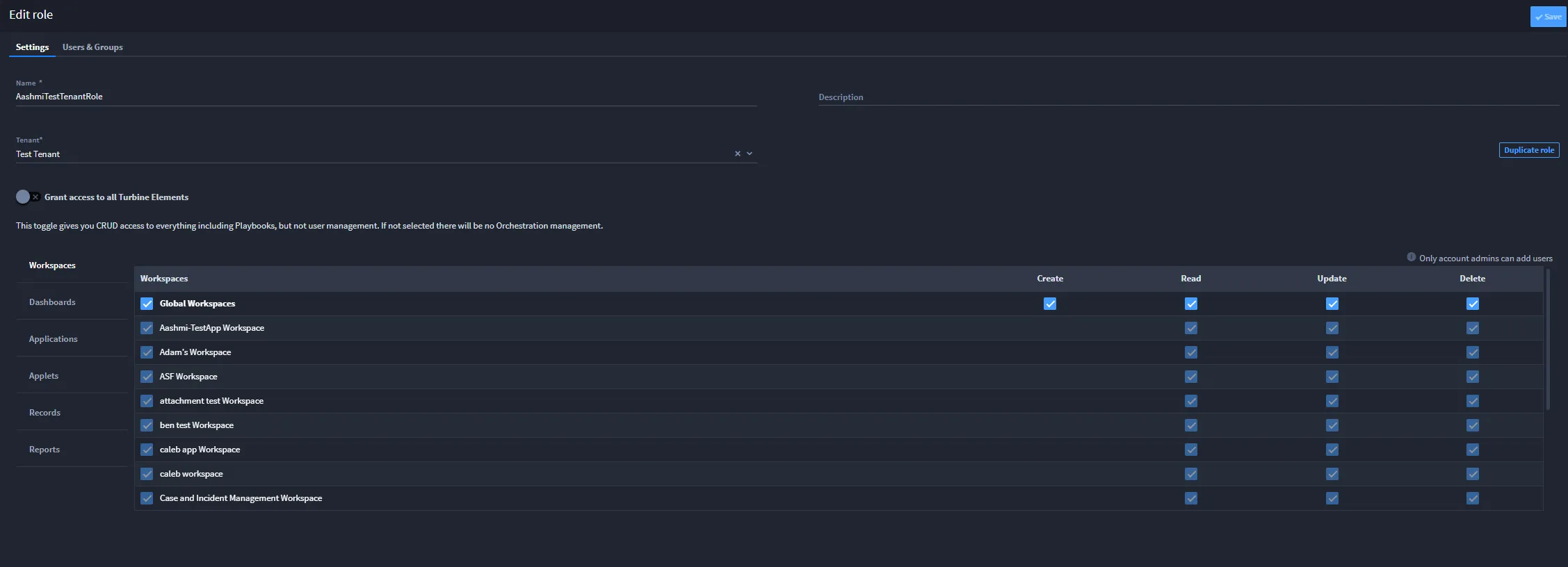
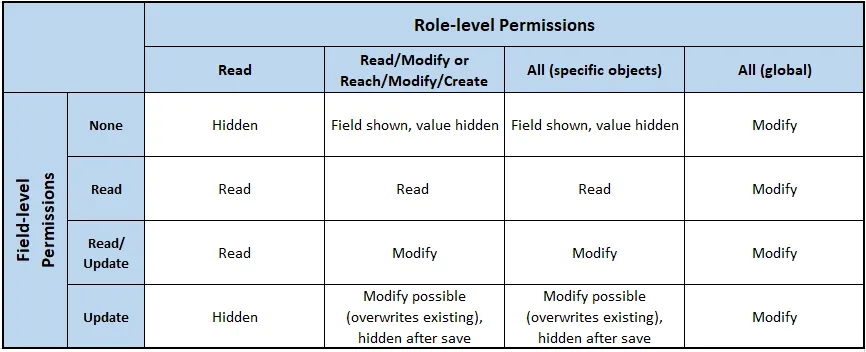
Refer to this table for more information about how role permissions and field-level permissions work together:
Duplicate Role
You can duplicate a role using the following:
- Click the role. From the Edit role page, click Duplicate role.
- Click the ellipsis button and click Duplicate Role.
The duplicated role is added to the list of roles. Click the role to edit the properties or permissions.
Note: If you change the tenant for that role, you must set the permissions again as it is considered as new role.