Groups
In Swimlane Turbine, Groups serve as collections of users with shared permissions, roles, and access levels, allowing administrators to manage access and permissions efficiently across multiple users. Each user can belong to several groups simultaneously, which is particularly useful for organizing users by department, role, or specific project needs. By managing permissions at the group level, organizations enhance security, streamline onboarding and offboarding, and ensure consistent access control across departments, projects, and workflows, ultimately saving time and improving collaboration.
How Groups Work
Each user can belong to single or multiple groups simultaneously, making it easy to organize users based on department, role, or specific project needs. This flexibility supports dynamic roles and cross-functional team structures.
Key Benefits:
- Enhanced Security: Permissions are managed at the group level, ensuring users have access only to relevant resources and workflows.
- Streamlined Onboarding and Offboarding: Adding or removing users from groups automatically applies the appropriate permissions, simplifying user lifecycle management.
- Consistency and Efficiency: Group-based management ensures consistent access control across departments, projects, and workflows while reducing administrative overhead.
Access the Groups Page
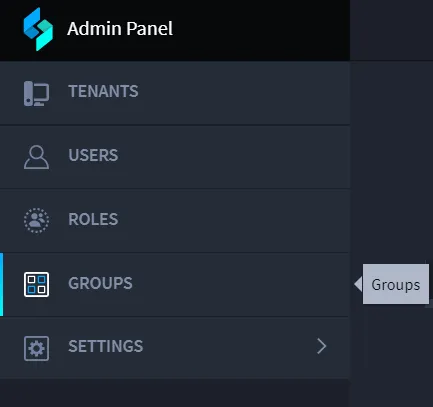
To access the Groups page, navigate to the Admin Panel and select Groups.
Create a New Group
Administrators can create new groups and also access users and roles from the icons on the User page taskbar.
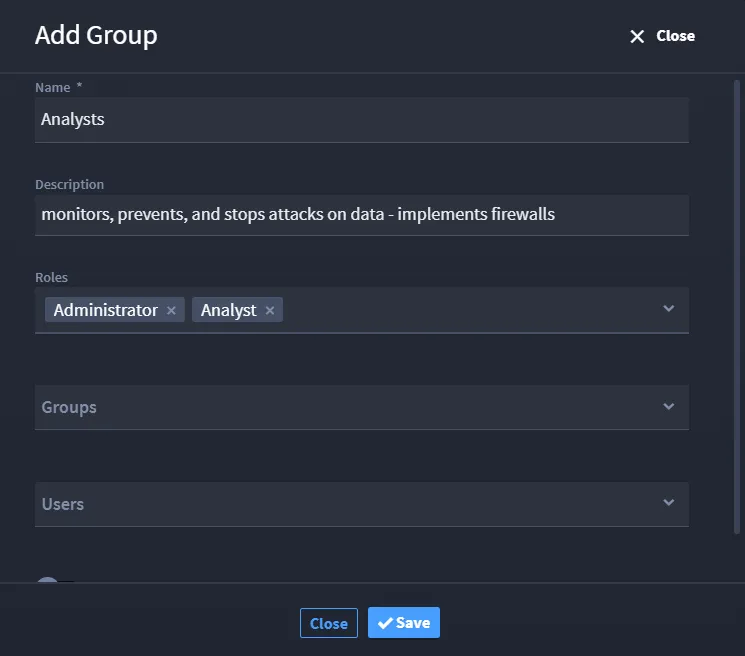
To create a new group:
- Enter the Group Name: In the Name field, enter the group name.
- Provide a Description (optional): In the Description field, describe the group's purpose or scope.
- Select Roles: Under Roles, choose one or more roles to assign to this group.
- Add Users and Groups: If needed, add existing users and groups by selecting them from the Users and Groups dropdowns.Note: The groups and users you want to add must already exist in the system to appear in these lists.
- Save the Group: Click Save to create the group.
Managing Groups
Once a group is created, you can perform various management tasks:
- Edit a Group: Click on the group name to change the description, roles, associated users, and nested groups.
- Disable a Group: Toggle the Disabled switch next to the group's name to deactivate it temporarily.
- Delete a Group: Click the Delete icon (represented by a trash can) to permanently remove the group.
Sorting Groups
To sort groups alphabetically, click the Name column header in the Groups list.
Primary Groups
While users can belong to multiple groups, Primary Group serves as the main, or default, group for a user. It is essentially one of the assigned groups designated as the user’s primary group. This designation may carry additional significance in terms of priority or default permissions. For example:
- The primary group might determine the default access rights when there are overlapping permissions or restrictions among the user’s groups.
- It could be used in reporting or tracking to associate a user with a single group for organizational clarity.
- Some systems may apply specific settings or restrictions primarily based on the user's primary group, impacting default resource access or actions within the platform.
Current Primary Group:
The logged-in user is referred to as the current user, and their associated group is designated as the current primary group. While the current user may belong to multiple groups, assigning a primary group ensures clarity by identifying the main group.
In the search filters, when filtering by the "User Groups" field, both the current user and their current primary group are displayed. By applying these filters, users can quickly access records relevant to their own activity or group involvement.
Nested Groups
Swimlane Turbine supports nested groups, where a Top Group acts as a parent, with additional groups (e.g., Group 1 and Group 2) serving as child groups. This setup enables specific access rules for each group within the hierarchy.
Role and Restriction Inheritance
- Parent to Child Inheritance: Roles and restrictions assigned to a parent group automatically apply to all members of its child groups.
- Child to Parent Isolation: Members of a parent group do not inherit any roles or permissions from its child groups. This means members of the Top Group do not automatically gain access to resources restricted to Group 1 or Group 2.
Record Restriction Rules
Restrictions can be applied to specific groups within the hierarchy to control access as follows:
- Restricting to Top Group: Records restricted to the Top Group are accessible by all users in the Top Group, Group 1, and Group 2.
- Restricting to Group 1: Records restricted to Group 1 are only accessible by users in Group 1; users in the Top Group and Group 2 are excluded.
- Restricting to Group 2: Records restricted to Group 2 are only accessible by users in Group 2; users in the Top Group and Group 1 are excluded.
This hierarchical approach ensures access is controlled and restricted according to each group’s designated permissions within the hierarchy. Restricting records to the Top Group grants the broadest access across all groups, while restricting to a specific child group limits access accordingly.