Transform Data Action - Use Cases
The Turbine Transform Data native action can create a myriad of transformations. Making changes to date and time in a playbook is often used, and this page provides use cases for different actions for transforming date and time using the Transform Data action. JSONata is used for these actions.
Get Date and Time
If you configure the FIRST row, click TRANSFORM AGAIN, and select Get Date/Time, there are new configuration options available.

Transform Block Options - Get Date/Time
Note: When FROM is set to "Current Time", the IN field is not required and will be hidden.
Scenario
After identifying malicious URLs, you want to scan your environment for any other IOCs that may have been seen 90 days before the first sighting. With the Transform Data action, you can automate this task to get a date/time and subtract 90 days.
- On the FIRST row, select Get Date/Time.
- From the FROM drop-down, select Playbook Data or Current Time.
- If using Playbook Data, select the property containing the date/time in the IN field.
- Configure the format and timezone as needed.
- Click TRANSFORM AGAIN.
- On the THEN row, select Adjust Date/Time.
- From the BY drop-down menu, select Subtracting.
- Enter 90 in the amount field.
- From the unit of measure drop-down menu, select Days.
Adjust Date and Time
Common date and time data transformation methods are supported in playbooks, which can be run against playbook inputs, in-scope action output properties, or static values, including to and from:
- ISO-8601
- Unix (seconds)
- Unix (milliseconds)
- SQL

Transform Block Options - Adjust Date/Time
Note: Adjust Date/Time operates on ISO-8601 date/time values or Unix epochs. The result is always returned in ISO-8601 format.
Scenario
After identifying malicious URLs, you want to scan your environment for any other IOCs that may have been seen 90 days before the first sighting. With the Transform Data action, you can automate this task to get a date/time and subtract 90 days.
- On the FIRST row, select Get Date/Time to obtain the initial timestamp.
- Click TRANSFORM AGAIN.
- On the THEN row, select Adjust Date/Time.
- From the BY drop-down menu, select Subtracting.
- Enter 90 in the amount field.
- From the unit of measure drop-down menu, select Days.
Output: The date/time adjusted by subtracting 90 days, returned in ISO-8601 format.
Set Time Zone
After configuring the FIRST row, click TRANSFORM AGAIN, and select Set Time Zone. New fields and options are available on the THEN row.

Transform Block Options - Set Time Zone
Note: Set Time Zone adjusts the underlying date/time to reflect the new timezone. If you need to add timezone information without changing the actual time, use Append Time Zone instead.
Scenario
After identifying malicious URLs, you want to scan your environment for any other IOCs that may be in a specific time zone.
- On the FIRST row, select Get Date/Time to obtain the initial timestamp.
- Click TRANSFORM AGAIN.
- On the THEN row, select Set Time Zone.
- From the Time Zone drop-down menu, select the desired time zone (e.g., America/Chicago, UTC, Europe/London).
Output: The date/time converted to the specified time zone in ISO-8601 format.
Convert Date and Time
After configuring the FIRST row, click TRANSFORM AGAIN, and select Convert Date/Time. New fields and options are available on the THEN row.

Transform Block Options - Convert Date/Time
Note: Convert Date/Time can convert between various date/time formats. The input date/time must be in ISO-8601 format or a Unix epoch.
Scenario
After identifying malicious URLs, you want to scan your environment for any other IOCs that may have been seen starting on a particular month, date, and year before the first sighting.
- On the FIRST row, select Get Date/Time to obtain the initial timestamp.
- Click TRANSFORM AGAIN.
- On the THEN row, select Convert Date/Time.
- From the TO drop-down, select Custom.
- In the Custom Format String field, enter the format pattern: MM/dd/yyyy (for MM/DD/YYYY format).
Output: The date/time converted to the custom format (e.g., "08/26/2025").
Contains
The Contains transformation checks if a string contains at least one occurrence of a search term. The transformation options are:
Scenario
After gathering information from different sources, you want to verify if a particular keyword (e.g., "malicious") is present in a text field.
- On the FIRST drop-down, select Contains.
- In the IN field, select the playbook property containing the text.
- In the STRING field, enter the keyword (e.g., "malicious").
- In the WITH drop-down, select No Case Sensitivity to perform a case-insensitive search.

Output: Returns true if "malicious" is found in the text (regardless of case), false otherwise.
Replace
The Replace transformation finds occurrences of a search term in a string and replaces each occurrence with another string. The transformation options are:
Scenario
You need to normalize IP addresses in logs by replacing occurrences of "192.168" with "10.0".
- On the FIRST drop-down, select Replace.
- In the IN field, select the playbook property containing the text.
- In the FIND field, enter "192.168".
- In the REPLACE WITH field, enter "10.0".
- In the WITH drop-down, select No Case Sensitivity to perform a case-insensitive replacement.

Output: All occurrences of "192.168" (case-insensitive) are replaced with "10.0" in the input string.
Match
The Match transformation finds occurrences of a search term in a string and returns an array of all indices where the search term is located. The transformation options are:
Scenario
To locate specific email addresses from text logs, match the pattern of an email address format.
- On the FIRST row, select Match.
- In the IN field, select the text field containing the logs.
- In the STRING field, enter the search term or pattern. For exact string matching, enter the string directly (e.g., "@example.com").
- In the WITH drop-down, select No Case Sensitivity to perform a case-insensitive search.
Note: For regex pattern matching to extract email addresses, use the Regex Match transformation instead, which supports regular expression patterns.

Output: Returns an array of indices where the search term appears in the string (e.g., [25, 67, 142]).
From CSV
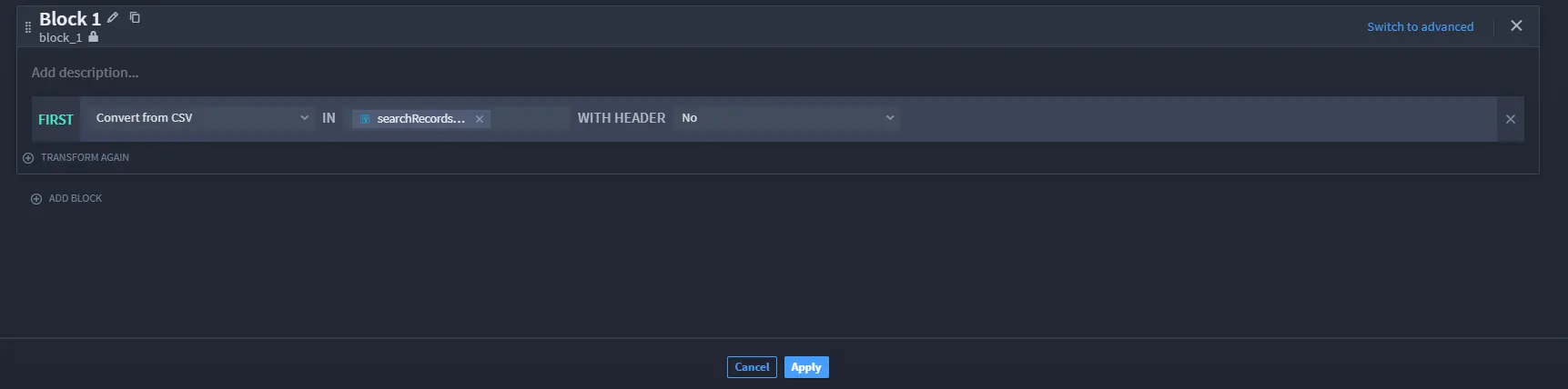
The From CSV transformation parses a CSV string into an array of objects (if headers are included) or an array of arrays. The transformation options are:
Scenario
You have a CSV string containing user information ("name, email, department") and want to parse it into separate fields.
- On the FIRST drop-down, select From CSV.
- In the IN field, choose the property containing the CSV data (or enter the CSV string directly).
- In the WITH HEADER drop-down, select Yes if the first line contains column headers, or No if headers are not included.

Example Input (with headers):
Output (with headers = Yes):
Output (with headers = No):
Additional Use Cases
Parsing JSON Strings
When working with JSON data from record triggers, record searches, or HTTP responses, the data often arrives as a string. Use Parse JSON to convert it to a JavaScript object before extracting properties.
Scenario: Extract user information from a JSON string returned by an API.
- On the FIRST row, select Parse JSON.
- In the IN field, select the property containing the JSON string.
- Click TRANSFORM AGAIN.
- On the THEN row, select Extract Property.
- Provide a JSONata path to extract the desired field (e.g., user.email or $.data.items[0].name).
Filtering Arrays
Use Filter or Filter By to extract specific items from arrays based on criteria.
Scenario: Filter an array of users to include only those with a specific status.
- On the FIRST row, select Filter By.
- Provide the JSONata path to the property to filter on (e.g., status).
- Enter the filter value (e.g., "active").
Output: An array containing only objects where the specified property matches the filter value.
Combining Data
Use Prepend to combine arrays or prepend values to arrays.
Scenario: Combine two arrays of IOCs into a single array.
- On the FIRST row, select Prepend.
- Provide the first array or value.
- Provide the second array or value to prepend.
Output: A new array containing the prepended values followed by the original values.
Best Practices
- Start with Get Date/Time: When working with dates, always start with Get Date/Time in the FIRST row to establish a base timestamp.
- Chain Transformations: Use THEN rows to chain multiple transformations together, building complex transformations from simple operations.
- Parse JSON First: When working with JSON strings, always use Parse JSON as the first transformation before extracting properties.
- Test Incrementally: Test each transformation step to ensure accuracy before adding subsequent transformations.
- Use Appropriate Filters: Choose Filter for simple value matching or Filter By for filtering objects by property values.
Related Documentation
For more information on available transformations, see Using the Transform Data Native Action.
For advanced transformation capabilities using JSONata expressions, see Advanced Transformations.