HTTP Requests
Use HTTP Request native actions to get data from or send data to an API endpoint, even if the connector does not exist for the service. This gives flexibility in integrating Turbine with third-party services.
Scenario: Get Users from Slack
Max, a Turbine Admin, needs to verify a list of Slack users via the Slack API. He uses the HTTP Request action to retrieve data from the API using a GET request.
Steps to Set Up a GET HTTP Request:
- Select No Authorization under the Authentication tab.
- On the Settings tab, ensure that the Enable SSL certificate verification toggle is ON.
- Click Apply.
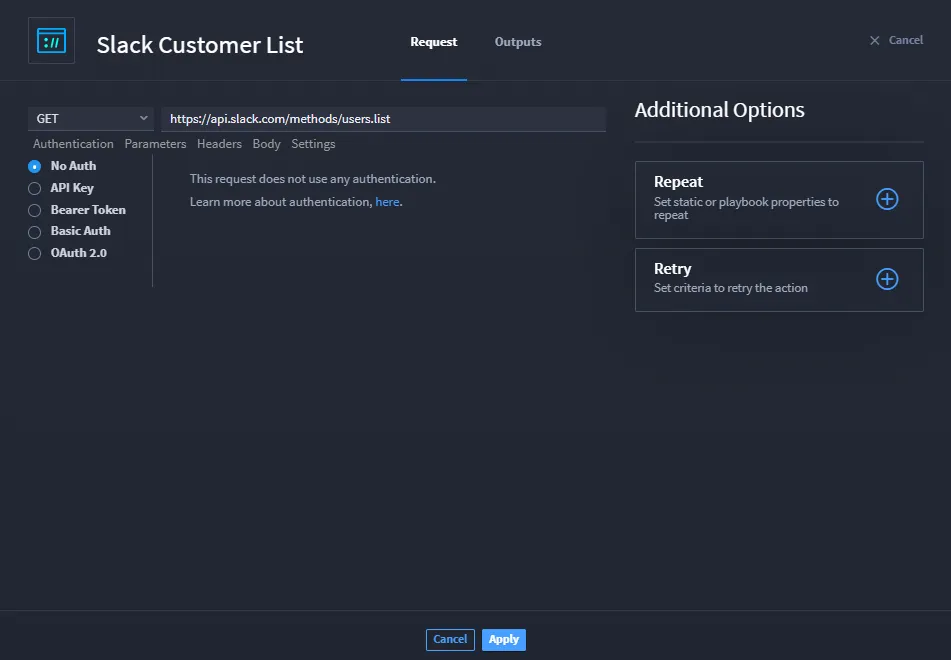
It's a best practice for GET requests to not include a request body.
Conclusion
Max successfully retrieves the Slack user list using the GET method, without needing additional configuration.
Scenario: VirusTotal Scan to Upload a File
Max wants to scan a file using the VirusTotal API by sending a file from the playbook's Attachments input. Here’s how he sets up a POST request to VirusTotal using form-data to send the file.
Steps to Set Up a POST Request for VirusTotal:
- Select POST from the request method drop-down in the HTTP Request action.
- On the Authentication tab, select the API Key radio button.
- On the Parameters tab, enter any key-value pairs required by the API (for example, the API key).
- On the Form Data tab, enter the following:
- In the Key field, enter file, the field expected by the API.
- Click the Value field and select Expression.
- Enter the expression $inputs.files_to_scan[0] to retrieve the first file in the array of attachments.
- Ensure Enable SSL certificate verification is ON in the Settings tab.
- Click Apply.
Conclusion
Max has successfully configured a POST request to submit a specific file to VirusTotal for scanning.
Scenario: Send a Slack Message
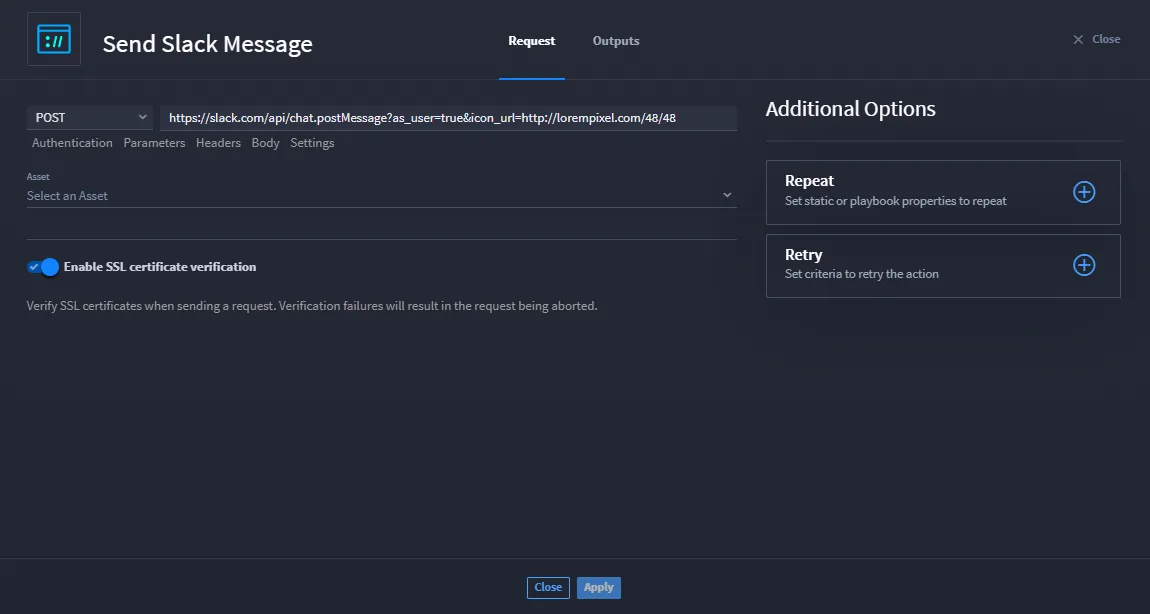
Max needs to send a message to a Slack channel using the HTTP Request action. The API requires a Bearer Token for authentication, and the message should be sent using a POST request. Here’s how he sets this up:
Steps to Set Up a POST Request for Slack:
- Select POST from the request method drop-down in the HTTP Request action.
- On the Authentication tab, select the Bearer Token radio button.
- On the Parameters tab, enter the required key-value pairs (e.g., the channel name and message text).
- Ensure Enable SSL certificate verification is ON in the Settings tab.
- Click Apply.
Conclusion
Max has successfully configured the HTTP action to send a message to a specified Slack channel.
Advanced Scenario: Error Handling and Response Processing
Handling API responses and errors is critical in production environments. Below is a generic process for Max to handle errors and validate the responses from the API calls:
Steps for Response Processing:
- After the HTTP Request action, add a Condition action to check the response status code:
- If response["statusCode"] equals 200 (success), continue processing the response data.
- If not, add error-handling logic like logging the failure or retrying the request.
Handling Errors:
If the API returns an error (e.g., status code 4XX or 5XX), Max can add error-handling logic to:
- Log the error details
- Send a notification or alert
- Retry the HTTP request if needed
Conclusion
With this advanced setup, Max can handle errors, validate API responses, and build more robust workflows using HTTP Request actions.