Using the Transform Data Native Action
Data transformation, such as converting data into specific formats, has traditionally required expertise in Python or JSONata. However, with Swimlane Turbine, you can achieve these tasks easily using the Transform Data native action within a playbook, without the need for complex coding.
Overview
The Transform Data native action allows you to modify and manipulate data efficiently within your playbooks. Whether you need to reformat, extract, or combine data, this action provides a user-friendly interface to achieve these tasks, enabling seamless automation without requiring advanced coding skills.
Key Benefits of the Transform Data Action
- No Coding Required: Perform complex data transformations without writing Python or JSONata code.
- Visual Transformation Builder: A user-friendly interface that simplifies data manipulation.
- Versatility: Supports various transformation types to cater to different data processing needs.
- Efficiency: Streamlines data handling processes, reducing the time required to implement transformations.
When to Use Transform Data
The Transform Data action is essential whenever you need to modify, extract, or reformat data within your playbook. Common scenarios include:
Data Format Conversion
- Parsing JSON strings from record triggers, record searches, or HTTP responses into JSON objects
- Converting date/time formats between different representations (Unix timestamps, ISO-8601, custom formats)
- Converting data types (numbers to strings, arrays to objects, etc.)
- Parsing structured formats like CSV, XML, or YAML into JavaScript objects
Data Extraction and Navigation
- Extracting nested properties from complex JSON objects using JSONata paths
- Accessing deeply nested data structures that require path-based navigation
- Plucking specific fields from arrays of objects
Data Filtering and Aggregation
- Filtering arrays based on specific criteria or conditions
- Aggregating data (sum, average, min, max) from arrays or object properties
- Removing duplicates or unwanted items from arrays
- Sorting data by value or by object properties
Data Manipulation
- Combining or merging data from multiple sources
- Splitting strings into arrays or arrays into smaller chunks
- Transforming string formats (case conversion, padding, encoding/decoding)
- Normalizing data to ensure consistent formats across different sources
Data Preparation for Downstream Actions
- Preparing data for HTTP requests, record creation, or other actions that require specific formats
- Transforming API responses into formats suitable for record fields
- Normalizing data from different sources before combining or comparing
How Transform Data Integrates
The Transform Data action seamlessly integrates with other playbook components, allowing you to access data from various sources and pass transformed data to downstream actions.
Accessing Playbook Data
Transform Data can access data from multiple sources within your playbook:
- Playbook Inputs: Access playbook input values using $inputs.propertyName
- Previous Actions: Access outputs from previous actions using $actions.actionName.result.propertyName
- Published Values: Access published values from other actions using $actions.actionName.published.propertyName
- Loop Data: Access data from loop iterations when used within a loop action
- Variables: Access variables created by Create Variables or Update Variables actions
Data Flow in Playbooks
Transform Data fits into the playbook execution flow as follows:
- Input Stage: Transform Data receives data from:
- Playbook inputs
- Previous action outputs
- Published values from other actions
- Loop iteration data
- Transformation Stage: The action processes data through transformation blocks:
- Each block executes sequentially
- Transformations within a block chain together (FIRST → THEN → THEN...)
- Multiple blocks can process different aspects of the data
- Output Stage: Transformed data is available for:
- Downstream Actions: Other actions can reference the transformation outputs
- Published Values: Transform Data can publish specific values for use elsewhere
- Variables: Transformed data can be stored in variables
- Record Operations: Transformed data can be used in Create Record, Update Record, or Search Records actions
Integration with Other Actions
Transform Data commonly integrates with:
- Record Triggers: Parse JSON strings from record field values before processing
- HTTP Request: Transform API responses into usable formats
- Search Records: Process and filter search results
- Create/Update Records: Prepare data in the correct format for record fields
- Condition Actions: Transform data before evaluating conditions
- Loop Actions: Transform data within loop iterations
- Variable Actions: Store transformed data in variables for later use
Publishing Transformed Data
Transform Data can publish specific transformation block outputs, making them available to other actions in the playbook. Published values can be referenced using:
- $actions.transformActionName.published.blockName.propertyName
This allows you to:
- Share transformed data across multiple downstream actions
- Create reusable transformation blocks
- Organize complex data transformations into logical units
Entrypoint Configuration
Each Transform Data action has an entrypoint that determines which transformation block executes first. This allows you to:
- Control the order of transformation execution
- Create multiple transformation paths
- Organize complex transformations into manageable blocks
How Transform Data Works
The Transform Data native action uses a block-based transformation system where transformations are organized into blocks, and each block contains one or more transformation operations that are executed sequentially.
Understanding Transformation Blocks
Each transformation block consists of:
- FIRST transformation: The initial transformation that operates on your input data
- THEN transformations: Additional transformations that operate on the output of the previous transformation
Transformations are chained together, with each transformation receiving the output from the previous one. This allows you to build complex data transformations by combining multiple simple operations.
Key Concepts
- Block-based Structure: Transformations are organized into blocks that can be renamed, duplicated, or reordered
- Sequential Execution: Transformations within a block execute in order (FIRST → THEN → THEN...)
- Data Flow: The output of one transformation becomes the input for the next transformation
- Multiple Blocks: You can create multiple transformation blocks, each processing different aspects of your data
- Sensitive Data: Blocks can be marked as containing sensitive information, which prevents the data from being displayed in the UI or logs
Setting Up the Transform Data Native Action
You've already created your playbook, and now you're ready to transform the data from a property. Here's how to set up the basic transformation:
- From the Add Panel, drag and drop the Transform action onto the playbook canvas.
- Select Transform Data and then click Configure.
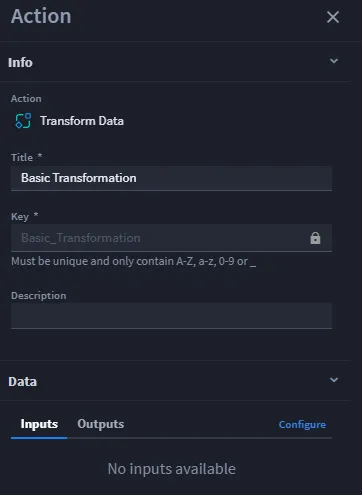
The transformation builder window will open.
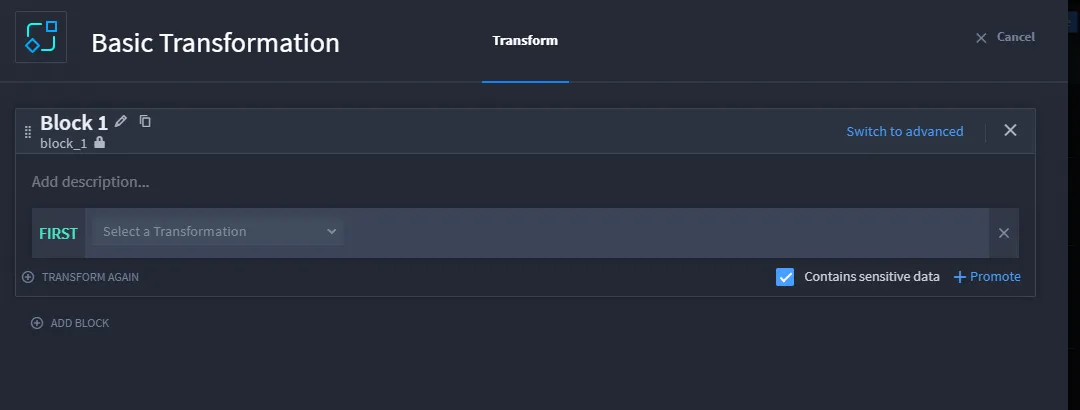
If your data has any sensitive information, you can mark it as sensitive by clicking the Contains sensitive data checkbox. The data is not shown in the UI or in the logs.
You can rename the transformation block by clicking the pencil icon. Swimlane automatically updates the block name in snake case. If you wish to duplicate the block, click the duplicate icon.
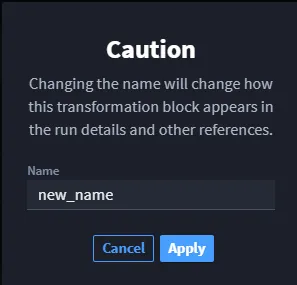
If you click Apply and later return to rename the block, the original name will not change. To rename the block, click the lock icon to unlock it for editing.
Renaming the block could potentially break downstream actions if the block is referenced or used elsewhere in the playbook. A warning dialog will appear to remind you of this risk.
Configuring the Transformation
Follow these steps to configure the transformation:
- In Block 1, on the FIRST line, click the Select a Transformation drop-down to choose a transformation type.
- Once the configuration is complete, click TRANSFORM AGAIN to apply additional transformations if needed. The next line in the block will be THEN. You can select additional transformation actions to apply to the output of the previous transformation.
Tip: If you are fetching data from a JSON field using a record trigger or record search, remember that the result will appear as a string. To transform this data as JSON, use the Parse JSON transformation before performing any additional operations.
Available Transformations
The Transform Data action provides a wide range of transformation functions organized by category. The following transformations are available in the Select a Transformation drop-down:
Array Transformations
- Average - Calculate the average value of numeric array elements. Returns the mean of all numeric values in the array.
- Average By - Calculate the average value of a plucked property of objects within an array of objects. Uses a JSONata path to extract the property values before calculating the average.
- Count If - Count all items of an array that are equal to a specific value. Returns the number of matching elements.
- Count If By - Count all items of an array of objects that contain a plucked property equal to a specific value. Uses a JSONata path to access the property for comparison.
- Filter - Filter an array to the values that match a regular expression, a specific value, or non-null value. Supports both exact matches and regex patterns.
- Filter By - Filter an array of objects to those that contain a property or deeply nested property whose values match a regular expression, a specific value, or non-null value. Uses a JSONata path to access the property.
- Flatten - Flatten an array containing potentially nested arrays to a single array. Removes one level of nesting.
- Force Array - Wrap a value in an array if it is not already an array. Ensures the output is always an array type.
- Get At - Get the item of an array at a specific index. Supports negative indices (e.g., -1 for the last item).
- Maximum - Find the maximum value in an array of numbers. Returns the largest numeric value.
- Maximum By - Find the maximum value of a plucked property of the objects within an array of objects. Uses a JSONata path to extract property values.
- Mean - Compute the mean of the values in an array of numbers. Calculates the arithmetic mean.
- Mean By - Compute the mean of the values plucked from objects within an array of objects. Uses a JSONata path to extract values.
- Minimum - Find the minimum value in an array of numbers. Returns the smallest numeric value.
- Minimum By - Find the minimum value of a plucked property of the objects within an array of objects. Uses a JSONata path to extract property values.
- Prepend - Get an array containing the value or array of values of the second input followed by the value or array of values of the first input. Combines arrays or prepends values.
- Remove Duplicates - Remove duplicate items from an array. Returns a new array containing unique values only.
- Remove Item - Remove all instances of an item from an array. Filters out all occurrences of the specified item.
- Slice - Get the subarray of items that exist between the specified starting and ending indices of an array. Extracts a range of elements.
- Sort - Sort the items of an array of strings or numbers by value. Supports ascending and descending order with locale-aware comparison.
- Sort By - Sort the items of an array of objects by the value of a plucked property of the objects within the array. Uses a JSONata path to determine sort order.
- Sum - Sum the values of an array of numbers. Returns the total of all numeric values.
- Sum By - Sum the values of a plucked property of the objects within an array of objects. Uses a JSONata path to extract property values before summing.
Date and Time Transformations
- Adjust Date / Time - Adjust an ISO-8601 date/time or a Unix epoch by adding or subtracting a specified amount of time. Supports operations (Adding/Subtracting), amount, and units (Milliseconds, Seconds, Minutes, Hours, Days, Weeks, Months, Years). Returns the adjusted timestamp in ISO-8601 format.
- Append Time Zone - Append or overwrite the time zone or offset of an ISO-8601 date/time without adjusting the underlying date/time. Useful for adding timezone information to dates that lack it.
- Convert Date / Time - Convert an ISO-8601 date/time or a Unix epoch to an ISO-8601 date/time, custom formatted date/time, or a Unix epoch. Supports output formats: ISO-8601, Unix (seconds), Unix (milliseconds), SQL, or Custom format string.
- Get Date / Time - Parse a date/time and convert it to an ISO-8601 date/time. Can get the current time or parse a date/time from playbook data. Supports various input formats (ISO-8601, Unix, SQL, Custom) and timezone handling.
- Set Time Zone - Set the time zone or offset of an ISO-8601 date/time, adjusting the underlying date/time accordingly. Converts the date/time to the specified timezone.
- To ISO Date - Convert an ISO-8601 date/time or a Unix epoch to an ISO-8601 date. Extracts only the date portion, discarding the time component.
- To ISO Time - Convert an ISO-8601 date/time or a Unix epoch to an ISO-8601 time. Extracts only the time portion, discarding the date component.
Numeric Transformations
- Absolute Value - Compute the absolute value of a number. Returns the non-negative value of the input number.
- Adjust - Adjust a number by adding, subtracting, multiplying by, dividing by, or computing the modulo with another number. Supports basic arithmetic operations.
- Ceiling - Adjust a number by rounding it up (ceiling). Rounds up to the nearest integer or specified precision.
- Floor - Adjust a number by rounding it down (flooring). Rounds down to the nearest integer or specified precision.
- Greater Than - Check if the first number is greater than the second. Returns a boolean value.
- Greater Than Or Equal - Check if the first number is greater than or equal to the second. Returns a boolean value.
- In Range - Check if a number is between two values, non-inclusive of the ending value. Determines if a value falls within a specified range.
- Less Than - Check if the first number is less than the second. Returns a boolean value.
- Less Than Or Equal - Check if the first number is less than or equal to the second. Returns a boolean value.
- Random - Generate a random number between inclusive lower and upper bounds. Can generate either floating-point or integer values.
- Round - Adjust a number by rounding it. Rounds to the nearest integer or specified precision.
Object Transformations
- Deep Flatten - Deeply flatten an object. Converts nested object structures into a flat structure with dot-notation keys.
- Deep Merge - Deep merges two given objects. Combines objects recursively, with values from the second object taking precedence.
- Extract Property - Extract the value of a property or deeply nested property of an object. Uses a JSONata property path to navigate through nested structures (e.g., user.profile.email or $.data.items[0].name).
- Get Keys - List the keys of a given object. Returns an array containing all property names of the object.
- Get Values - List the property values of a given object. Returns an array containing all property values of the object.
- Is Equal - Perform a deep comparison between two values to determine if they are equivalent. Returns true if values are deeply equal, false otherwise.
- Pick Properties - Create an object composed of the picked properties. Selects specific properties from an object to create a new object.
- Remove Property - Remove a property on an object. Supports nested property paths using dot notation. Returns a new object with the specified property removed.
- Stringify - Convert an object into stringified form. Converts the object to a JSON string representation.
String Transformations
- Base64 Decode - Convert a string from base 64 representation. Decodes base64-encoded text with optional character encoding specification.
- Base64 Encode - Convert a string to base 64 representation. Encodes text to base64 with optional character encoding specification (default UTF-8).
- Camel Case - Convert a string to camel case. Transforms text to camelCase format (e.g., "hello world" → "helloWorld").
- Capitalize - Convert the first character of a string to upper case and the remaining to lower case. Capitalizes only the first letter.
- Contains - Determine if a string contains at least one occurrence of a search term. Supports case-sensitive and case-insensitive matching. Returns a boolean value.
- Defang - Replace and/or surround certain characters in a string to render it unactionable (e.g., non-clickable). Used for security purposes to prevent accidental execution of URLs, IPs, etc.
- Ends With - Check if a string ends with another. Returns true if the string ends with the target value.
- Evaluate Expression - Parse and evaluate a string containing literal JSON or a JSONata expression. Allows you to execute complex JSONata expressions for advanced transformations.
- Hash - Compute the hash of a value. Supports multiple hash algorithms including MD5, SHA1, SHA224, SHA256, SHA384, SHA512, and SHA3 variants. Returns the hashed value in hexadecimal format.
- Levenshtein Distance - Find the edit/Levenshtein distance between two strings. Calculates the minimum number of single-character edits needed to transform one string into another.
- Match - Find occurrences of a search term in a string and returns an array of all indices where the search term is located. Supports case-sensitive and case-insensitive matching.
- Pad - Pad a string on the left and right sides if it's shorter than length. Padding characters are truncated if they can't be evenly divided by length.
- Pad End - Pad a string on the right side if it's shorter than length. Adds padding characters to the end of the string.
- Pad Start - Pad a string on the left side if it's shorter than length. Adds padding characters to the beginning of the string.
- Parse JSON - Convert stringified JSON text to a JSON value. Parses a JSON string into a JavaScript object that can be used in subsequent transformations.
- Refang - Restore a defanged string to its original value to re-render it actionable (e.g., clickable). Reverses the defang operation.
- Repeat - Repeat a string N times. Creates a new string by repeating the input string the specified number of times.
- Replace - Find occurrences of a search term in a string and replaces each occurrence with another string. Supports case-sensitive and case-insensitive replacement with global replacement by default.
- Split - Find occurrences of a delimiter in a string and splits the string into an array of substrings for each occurrence. Divides a string into an array based on the delimiter.
- Starts With - Check if a string starts with another. Returns true if the string begins with the target value.
- Strip - Remove all whitespace (tabs, spaces, and newlines) from both the left and right side of text. Spaces in between words will not be removed.
- URL Decode - Convert URL-safe characters in a given string to URL-unsafe characters. Decodes URL-encoded strings (e.g., "%20" → " ").
- URL Encode - Convert URL-unsafe characters in a given string to URL-safe characters. Encodes strings for use in URLs (e.g., " " → "%20").
- UUID v4 - Generate a v4 universally unique identifier (UUID). Creates a random UUID following the UUID v4 specification.
Regular Expression Transformations
- Contains - Check if a string contains at least one occurrence of a regular expression pattern. Supports regex flags ('i' for ignore case, 'm' for multiline). Returns a boolean value.
- Match - Find occurrences of a regular expression pattern in a string and returns an array of the matched strings. Can return either matches or capture groups, with optional limit on number of matches.
- Match One - Find the first occurrence of a regular expression pattern in a string and returns the matched string. Returns the first match or an empty string if no match is found.
- Replace - Find occurrences of a regular expression pattern in a string and replaces each occurrence with another string. Supports regex flags and optional limit on number of replacements.
- Split - Find occurrences of a regular expression pattern in a string and splits the string into an array of substrings for each occurrence. Uses regex pattern as delimiter with optional limit.
Value Transformations
- From CSV - Parse a CSV string. Converts CSV text into an array of objects (if headers are included) or an array of arrays. Supports header detection.
- From XML - Parse an XML string. Converts XML text into a JavaScript object using compact format.
- From YAML - Parse a YAML string. Converts YAML text into a JavaScript object.
- Is Array - Check if a value is an array. Returns true if the value is an array, false otherwise.
- Is Blank - Determine if a value is an empty string, array, object or falsy. Returns true for empty values, null, undefined, empty strings, empty arrays, or empty objects.
- Is Empty - Determine if a value is an empty string, array, or object. Similar to Is Blank but excludes boolean false from being considered empty.
- Is Null Or Undefined - Check if a value is null or undefined. Returns true only for null or undefined values.
- Is Object - Check if a value is an object. Returns true if the value is an object (but not an array), false otherwise.
- Is String - Check if a value is a string. Returns true if the value is a string type, false otherwise.
- To CSV - Serialize a value to CSV. Converts an array of objects to CSV format with headers.
- To XML - Serialize a value to XML. Converts a JavaScript object to XML format using compact representation.
- To YAML - Serialize a value to YAML. Converts a JavaScript object to YAML format.
Examples
Example 1: Extracting Data from a JSON Object
Scenario: You receive data in JSON format and need to extract specific fields for further processing.
- Drag and drop the Transform Data action onto the playbook canvas.
- Configure the transformation to extract the desired data:
- FIRST: If your data is a JSON string, select Parse JSON from the transformation type drop-down to convert it to a JSON object.
- THEN: Select Extract Property and provide a JSONata path to navigate to the specific JSON fields (e.g., $.user.name or user.email).
Output: The extracted data is ready for subsequent actions.
Example 2: Combining Array Values
Scenario: Combine multiple values from an array into a single string or combine two arrays.
- Drag and drop the Transform Data action.
- Configure the transformation:
- FIRST: Select Prepend from the transformation type drop-down to combine arrays or values.
- THEN: Provide the values or arrays you want to combine.
Alternative: For string concatenation, you can use Evaluate Expression with a JSONata expression like $join([first_name, last_name], " ") to combine strings with a separator.
Output: Combined values or arrays ready for use.
Example 3: Converting Date Formats
Scenario: Convert a date from one format to another (e.g., from Unix timestamp to ISO-8601, or from custom format to ISO-8601).
- Add the Transform Data action to the playbook.
- Configure the transformation:
- FIRST: Select Get Date / Time from the transformation type drop-down to parse the date from your data source.
- THEN: Select Convert Date / Time and specify the output format (e.g., ISO-8601, Unix seconds, Unix milliseconds, SQL, or Custom format).
Output: The date converted to the desired format.
Example 4: Filtering Array Elements
Scenario: Filter an array to include only items that meet specific criteria (e.g., users older than 18, or strings containing a specific pattern).
- Use the Transform Data action.
- Configure the transformation:
- FIRST: Select Filter from the transformation type drop-down to filter by value or regular expression.
- THEN: Provide the filter value or pattern. For filtering objects by property values, use Filter By and specify the JSONata path to the property (e.g., age) and the filter value (e.g., 18).
Output: An array containing only items that match the filter criteria.
Example 5: Parsing JSON Strings
Scenario: You have a JSON string from a record trigger or record search that needs to be parsed into a JSON object for further transformation.
- Drag and drop the Transform Data action.
- Configure the transformation:
- FIRST: Select Parse JSON from the transformation type drop-down to convert the JSON string to a JSON object.
- THEN: Apply additional transformations as needed (e.g., extract properties, filter, etc.).
Output: The JSON string is converted to a JSON object that can be used in subsequent transformations.
Example 6: Adjusting Date/Time Values
Scenario: Add or subtract time from a date (e.g., add 5 days, subtract 2 hours).
- Drag and drop the Transform Data action.
- Configure the transformation:
- FIRST: Select Get Date / Time from the transformation type drop-down if starting from a data source, or use an existing date value.
- THEN: Select Adjust Date / Time and specify:
- Operation: Adding or Subtracting
- Amount: The number of time units
- Unit: Milliseconds, Seconds, Minutes, Hours, Days, Weeks, Months, or Years
Output: The adjusted date/time in ISO-8601 format.
Best Practices
- Start Simple: Begin with basic transformations and progressively add complexity as needed.
- Test Transformations: Test each transformation step to ensure accuracy before applying subsequent actions.
- Keep Track of Changes: Document the purpose and expected outcome of each transformation block for easier maintenance.
- Avoid Overcomplicating: Use clear and straightforward transformations to ensure maintainability.
- Use Parse JSON First: When working with JSON strings from record triggers or searches, always use Parse JSON as the first transformation before extracting properties or performing other operations.
- Chain Transformations: Leverage the THEN functionality to chain multiple transformations together, building complex transformations from simple operations.
Use Cases
For more practical applications, explore the Transform Data Action - Use Cases.