Scripts
As analysts and security professionals, you have knowledge on writing simple scripts in Python. And while Turbine allows you to write more complex code with JSONata, you can also use a native action for simple functions.
For Boolean and Null data types, we recommend importing JSON and using json.loads(<my ref>) to ensure the data loads correctly. Since all playbook data is JSON and Python does not support all JSON types natively.
Use the controlled Script native action and write with Python to:
- manipulate data and edge cases.
- reduce complexity used with JSONata.
- use the most common programming language in security today to do simple tasks.
Turbine uses Python 3.11 and accesses all the standard libraries that come with Python, including the Python Standard Library. You can also use Numpy version 1.25.2, and Pendulum version 2.1.2.
When configuring inputs, consider using the Swimlane Python Chatbot, which uses ChatGPT's Open AI to help you formulate transformations and customized Python code. See Swimlane Python ChatbotSwimlane Python Chatbot for information.
Script Native Action Set Up
Time to start basic set-up for the Script native action.
You have already created a playbook, and you are ready to manipulate data from a property.
- From your playbook, click Add an Action.
- From the ACTION panel, click the Action drop-down menu.
- Select Script, then click Configure.
The Script window opens.
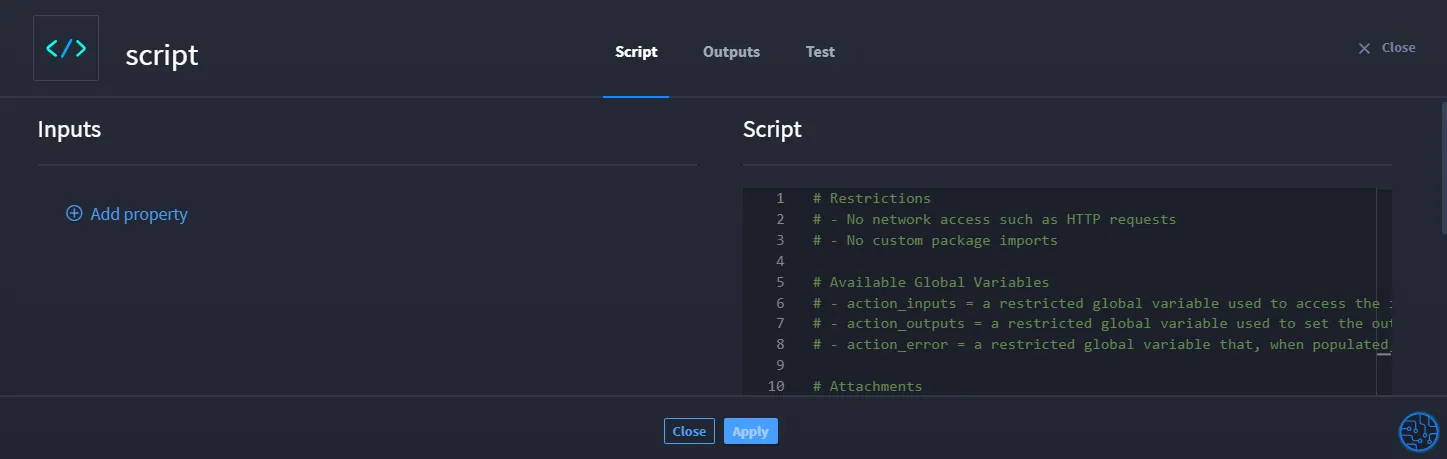
The Script window has three tabs: Script, Outputs, and Test. The Script tab has the Inputs pane (on the left side) and the Script pane (on the right side).
Script Inputs
With the Script native action, you can build and map static and playbook property data inputs to reference data in the Python Script native action.
The current playbook properties you can add are:
- String
- Number
- Boolean
- Object
- Array
- Attachment
Before you can test, set up your Script inputs. Let's take a look at a quick example on how to set up inputs and use the Script pane.
The Script pane shows helpful information, such as restrictions, available global variables, and a link to the Swimlane Turbine User Guide.
- From the Script tab, on the Inputs pane, click Add property to define inputs including any sub-input properties they may have.
- Click the pencil icon to edit the name of the property. In the example image, you can see a Numeric input with a VirusTotal property mapped to it.
- Write your code in the Script pane on the right. In the example image, the Python script obtains the last_malicious_score input, verifies whether it meets the Malicious score threshold, and assigns the result.
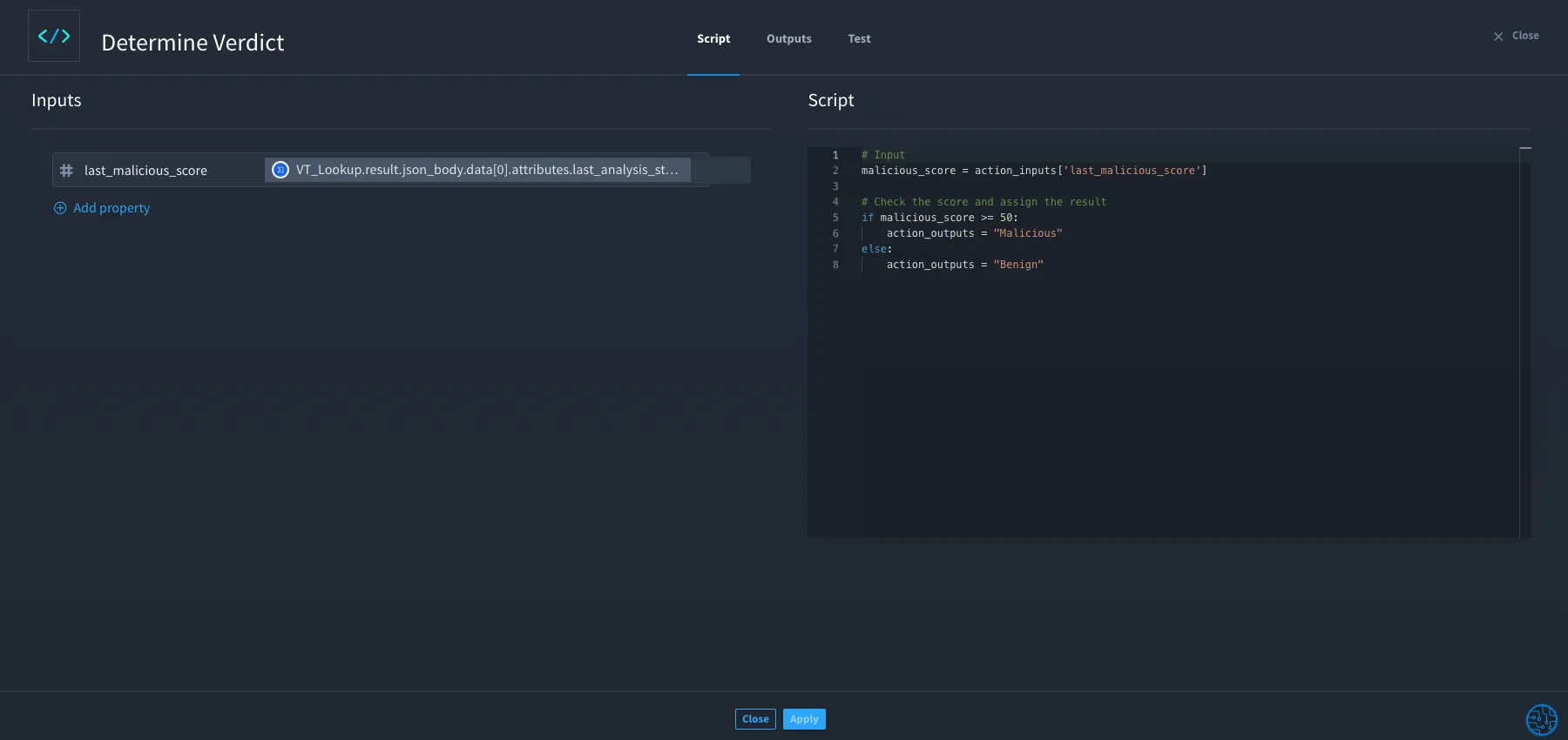
Great! You have entered the inputs and Python script.
Script Output Tab
Outputs tab allows you to select all outputs provided by the action and you can promote them. The output tab also allows you to mark the data as sensitive.
You can promote the action output by clicking Promote button next to the action type from the Action Outputs list. The promoted output action is displayed in the Promoted Playbook Outputs section.
You can remove the promoted output by clicking the Remove button next to the promoted output.
Marking Data as Sensitive
You can mark the promoted data as sensitive so that it is encrypted or it is not visible.
To mark the data as sensitive, click Mark as Sensitive option next to the Promote button in the Action Output list.
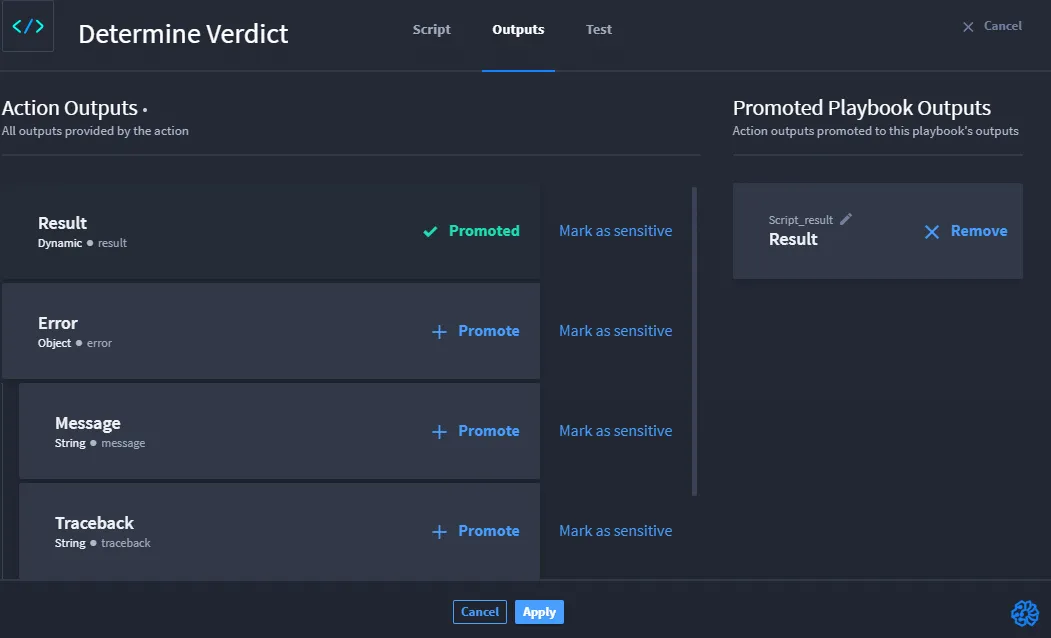
You can remove data as sensitive by clicking Marked as Sensitive.
Script Testing
Want to test your Script action before continuing to build your playbook? In the Script action, from the Test tab, you can view Inputs to the left and Script to the right. You will notice that "attachment" fields are not shown in the test tab inputs. Attachments currently cannot be used in test runs of the action, you will have to do a full playbook test to test attachment inputs.
The Result pane at the bottom shows the tested results. Just like discovered outputsdiscovered outputs in an HTTP action, results vary. So in addition to the base of property types, and depending on the inputs you select, the action outputs may return additional properties. These are the discovered outputs, which you can promote and/or delete from the Outputs tab.
See a Script Test use caseScript Test use case for an example on testing the Script native action.
Script Attachment
If you need to return an attachment or use an attachment as an input in the Script native action, follow the instructions below:
Output Attachment
In your playbook, follow the instructions below to configure an output attachment:
- From the Action drop-down menu, select Script. Let's title this action Return Attachment and click Configure. There are two ways to write Python code to return an attachment. Let's look!
- Under Script, enter the following code: with output_attachment.open("test.txt") as f: f.write('test') action_outputs = {'first_file': f}
- The test.txt placeholder is the name of your attachment. You can also write the code as follows: second_file = output_attachment.open('test2.txt') second_file.write('test2') action_outputs['second_file'] = second_file
- Click Apply to save changes.
Input Attachment
You can use an attachment input in a Python script using a Script native action.
- From the Action drop-down menu, select Script.
- Let's title this action Input Attachment and click Configure.
- Click Add property and select Attachment.
- You can click the pencil icon to edit the name. For example, you can change the name to file1.
- Click Select a property and select Playbook Property.
- The playbook property drawer opens and based on the example, you would select the object for first_file. Then return to Inputs and repeat steps 4 and 5, but add the object for second_file.
- Under Script, enter the following code: with action_inputs['file1'].open() as file1: action_outputs['file1_text'] = file1.read() action_outputs['file1_size'] = file1.size() action_outputs['file1_mimetype'] = file1.mimetype()
- You can get the size of the attachment using the .size() method, and you can get the mime type of the attachment using the .mimetype() method. Both are shown in the code above.
- You can also write the code as follows: file2 = action_inputs['file2'].open() action_outputs['file2_text'] = file2.read() file2.close()
- Click Apply to save changes.
- Now both files are mapped.
Use Case
See a Script Test use caseScript Test use case for an example on testing the Script native action.