If/Else Conditions
All conditions are On Complete action flows. Now, you can configure actions to perform differently by using the Condition native action to have an IF condition and ELSE condition, which applies conditional logic to a block of actions that is either true or false. Based on outputs from previous actions, the conditional statement you create executes accordingly.
This benefits you by decreasing complexity in playbooks and increasing customization in use cases.
Set Up If/Else Conditional Statement
Just like other native actions, you do not need to add the action manually to customize it. Do you want to write a true condition? Then configure the IF logic. The logic requires that all of the conditions you enter are met for the data to pass to the downstream actions. If you do not configure the TRUE condition, they display with dotted lines instead of solid lines.
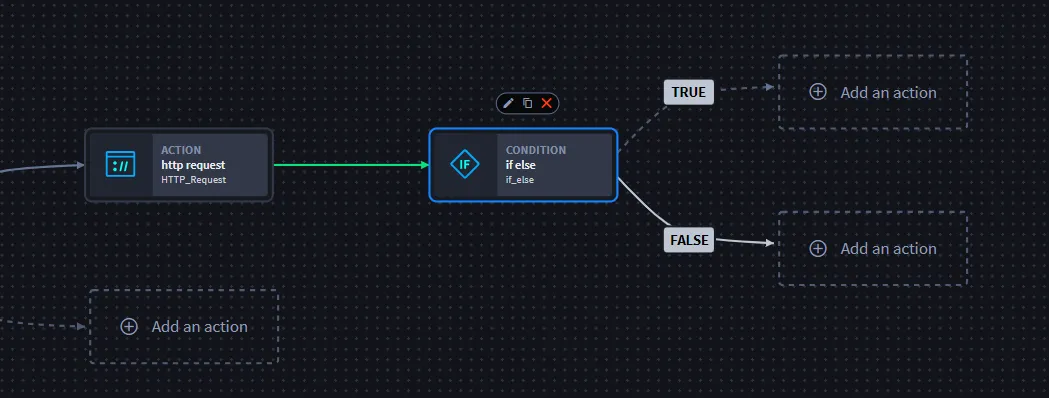
Let's create an if/else conditional statement.
- From the playbook, click Add an action and select the Condition native action.To make configuration simpler, the TRUE and FALSE logic paths display immediately. To the right, the Condition pane shows the title, description, and advanced settings drop-down.
Click Edit Condition to open the window that allows you to enter the logic for your conditional statement.
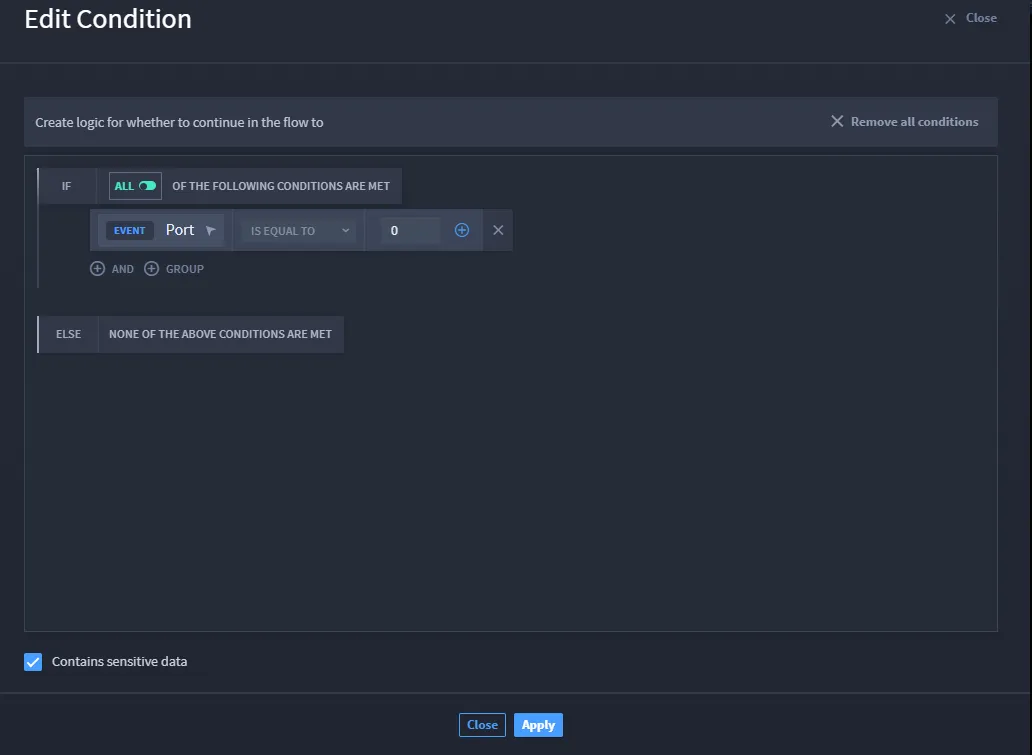
- If your data has any sensitive information, you can mark as sensitive by clicking the Contains sensitive data checkbox. The data is not shown in the UI or in the logs.
- Click Apply to save changes.
Now the dotted line is solid, reflecting that you have configured the condition.
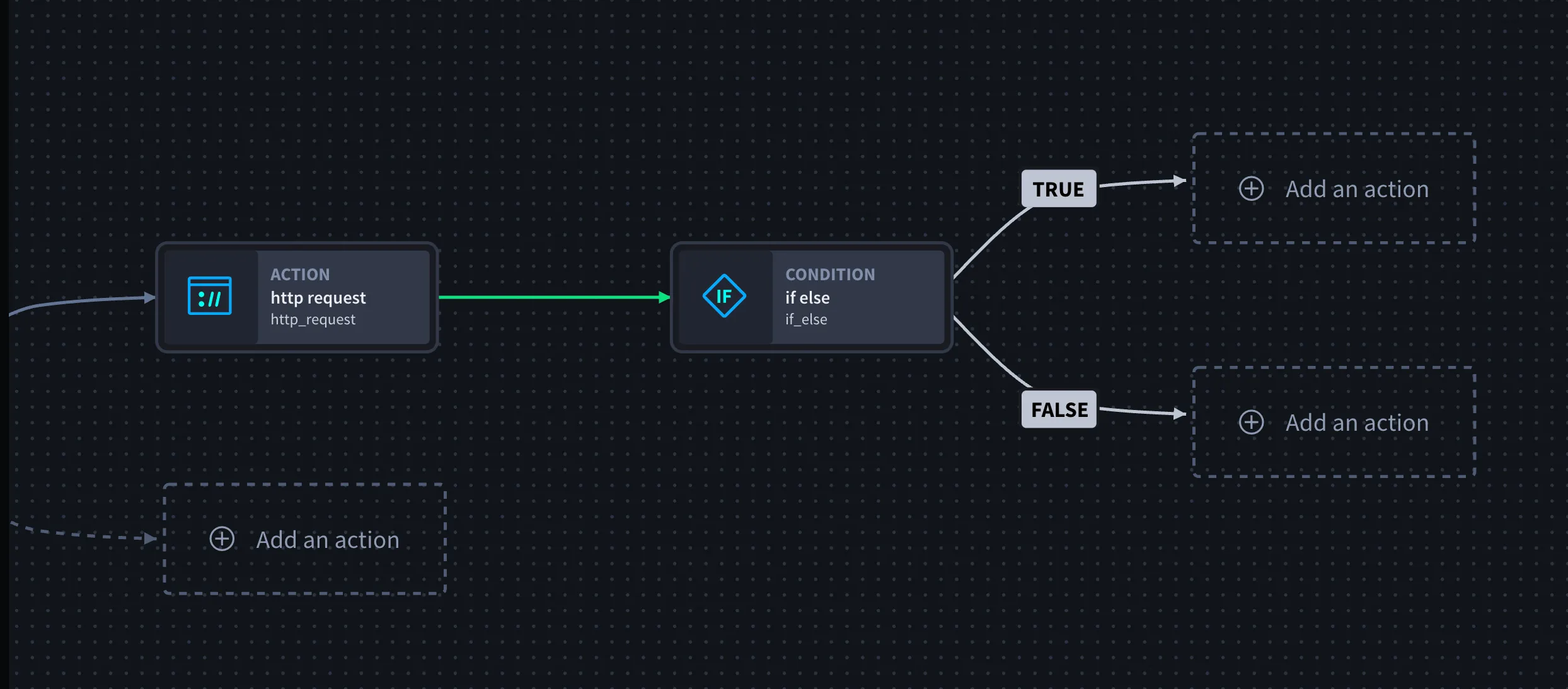
- If you edit the Condition action with the desired logic and those criteria are not met, then the condition is FALSE.