Webhook Triggers
Webhooks are a type of event stream that enables products, vendors, or services to push real-time communication in Turbine. They process and enrich data to send from third-party services and platforms to Turbine records.
Click Save or Save and Close after making changes.
View Existing Webhooks
To view existing webhooks:
- Navigate to ORCHESTRATION.
- Click Webhooks.
From here you can toggle the Enabled button to enable or disable the webhook, or click the desired webhook to view settings and log information.
Create Webhook Triggers
To create a webhook trigger, create a new playbook, upload a playbook, or search for an existing playbook.
- On the playbook, click Add a trigger.
- Click Catch Webhook.
On TRIGGER, enter a webhook title and click Generate URL or the webhook will not be created.
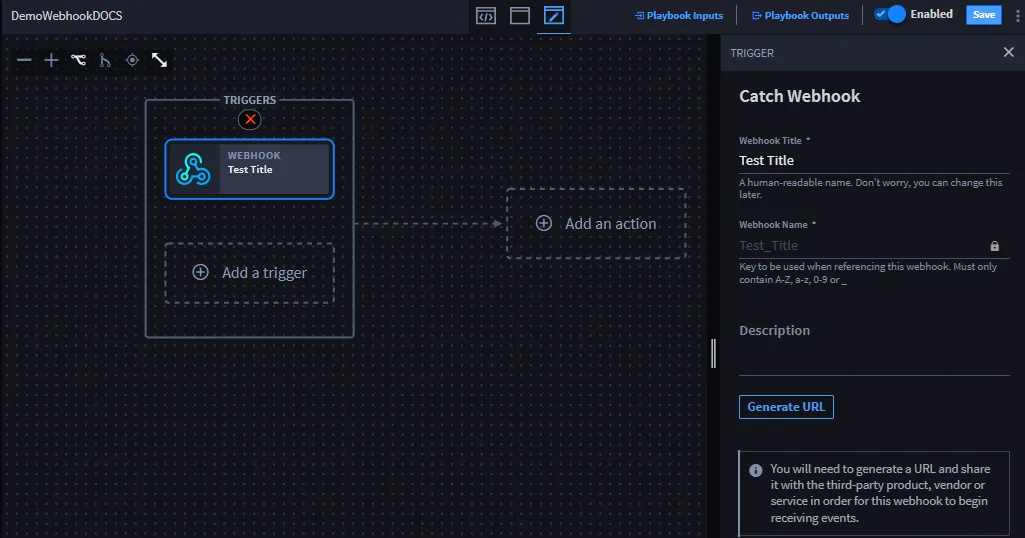
Once the Generate URL button has been clicked, the webhook's URL is generated in the Webhook URL field and the Copy URL link is enabled.
Next, you can edit the webhook settings.
Edit Webhook Settings
To change webhook settings:
On TRIGGER, click Edit Webhook.
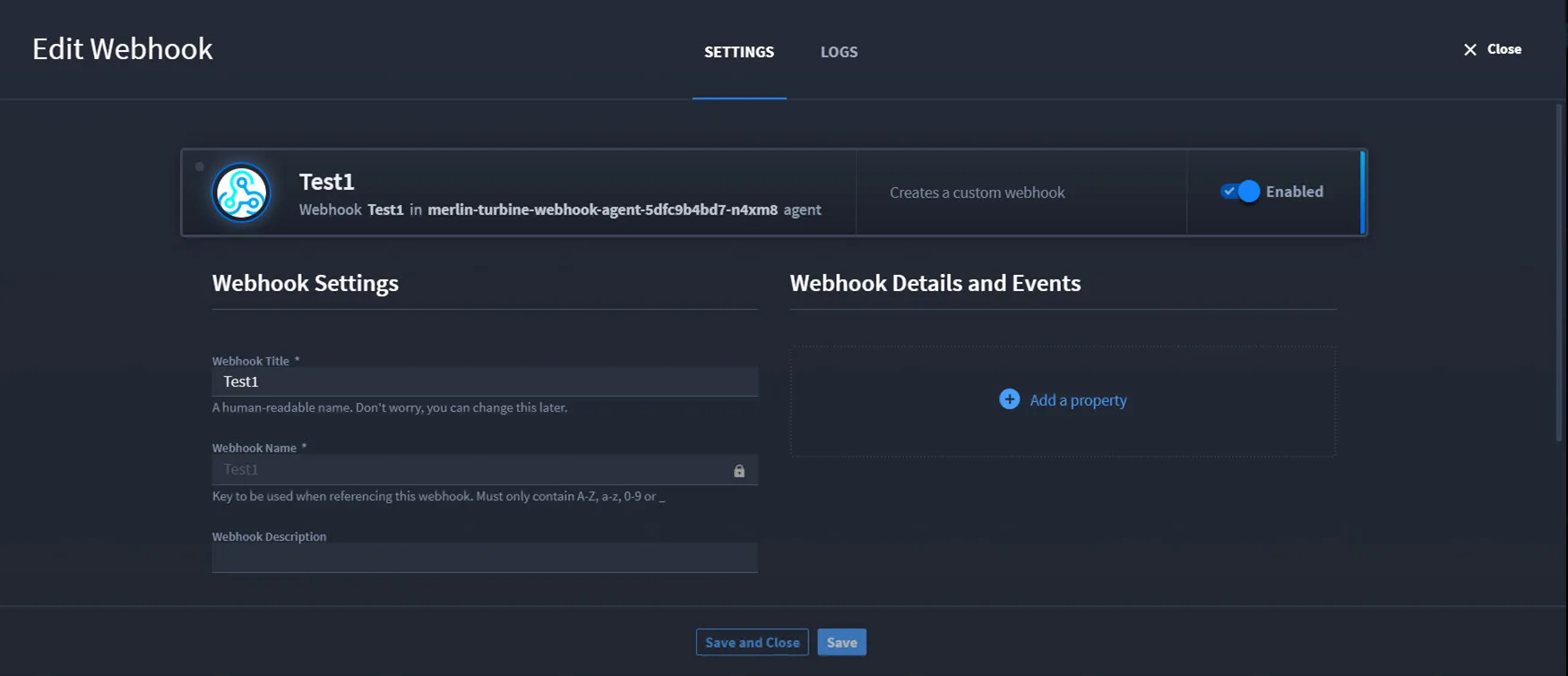
On the SETTINGS tab, you can update the webhook title, add properties to authenticate the webhook requests, copy the URL, and enable/disable the webhook.
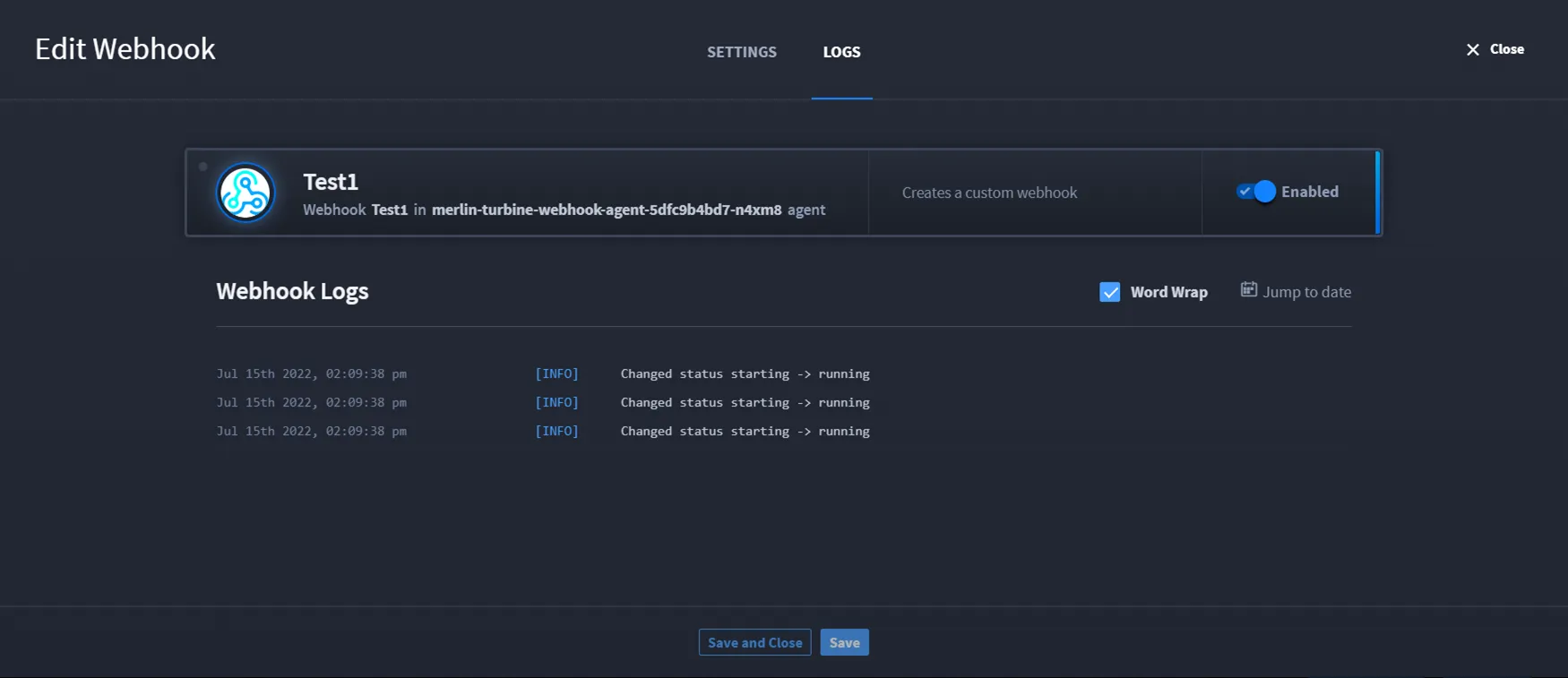
On the LOGS tab, you can view the webhook logs, view by date, and enable/disable the webhook.
- Click Save and Close to save updates.If you do not need to edit your webhook, you can go straight to configuring.
Configure Webhooks
Review Create and Edit Playbook InputsCreate and Edit Playbook Inputs before configuring webhooks for best practices.
You're ready to start the configuration process for your webhook. Click Configure to get started. The webhook configuration window has three tabs: Webhook Events, Outputs, and Map to Playbook Inputs.
Webhook Events tab
This tab shows the Event Type with a drop-down arrow, which shows you the webhook details, the result, and discovered outputs. Navigate to Discovered Outputs and TestingDiscovered Outputs and Testing for details on how to view and/or add discovered outputs, the agent/host for that webhook, the time the webhook was last received, and the numbered of triggered playbooks related to that webhook.
Outputs tab
This tab shows you all the outputs from the webhook. These are default property types. If you added any discovered outputs, then they show up with the Delete hyperlink. Any property types without that Delete hyperlink are part of the original returned inputs from the webhook.
Map to Playbook Inputs tab
Remember the important note on reviewing Create and Edit Playbook InputsCreate and Edit Playbook Inputs for best practices? That is because on this tab, if you do not see any inputs, it's because your playbook currently does not have any inputs. You can add them, and they will display on this tab. And just like the action inputs, you can click Add a property to see the drop-down menu. You can add a playbook property or expression. Selecting Playbook property opens the property drawer where you can select the desired property to map.
Filter tab
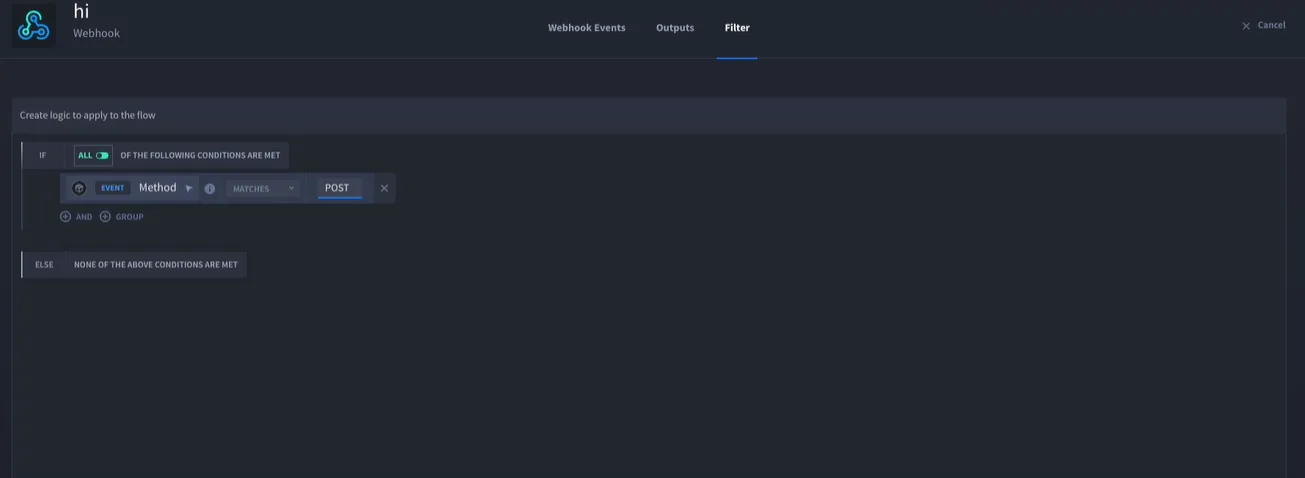
The Filter tab allows you to apply a condition on event triggers allowing you to prevent the playbook execution unless the criteria is met. You can select a condition type from the drop-down next to MATCHES.
$event.data Properties
Here is the list of top-level properties that are defined on the $event.data object:
- url (object): The URL components of the request.
- href(string): The full URL of the request.
- protocol(string): The protocol used for the request.
- hostname(string): The hostname of the request.
- port(integer): The port of the request.
- pathname(string): The pathname of the request.
- query(object): The query parameters of the request as key/value pairs.
- hash(string): The hash of the request.
- headers (object): The headers of the request as key/value pairs.
- body (null|array|boolean|number|object|string): The JSON body of the request.
Authenticate Webhooks
To configure webhook authentication settings:
- On TRIGGER, click Edit Webhook.
On the SETTINGS tab, click Add a property, then click Authentication.
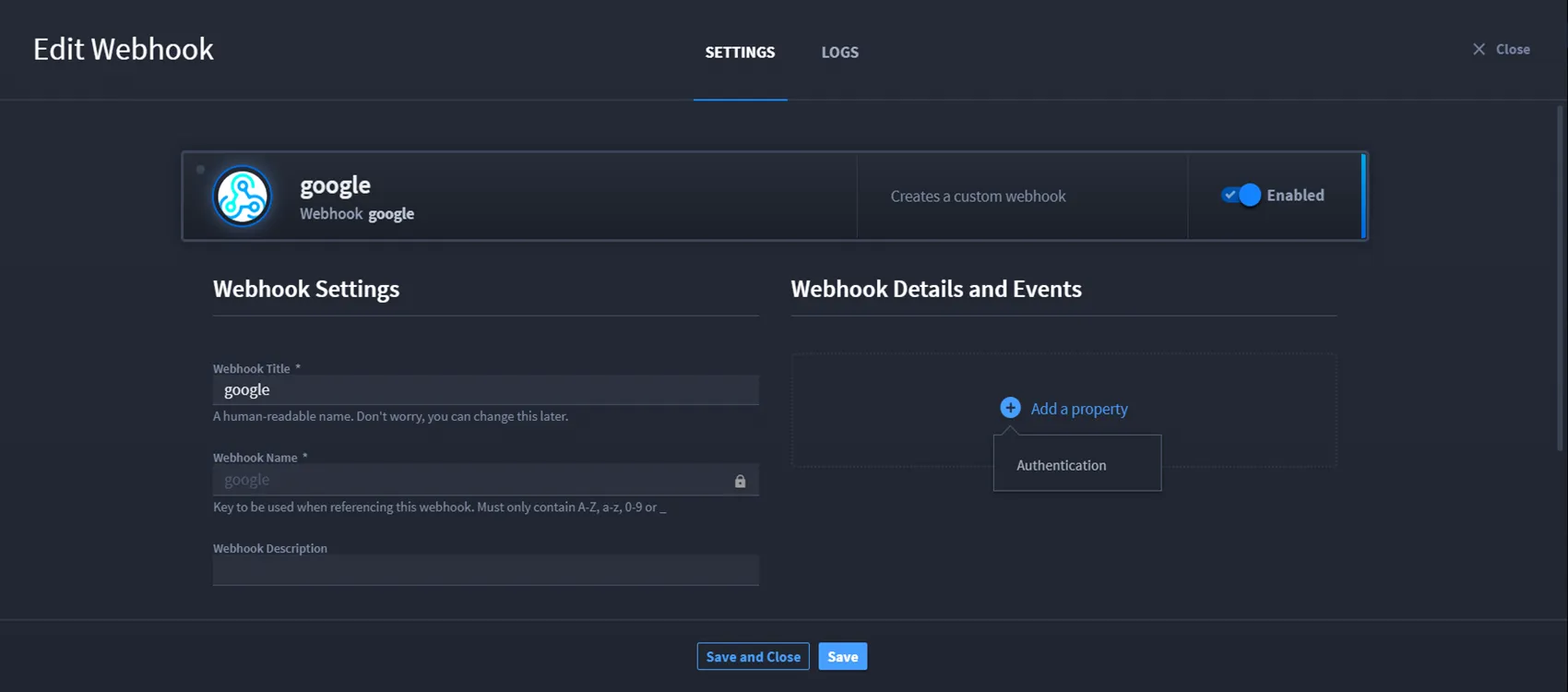
The Authorization property displays with a sub-property option.
Basic Authentication
- Select Basic Authentication.Basic authentication specifies the credentials to be sent in and verified from the Authorization header using the basic authentication scheme.
Complete the Username and Password fields, and click Save.
Mirror the username and password with your third-party system.
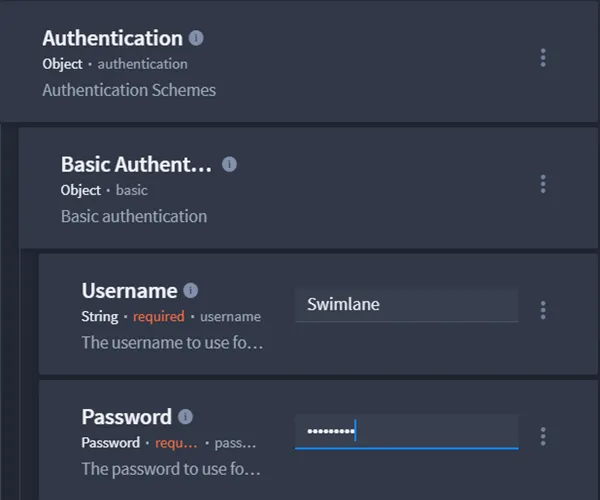
- To remove basic authentication, click the vertical ellipsis, then click Remove.
Shared Secret Authentication
- Select Shared Secret Authentication.Shared secret authentication specifies the credentials to be sent in and verified from one of the following locations in the webhook requests: header, body, or query parameter.
Complete the Secret, Secret Format, and Secret Location fields.
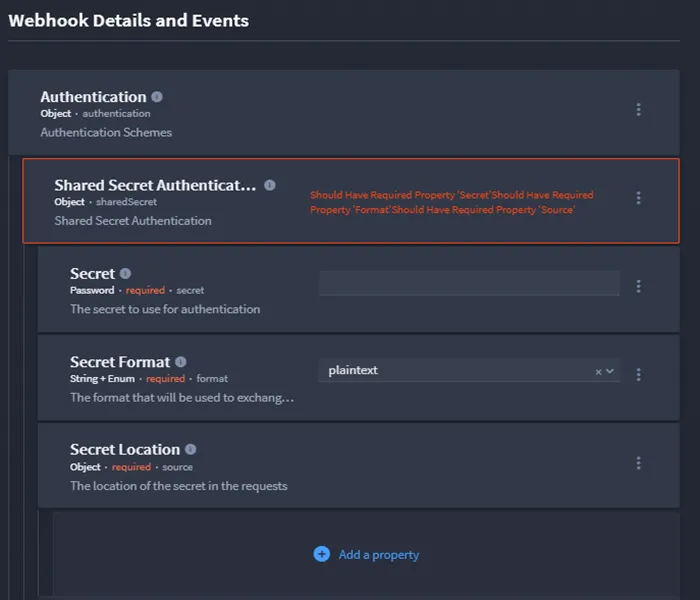
- To complete the Secret Location, click Add a property.
- From the drop-down menu, select one of the following properties:
- Request Body – extract the secret (Password) from the request body.
- Request Header – extract the secret (Password) from the request header.
- Request Query Parameter – extract the secret (Password) from a query parameter.
- To remove these properties, click the vertical ellipsis, then click Remove.
View Webhook Logs
- On TRIGGER, click Edit Webhook and then click the Logs tab.
- You can:
- View the logs.
- Enable or disable the webhook.
- Filter by date using Jump to date.