Create and Edit Playbook Inputs
Playbook inputs normalize data coming into the playbook. Even when coming from multiple triggers. Your playbook can have multiple playbook inputs.
Configure Playbook Inputs
Let's see how we configure inputs. Create a new playbook or upload an existing playbook, then follow the steps below:
From the playbook toolbar, click Playbook Inputs.
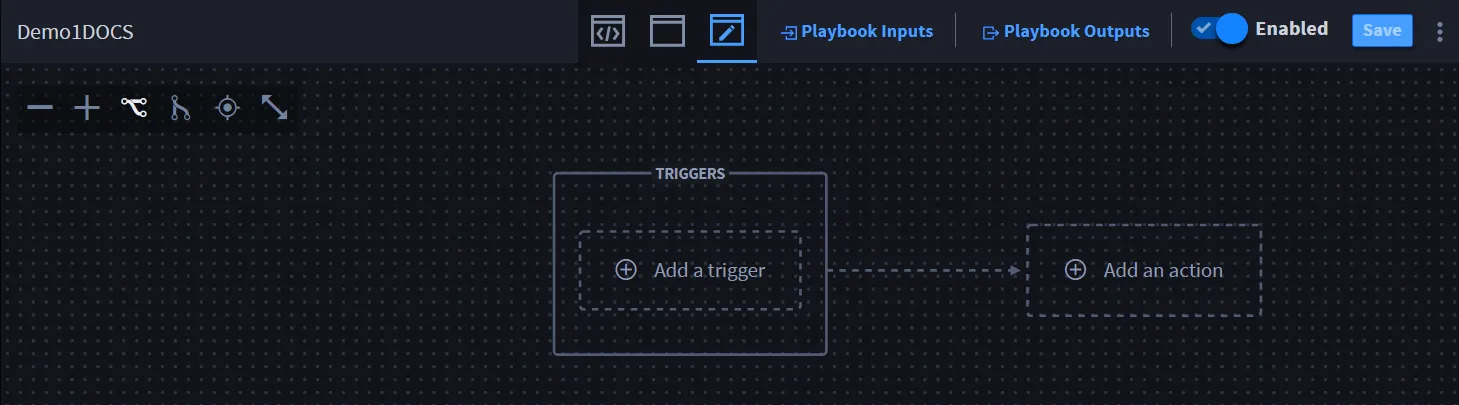
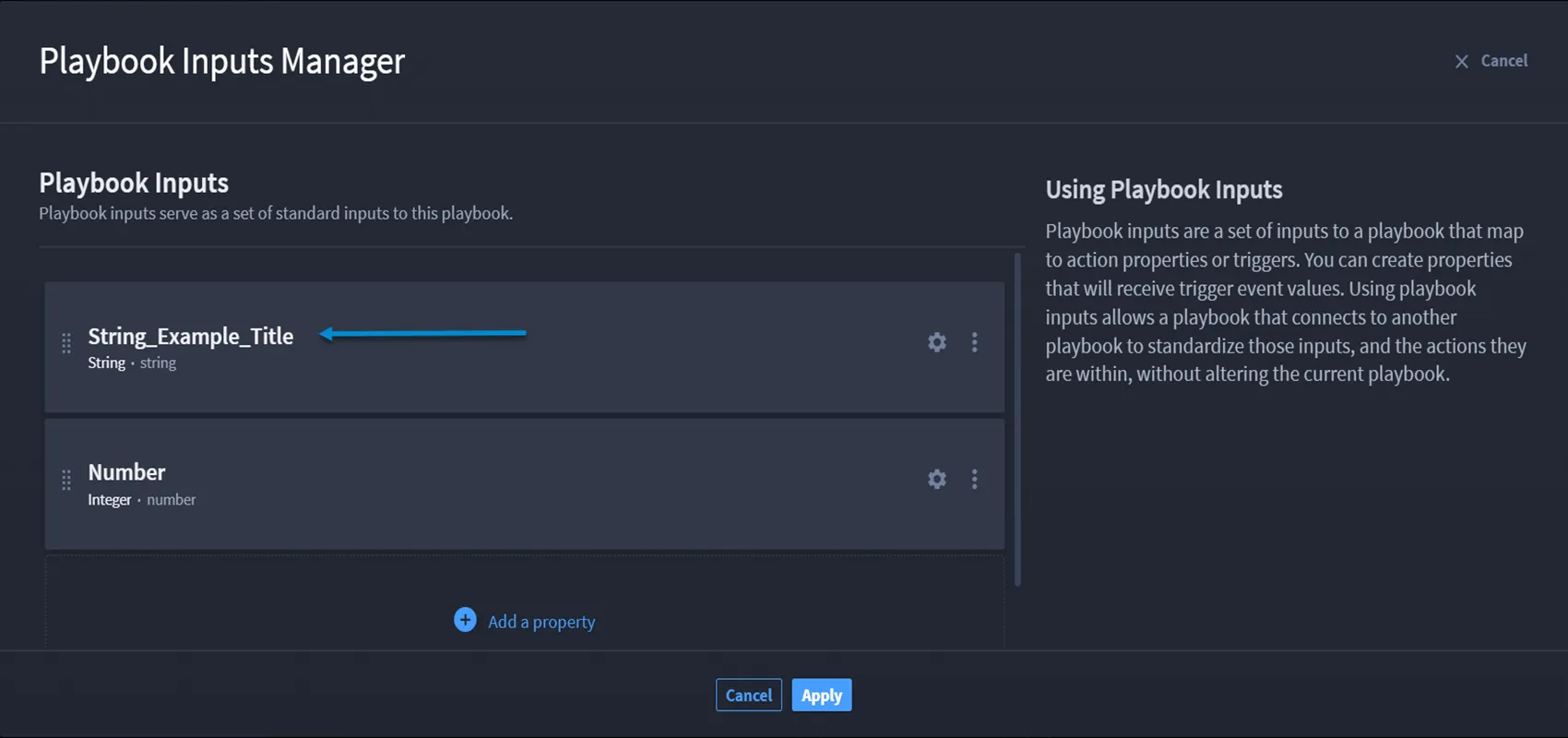
The Playbook Inputs Manager window opens.
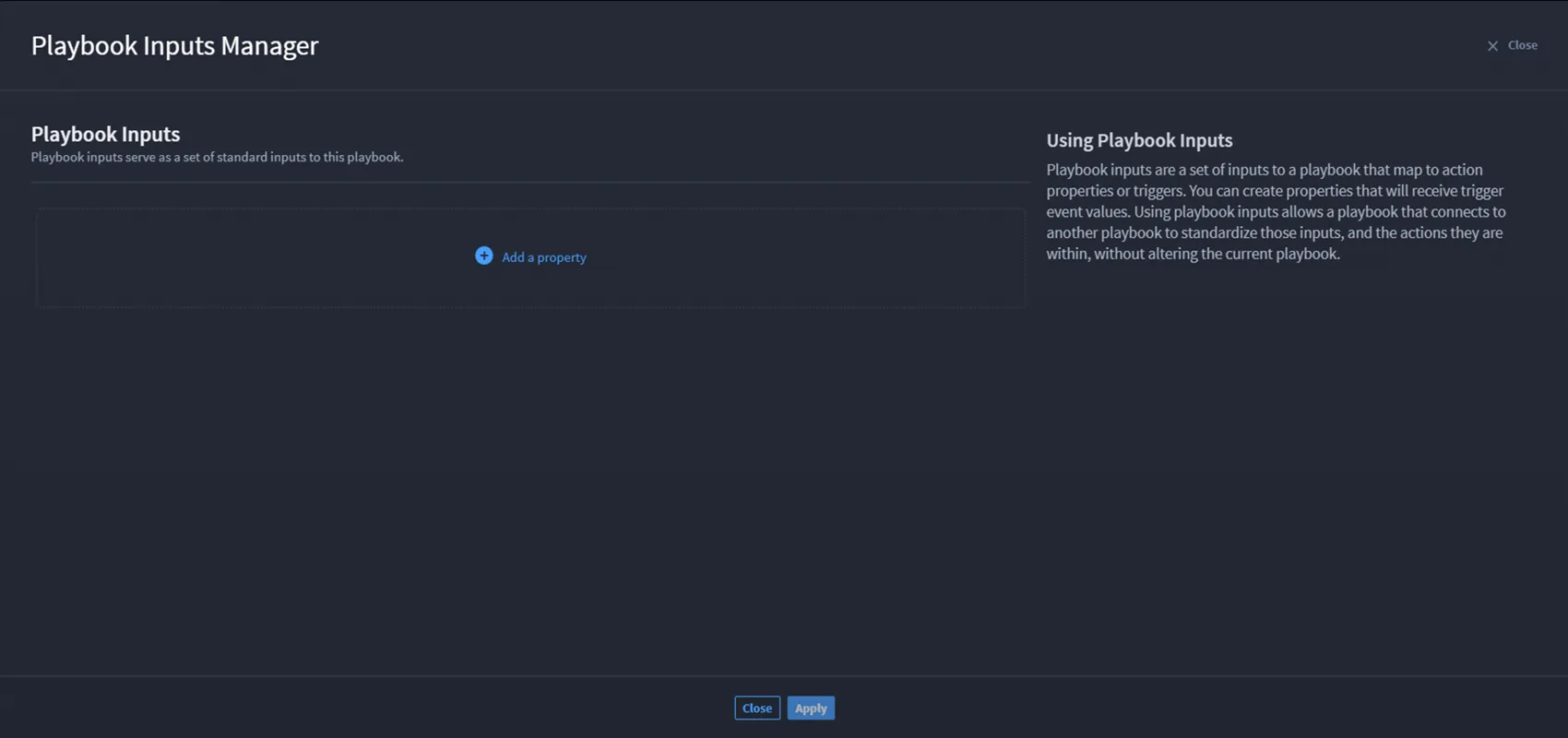
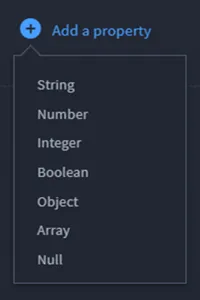
Click Add a property to view the list of properties available for you to map.
- From Property Configuration, configure the selected property.
On the GENERAL tab, enter the appropriate data.
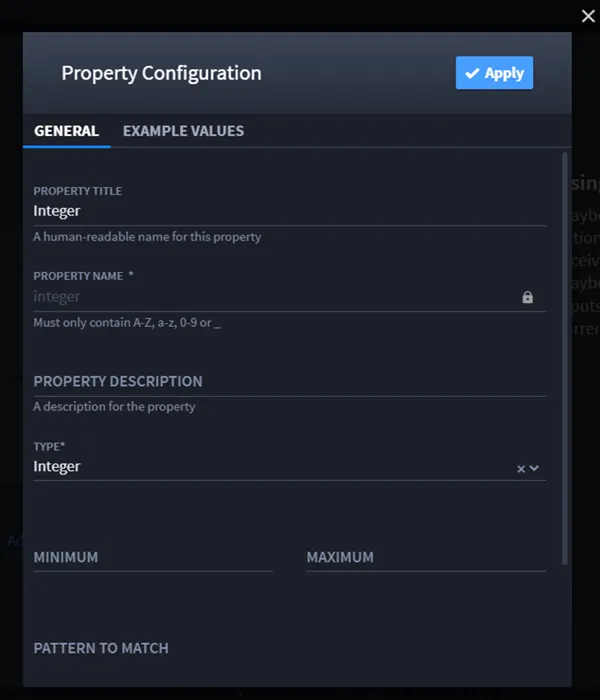
- Click Apply.
Depending on the type of trigger, you may need to map properties to the created playbook inputs, or use dot notation to extract data, and then map the properties.
Edit Playbook Inputs
Create a new playbook or upload an existing playbook, then follow the steps below:
From the playbook toolbar, click Playbook Inputs.
The Playbook Inputs Manager window opens.
- To edit, select a property, and click the gear icon.The Property Configuration window opens.
Make your modifications and click Apply.
That was easy!
Configure Concatenation for Strings without Formats
Concatenation allows you to add context to a playbook input property. Turbine currently supports concatenation for the following property type without formatting:
- String
Concatenation only works with string properties that do not have a format (for example, API keys would not be used).
The property types Date, Date & Time, and Password are string inputs; however, they are formatted. Therefore, you cannot create a string concatenation using those properties.
Before configuring concatenation, ensure you complete (as needed):
- Configure action inputs
- Configure connector properties
- Select assets
Now, create a concatenation for strings without formats:
From Action Inputs, in the desired property field, click + select a property.
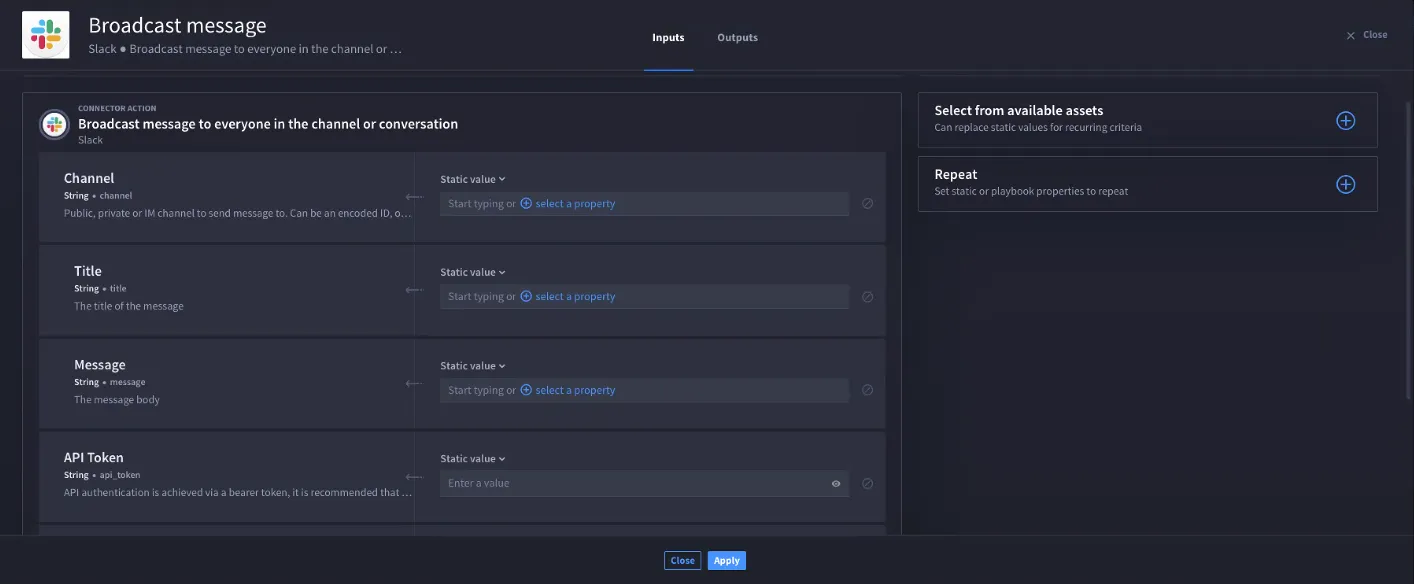
- Click Playbook Inputs.
- Add a playbook input.
Configure a playbook input for the string.
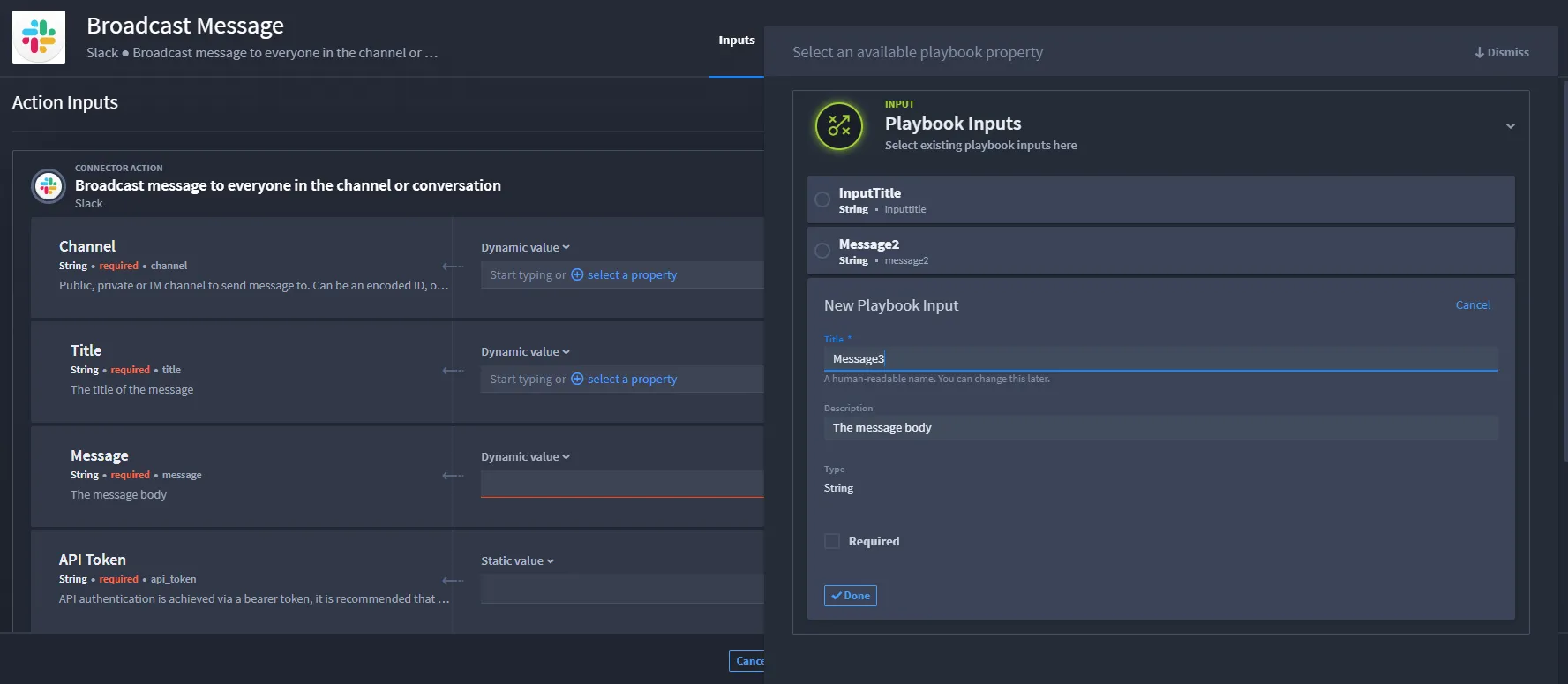
Click Done, then select the playbook input you configured.
The input displays as a token in the appropriate field.
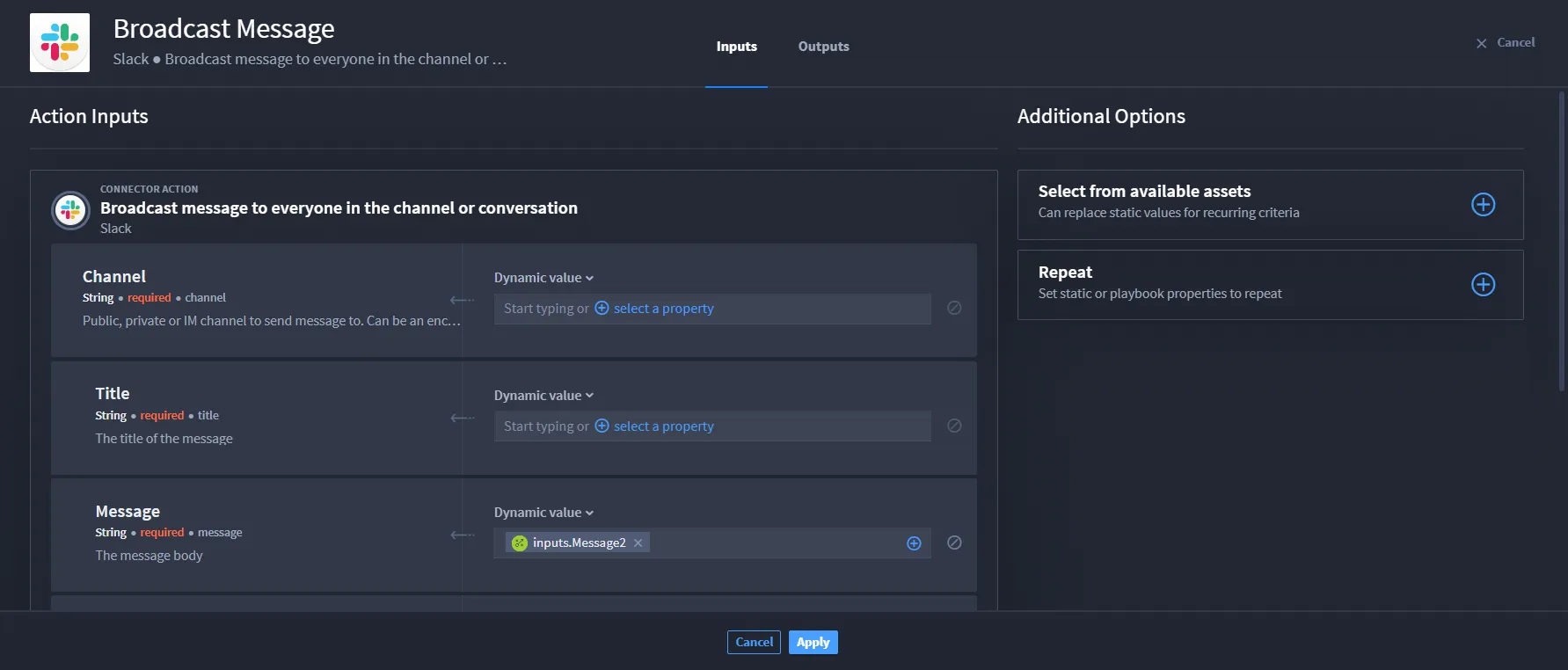
Next to the token, enter text, for example: world!
The token and static value text display as string concatenation.
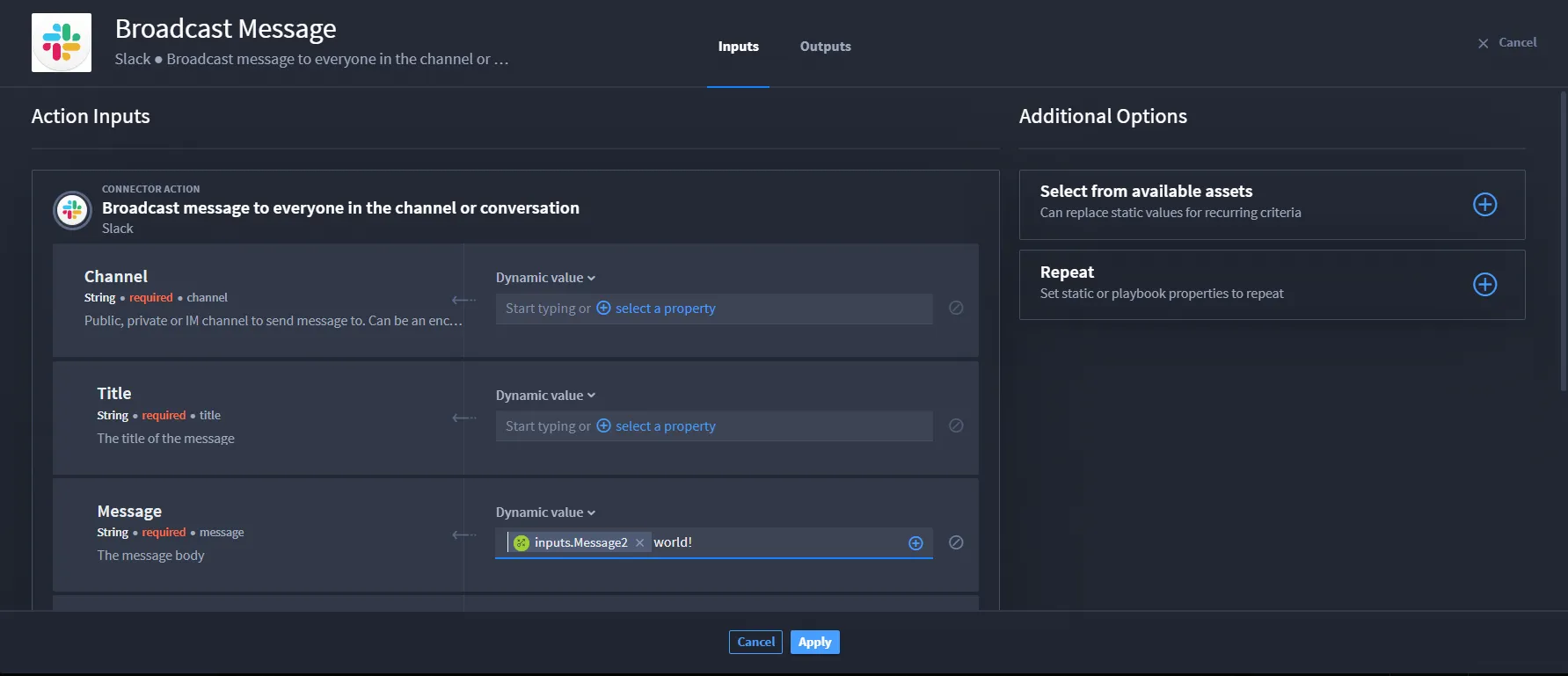
You have successfully created a string concatenation!
See String Concatenation use case for an example of executing string concatenation.
Need to make changes to your playbook inputs? Go to the next section to see how to apply and remove playbook inputs.