User Content Homepage
The homepage displays a list of content packages, along with the ability to Push and Pull changes with Git integration if a remote repository is configured.
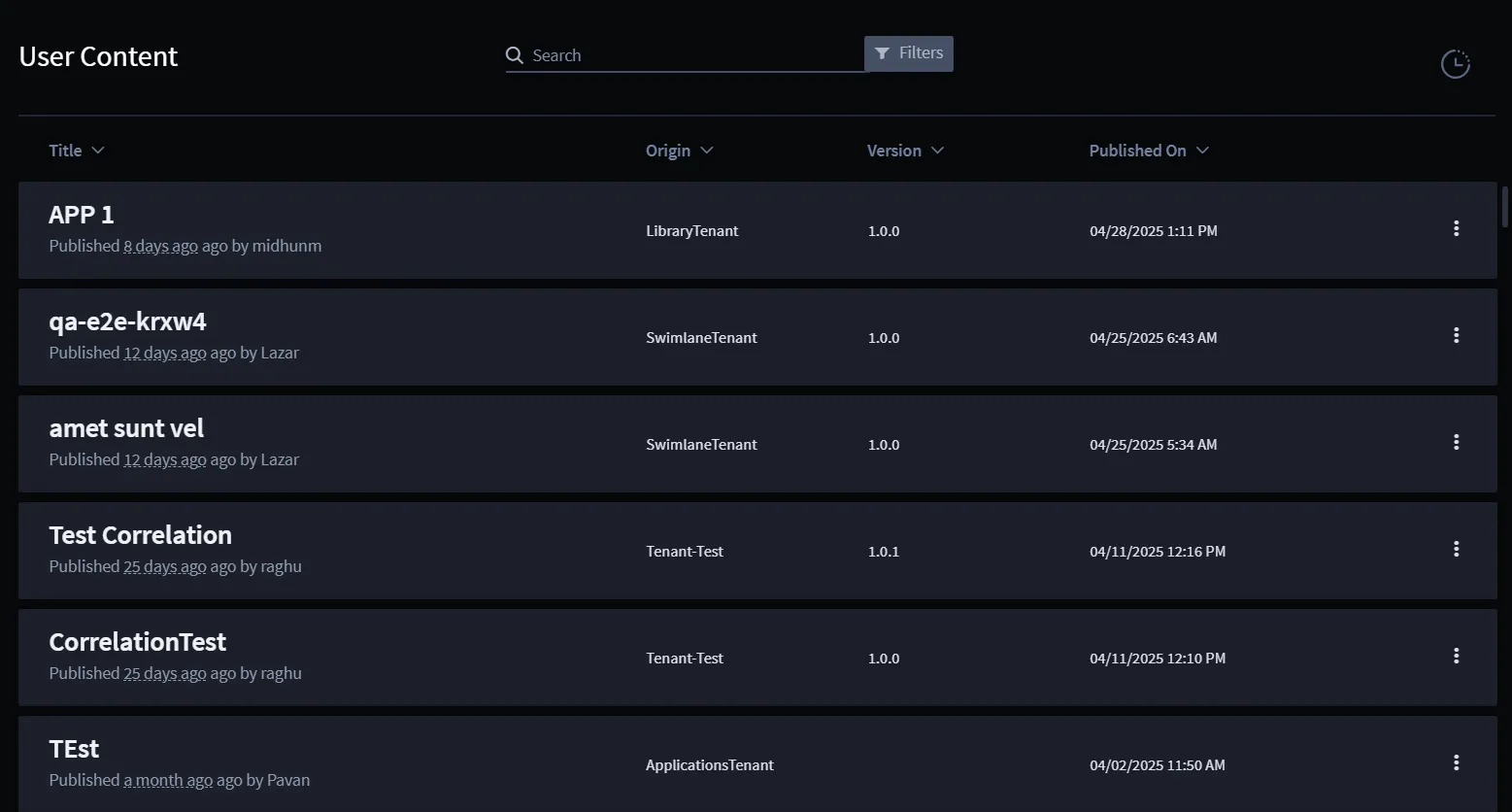
Here’s what is displayed:
- Title: The name of the content package .
- Origin: The originating tenant where the content was published or shared from.
- Version: Displays the version of the published content. The Version displays version information only for content published from version 25.1.0 onward. For SSPs published before this version, the field appears empty. However, performing a revert operation on such SSPs will populate version information for their earlier publishes.
- Published On: The date and time the content was published.
New with Git Integration: Push and Pull Content.
The Push and Pull buttons are enabled only if Git integration is enabled and if a remote repository is set.
- Push : After publishing content into your Library, click the Push button in the top right to commit and push the changes to your connected remote repository.
- Pull : Retrieve updates from the remote repository by clicking the Pull button. This will sync the latest changes from the repository into your Swimlane Turbine library.
Ellipses Menu Options
Clicking on the ellipses (⋮) next to each content item opens additional options:
- Details : View detailed information and description about the content package and what it contains.
- Version History : Review the history of changes made to the content, allowing you to track updates and revert to previous versions if necessary.
Pull Changes from a Remote Repository
- Click the Pull button located at the top-right corner of the Content tab to start pulling the latest changes from the remote Git repository. Pull button is not displayed when remote repository is not configured. It also displays the number of commits the remote repository has. If there are no differences between the two repositories, when you hover the mouse on the button it displays there are no changes to pull.
- If there are any merge conflicts between the remote repository and your Turbine Library, a Merge Conflict dialog will appear. The dialog lists the list of affected content and provide options:
- Keep Library changes: Retain the current version in your Turbine Library.
- Keep remote changes: Use the version from the remote Git repository.
- Click Apply to resolve conflicts with your selected option.
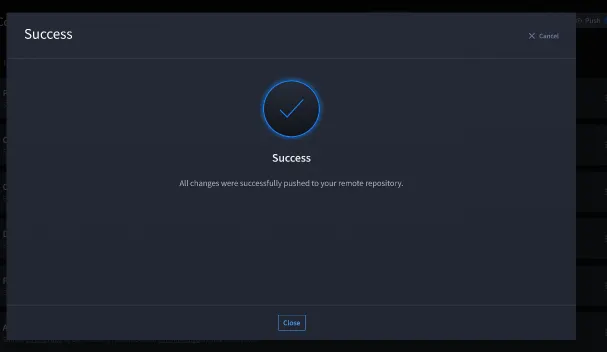
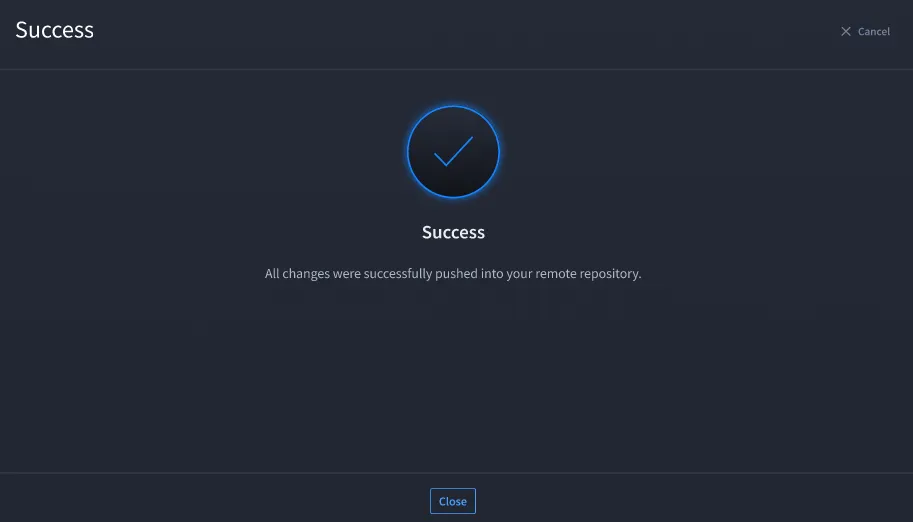
- Once the process is complete, a Success message confirming that all changes were successfully pulled into your Library is displayed.
Click Close to finish the process.
Push Changes to a Remote Repository
(Same here, need to add details: - the "Push" button will not display when the remote repository is not configured. It will also display the number of commits that the local repository have that the remote repo do not. If there are no differences between the two repos, on hover the button will say "there are no changes to push."
- When a remote repository configured, click the Push button located at the top-right corner to start pushing changes in your Turbine library to the remote repository.
- A progress dialog appears to show the status of the push.
- If there are any merge conflicts between the remote repository and your Turbine Library, a Merge Conflict dialog will appear. The dialog will list the affected content and provide options:
- Keep Library changes: Retain the current version in your Turbine Library.
- Keep remote changes: Use the version from the remote repository.
- Click "Apply" to resolve conflicts with your selected option.
- Once the process is complete, a Success message confirming that all changes were successfully pulled into your Library is displayed.
Click Close to finish the process.
Resolving Merge Conflicts in Swimlane Turbine
Merge conflicts in Swimlane Turbine are rare but can occur in the following situations:
- The remote repository is modified outside of Swimlane Turbine, such as via direct commits or edits made in GitHub or GitLab.
- The repository is shared across multiple Turbine accounts, and concurrent changes lead to inconsistencies during push or pull operations.
Unless one of these scenarios occurs, conflicts are unlikely during regular use.
Conflict Resolution in Swimlane Turbine
Swimlane Turbine resolves merge conflicts at the application (package) level. When multiple content items have conflicts between the Turbine Library and the remote Git repository, the conflict resolution dialog presents each item individually.
For each conflicted application, you can:
- Keep local changes: Retain the version currently in your Turbine Library.
- Keep remote changes: Accept the version from the remote repository.
Each option is accompanied by metadata to help inform your decision, including:
- Last Published Time
- Published By (username)
Each conflicted item supports independent resolution using local or remote changes, with contextual metadata displayed.
Steps to Resolve Merge Conflicts:
- Trigger Conflict Detection: During a push or pull operation, if any conflicts are found, a Merge Conflict dialog will appear.
- Review Conflicted Items: All applications with detected conflicts will be listed individually in the dialog. You will see the local and remote versions side by side, along with metadata such as last published time and user.
- Choose a Resolution for each item:
- Keep local changes: Preserve the version in your Turbine Library and overwrite the remote version.
- Keep remote changes: Accept the version in the Git repository and discard your local version.
- After making selections, click Apply to resolve the conflicts.
- Complete the Operation: Once conflicts are resolved, the system continues the push or pull operation to synchronize your content.
Key Considerations:
- Application-Level Resolution: Conflicts are resolved per application or package. Line-by-line resolution is not currently supported.
- Change Tracking: Metadata such as timestamps and authorship help clarify which version to keep in complex scenarios.
- Conflict Rarity: Merge conflicts are most likely in environments with shared repositories or manual remote changes.
Handling Errors in Swimlane Turbine During Git Operations
When pushing or pulling changes to/from a remote repository in Swimlane Turbine, you may encounter various errors. Below are common errors and their respective handling instructions:
Error | Cause | Solution |
|---|---|---|
Unable to Connect to Remote Repository | This error typically occurs when the repository credentials are incorrect or missing. |
|
500 Internal Server Error | This error is likely due to server issues on the repository side or connectivity problems. | |
Unable to Connect to Remote Repository | This error is likely due to server issues on the repository side or connectivity problems. | |
Unable to Connect to Your Remote Repository (Push Failure) | Any unexpected errors that has occurred in the system | |
Unable to Connect to Your Remote Repository (Pull Failure) | Any unexpected errors that has occurred in the system | |
Content Published Locally but Remote Sync Failed | The content was successfully published locally, but there was an error syncing with the remote repository. | |
Content Deleted Locally but Remote Sync Failed | The local deletion was successful, but the change could not be synced to the remote repository. | |
Unexpected Error Occurred | This error is likely due to server issues on the repository side or connectivity problems. | |
Understanding the Content Details Tab
The Details tab within a content package in User Content provides a comprehensive overview of content package. Following are the key features of the Details tab:
- Title: The name of the content (for example, CSC - Update Invoking Record).
- Created Date: The date when the content was originally created (for example, 02-01-24).
- Description: A detailed description or summary of the content. This is used to explain the purpose and key details of the content.
- Workspace Overview (at the top):
- Displays a summary of content items associated in the package , such as:
- Workspaces: The number of workspaces linked to this content (for example, 1).
- Playbooks: The number of playbooks associated with this content (for example, 2 in one area and 3 in another).
- Components, Assets, Applications, Applets, Reports, and Dashboards: Lists the numbers of these items linked to the content.
Understanding the Package Contents Tab
The Package Contents tab provides a detailed breakdown of the entities included within the selected content item, such as playbooks, webhooks, workspaces, reports, and more. This tab allows users to see all associated entities at a glance.
The Package Contents tab allows administrators and users to quickly view all the assets and resources tied to a specific content item, making it easy to understand how the various entities work together.
Understanding the Version History Tab
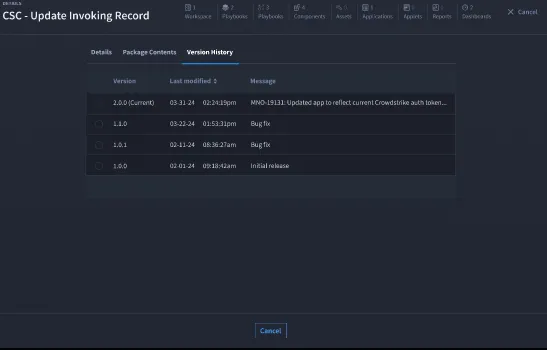
The Version History tab provides a record of all the versions associated with a particular content item. This tab allows users to track the changes made over time, review past modifications, and, if necessary, revert to a previous version.
Key Features of the Version History Tab:
- Version Number:
- Each version is labeled with a specific number (for example, 2.0.0, 1.1.0).The current version is clearly marked, helping users easily identify the latest version in use.
- Last Modified:
- This column displays the date and time when each version was last modified (for example, 03-31-24, 02:24:19pm).
- It helps users track when changes were applied.
- Message:
- This column provides a brief message or description of the changes made in each version (for example, Bug fix, Initial release, or more detailed change notes like Updated app to reflect current Crowdstrike auth token).
- These messages give insight into the purpose of each update, whether it was for a bug fix, new feature, or enhancement.
Version Selection: Users can select a previous version if they need to review or restore it.
Deploying Content to Tenants
Swimlane Turbine provides a secure method for deploy a content in the Turbine Library to tenatns. Below is a step-by-step process for deleting content:
Steps to Deploy a content:
- Navigate to the content you wish to deploy and click Deploy from the list.Deploy window is displayed.
- From the list of tenants, select the tenant where you want to deploy by clicking Deploy to tenant.
- Select the components you would like to deploy.
- Click Deploy.
Reverting Content in Swimlane Turbine to a Previous Version
The Version History tab within a content package in Swimlane Turbine provides the option to revert content to a previous version if necessary. This feature allows you to undo updates and restore content to a specific earlier version while maintaining a clear log of changes.
Steps to Revert Content:
- Select a Version:
- In the Version History tab, select the version you want to revert to by clicking the corresponding radio button (for example, version 1.1.0).
- Click Revert:
After selecting the desired version, click the Revert button.
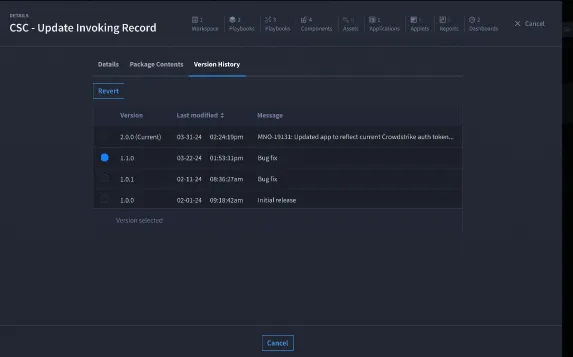
- A dialog will appear with a summary of the version selected, the current version, and additional details (for example, commit message for the current version).
- Provide a Reason for Reverting:
- In the Additional Information section, provide a reason for reverting the content (for example, Content reverted in Library).
- User will also have the option to revise the new version number associated with this change.
This reason will be logged and tracked for future reference.
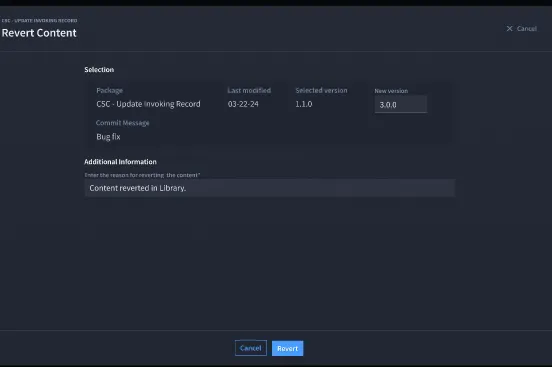
- Confirm Reversion:
- Click Revert to proceed with the action.
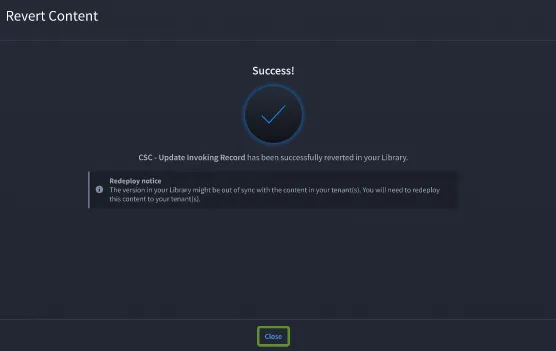
- Once the content is reverted, you will see a success message indicating:Success! The content has been successfully reverted in your Library.
Redeploy Notice: After reverting, you may see a Redeploy notice, indicating that the version in your Library might now be out of sync with the content in your tenants. You will need to redeploy the reverted content to your tenants.
Deleting Content in Swimlane Turbine
Swimlane Turbine provides a secure method for deleting content in the Turbine Library, ensuring that users understand the implications of the action and provide a reason for deletion. Below is a step-by-step process for deleting content:
Steps to Delete Content:
- Initiate Deletion:
- Navigate to the content you wish to delete (for example, CSC - Update Invoking Record).
- Open the delete option from the menu.
- Enter a Reason for Deletion:
- The Delete Content dialog box will appear, requiring you to provide a reason for deleting the content.
- Enter reason for deleting content: There is no default message for deletion, so the user must manually enter the reason. This helps in tracking the context for deletion in logs and reports.
The Delete button remains disabled until a reason for deletion is provided.
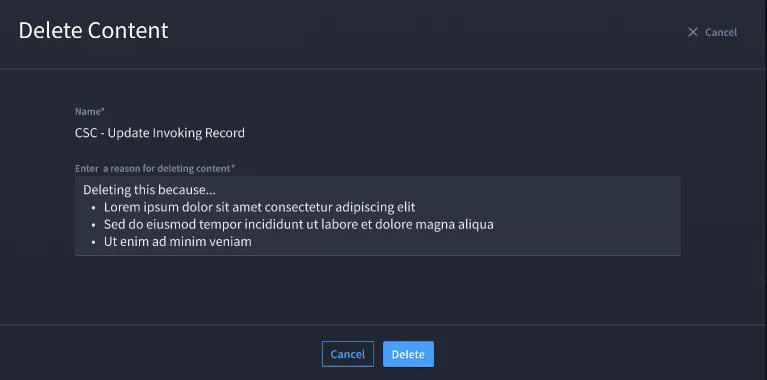
- Confirm Deletion:
- After entering the reason, click Delete to proceed.
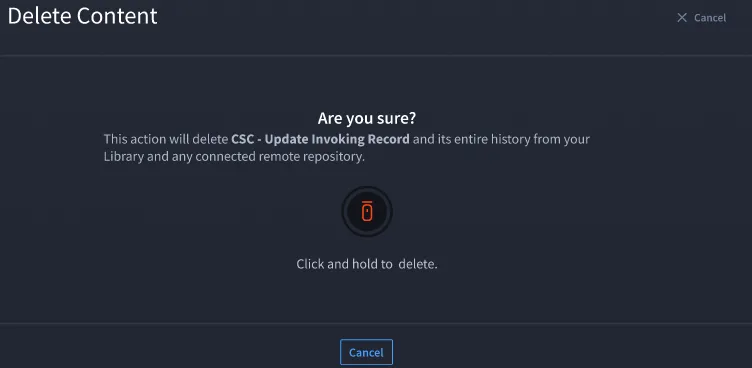
- A confirmation dialog will appear, stating that the action will delete the content and its entire history from your library and any connected remote repository.
Click and hold the delete icon to confirm the action.
- Successful Deletion:
- After confirmation, a success message will appear indicating:Success! The content was successfully deleted.
Resetting the Turbine Library to a Previous Version
Swimlane Turbine allows users to reset their entire content library to a previous point in time. This feature is useful when a user needs to revert the library to a specific state, undoing any subsequent changes. Below are the steps for resetting the library.
Steps to Reset the Library:
- Access Library History: Click on the icon to Navigate to the Library History. This section shows all commit activities or changes made to the library along with the user who made the changes, the commit message, and the date of modification.
- Select the Commit: Select the commit at the point in time to which you want to reset the library. You can only select one commit at a time, and all other rows become disabled once a selection is made.
- Click Reset:
- Click the Reset button to begin the process. A dialog box will appear with information about the selected commit, including the date and commit message (for example, Bug fix).
- A warning message will appear stating that resetting will reset the Library to its previous state , and any changes made after the selected time will be reverted .
- Provide a Reason: Enter a reason for resetting the library in the Additional Information field. This will be logged to maintain a clear record of why the reset occurred.
- Confirm the Reset: To confirm, click and hold the reset button. A message will appear asking if you are sure you want to reset the library, along with the date and time of the selected version.
- Success Notification:
- After successfully resetting the library, a success message will appear:Success! Your Turbine library has been reset to its state as of {selected date and time}.
- A redeploy notice will appear, indicating that your content might be out of sync with tenants. You will need to manually redeploy the content to each tenant.
By combining these features with the Git integration options, you can now easily manage, track, and version control all of your Turbine content across tenants and environments.
See Publish PlaybookPublish Playbook and Publish ComponentsPublish Components for details on how to publish either from their respective canvas's and homepages.