Playbooks
Term | Definition | Characteristics |
|---|---|---|
Playbooks | A series of well-defined triggers, logic, and actions that automate a workflow. |
|
Benefits of Playbooks
- Efficiency: Automates repetitive tasks, saving time and reducing human error.
- Consistency: Ensures that tasks are performed the same way every time, leading to reliable and predictable outcomes.
- Scalability: Can handle increasing volumes of tasks and data without adding manual effort.
- Customizability: Playbooks can be tailored to specific workflows and needs.
- Seamless Integration: Playbooks can integrate with external systems and services, automating actions based on real-time data inputs.
As an orchestrator, you can use playbooks to help automate processes and workflows, avoiding manual and repetitive configurations for security events.
Playbook Architecture
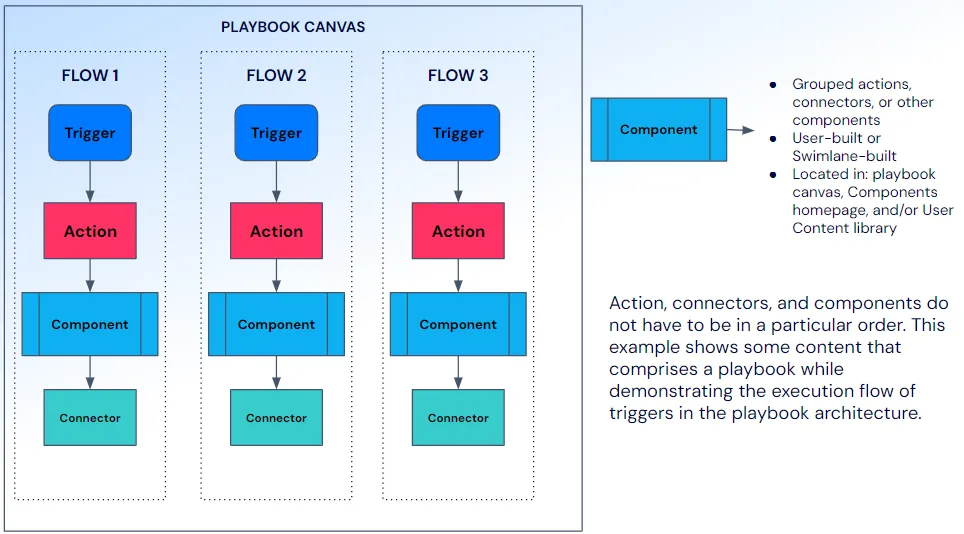
Playbooks are designed for quick and easy automation, enabling data processing and enrichment. With Swimlane Turbine’s playbooks, anyone can create modular, repeatable automations that process real-time data efficiently. Playbooks ingest, normalize, and/or enrich data through individual workflows.
A playbook can have:
- One or more triggers, each with its own flow.
- Any number of actions to achieve the desired outcome.
- Optional components to enhance the workflow.
Flows
Term | Definition | Characteristics |
|---|---|---|
Flow | A single execution path within a playbook or component, initiated by one trigger and driving subsequent automation. |
|
For more details on flows, see FlowsFlows.
Homepage
To access playbooks, follow these steps:
- Log in to Turbine.
- From the left-hand navigation pane, click ORCHESTRATION and then click Playbooks.
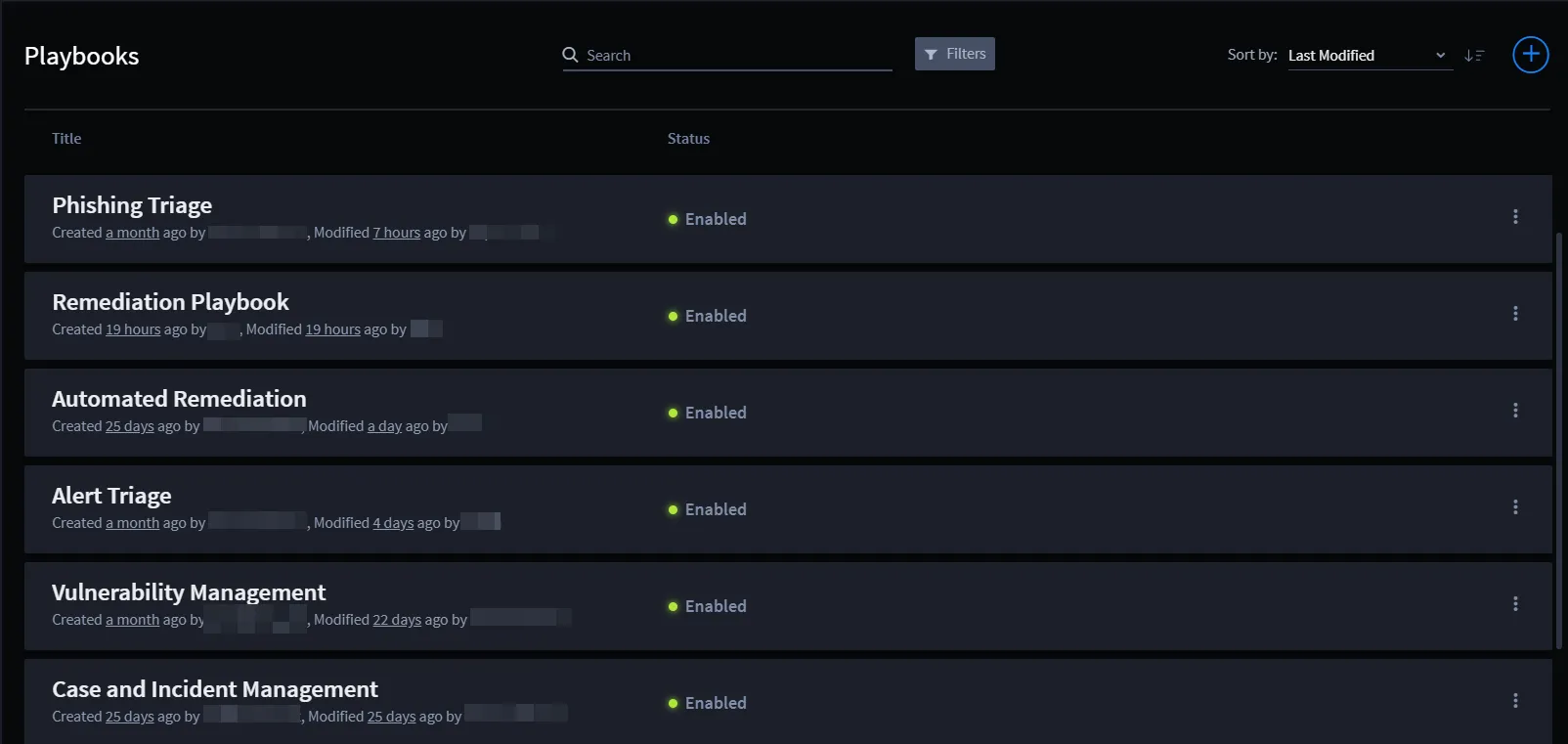
From the Playbooks homepage, you can view a list of available playbooks, either enabled or disabled. The following table outlines the available features for easier navigation:
Feature | Function |
|---|---|
Title | The title of the pre-existing Swimlane component or user-made component. The Action title field and Component title field have a maximum character limit of 50 characters. Ensure titles are concise yet descriptive to stay within this limit. |
Status | Indicates whether the playbook is enabled or disabled. |
Search | Enter keywords to search for a component. |
Filter | Use to sort by Source, Interface, or Created By. |
Sort by | Sort by Last Modified, Last Created, or Alphabetical order. |
Arrow icon | Click to toggle between Ascending and Descending views. |
Ellipsis icon | Click to access playbook operations such as Export and Delete. |
Plus icon | Click to create a new playbook. |
Create New Playbook
When setting up an automated workflow, you can create a new playbook. To create a new playbook:
- From the Playbooks homepage, click the plus icon to open a window where you can enter the playbook name and description.
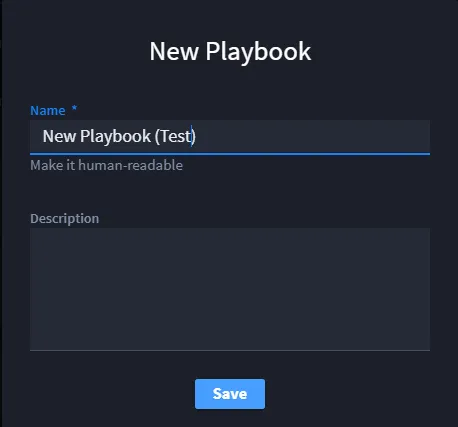
Once you click Save, the playbook canvas opens for you to start building your use case.
Playbook Canvas
The canvas allows you to create use cases with drag-and-drop functionality, AI assistance, and other features.
Defining Terms and Icons
The following table shows important user interface (UI) icons and terms used in the canvas toolbar. Use these icons to customize your playbook canvas.
Icon | Meaning |
|---|---|
 | Show/Hide the Add panel. |
 | Create a new component. |
 | Zoom in/out using the drop-down menu. |
 | Enable or disable the playbook. |
 | Show/Hide the playbook side panel. |
 | Open Test Console at the bottom of the window. |
 | Access playbook operations (e.g., Export, Duplicate, Delete). |
Add Panel
The Add panel allows you to view, search, filter, sort, and drag-and-drop actions and components:
- TriggersTriggers
- ActionsActions
- Native ActionsNative Actions
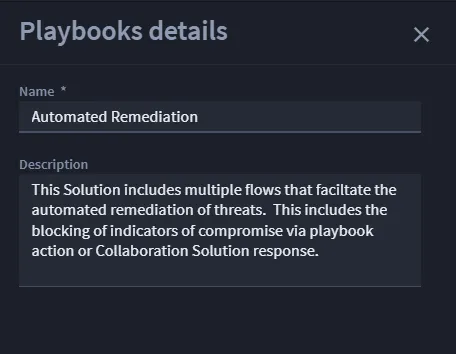
On the right-hand side of the canvas, you can see playbook details, including the name and description. To have more space to work within the canvas, click the X icon to close the panel.
Publish Playbooks
To publish a playbook to the User ContentUser Content library:
Publish as New Content (V1)
- Select Publish from the ellipsis icon of the Playbooks screen, or navigate to the desired playbook and open the settings menu.
- Select Publish.
- In the Publish Content window, select Publish as New Content (V1).
- Provide a name and description for the content and click Next.
- Select the content you wish to publish and click Next.
- Review the selected content, check for potential issues, and click Next.
- Confirm the details (version 1.0.0), content name, description, and publish message, and click Publish.
- A success message confirms that the playbook has been published as new content.
Publish as a New Version of Existing Content (V1+)
To update an already published playbook package, follow these steps:
- Follow steps 1–3 as outlined in the Publish as New Content process.
- In the Publish Content window, select Publish as a new version of existing content (V1+) and choose the package to update.
- Review changes, check for issues, and click Next.
- Confirm the new version (e.g., 3.0.0 to 4.0.0) and provide a detailed publish message.
- Click Publish.
- If merge conflicts are detected, choose to keep Library or Remote changes and click Apply.
- A success message confirms that the updated content has been published.
You can navigate to the User Content library to verify the playbook publication.