Turbine Login and Authentication Methods
Swimlane Turbine supports multiple login methods, depending on how authentication is managed within your organization. The following sections provide an overview of each supported login method.
- Single Sign-On (SSO): You can sign in to Turbine using SSO in two ways: Identity provider (IdP)-initiated or Service Provider (SP)-initiated. Both methods use SAML 2.0 for authentication through an external IdP.
- Login starts directly from the Identity Provider portal (for example, Okta, JumpCloud, Google Workspace, and so on).
- The IdP authenticates the user and redirects to Turbine.
- Login starts from the Turbine application (for example, https://us1.swimlane.app).
- Provide an Account Alias which enables Turbine to determine which IdP to redirect the user to.
- The IdP authenticates the user and redirects to Turbine
- Authentication is handled by the external LDAP directory (for example, Microsoft Active Directory or OpenLDAP).
- Credentials are validated against the directory, and access is granted upon successful authentication.
- Credentials are stored directly within Turbine.
- When a user logs in, Turbine authenticates the users.
After an inactivity timeout or a manual logout, the user is redirected to the same page they were on before. This behavior is user-specific and ensures each user is logged back into their last visited page in the application.
Identity Provider (IDP)-Initiated SSO Login
IdP-initiated SSO begins from your organization's identity provider portal (for example, Okta, JumpCloud, or Google Workspace). After you select the Turbine app, the IdP authenticates your credentials and redirects you to Turbine.
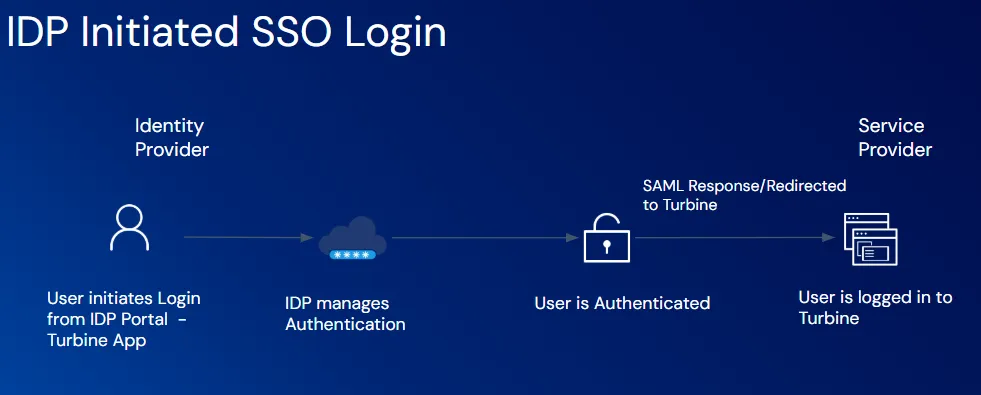
To sign in using IdP-initiated SSO:
- Sign in to your organization's IdP portal.
Select the Turbine application.
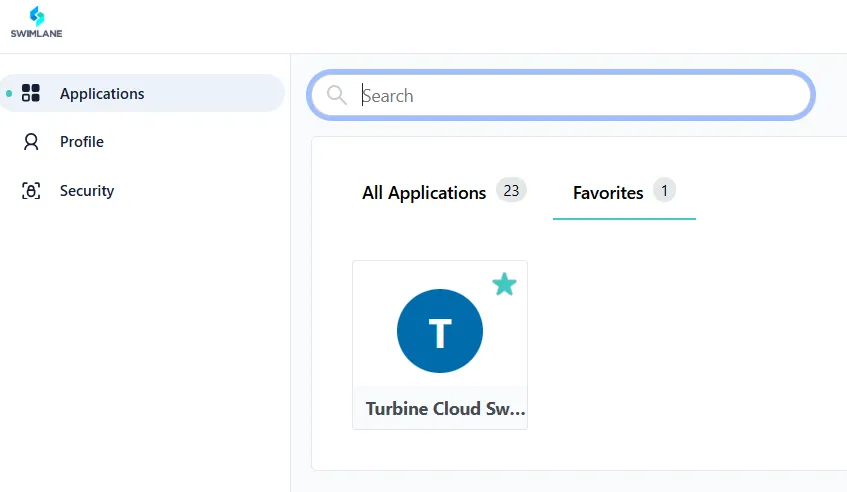
- If Multi-Factor Authentication (MFA) is required, complete the verification(Optional).
- Turbine validates the response, and logs you in.
Service Provider (SP)-Initiated SSO Login
Support for identifying an IDP using an email address has been removed.
SP-initiated SSO begins from the Turbine login page. After you provide your account alias or email address, Turbine determines the correct IdP and redirects you for authentication.
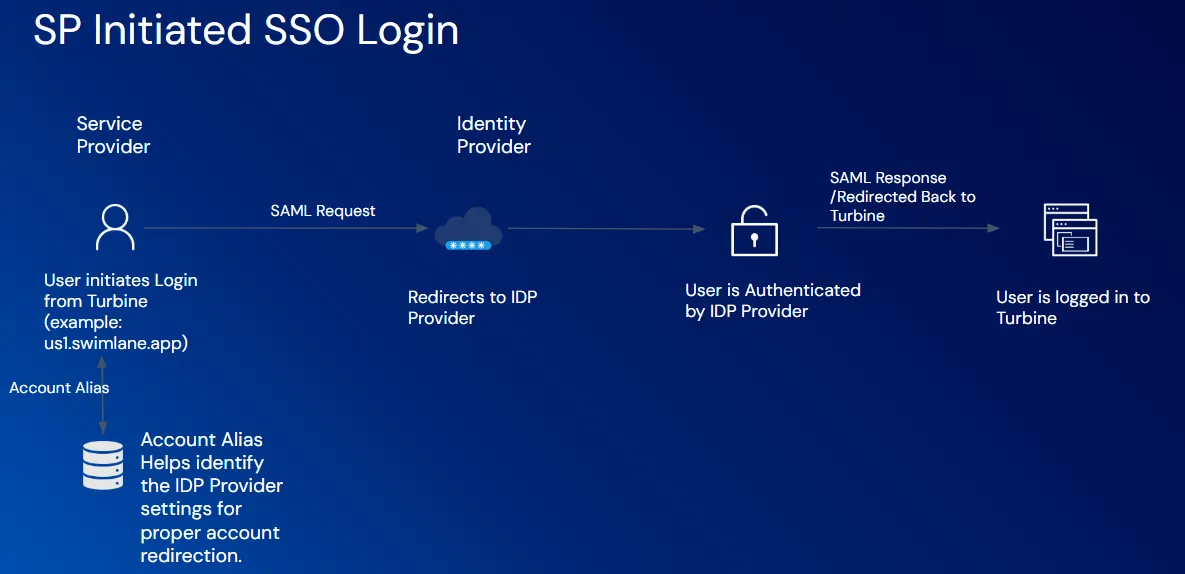
Steps to Log In via SP-Initiated SSO:
- Navigate to Turbine.For example, https://us1.swimlane.app.
- Select Login with SSO.
- Enter your Account Alias. This is your organization's unique identifier.
- When redirected to your IdP, sign in using your IdP credentials.
- If Multi-Factor Authentication (MFA) is required, complete the verification.(Optional)
- Turbine validates the response, and logs you in.
What Is an Account Alias?
An Account Alias is a short, unique string that maps directly to an SSO configuration in Turbine. Turbine uses it to identify which IdP to use during SP-initiated login.
Why Use an Account Alias?
- Routing to the Correct IdP
- Simplified User ExperienceInstead of remembering and selecting the IdP manually, users simply enter the account alias, and the system automatically directs them to the correct login provider.
Configure the Alias (Admin Only)
To configure an alias for SAML-based SSO:
- Navigate to Settings > Account > Sessions & Security > Authentication. Click > to expand the Authentication section.
- Under the SAML Authentication section, toggle the Enable switch to activate SAML authentication.
- Click SAML Settings to open the SAML Authentication configuration dialog.
- In the Alias field, enter your organization alias (swimlane.com).
- Complete the rest of the SAML configuration, including the IdP metadata and certificate.
Click Save.
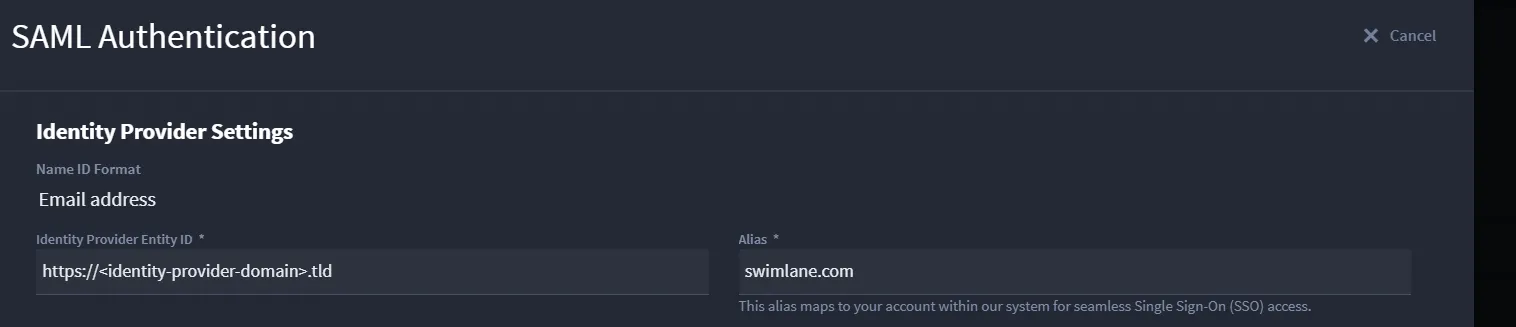
Once configured, this alias will be used on the login screen for SP-initiated SSO to identify the IdP Provider.
For more information on configuring SSO, see Enable SAML for SSOEnable SAML for SSO.
LDAP Login
LDAP login allows authentication using credentials stored in an external LDAP directory, such as Microsoft Active Directory or OpenLDAP. Turbine connects to the configured LDAP server using the LDAP protocol to validate credentials.
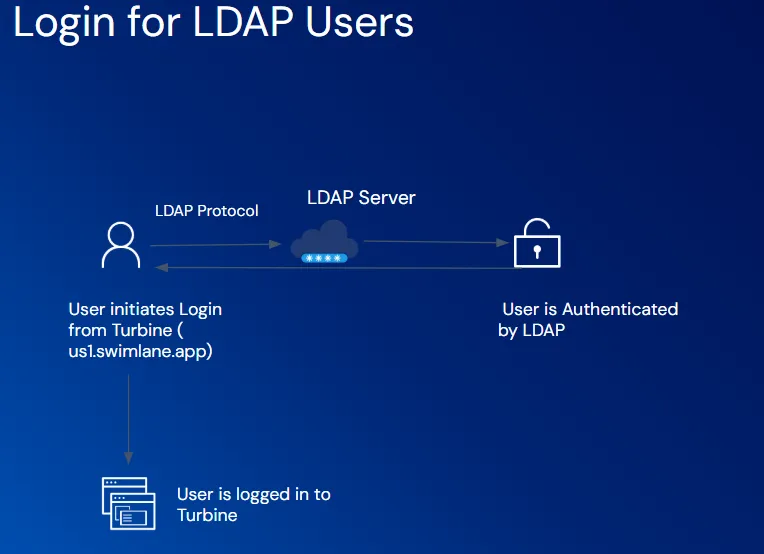
To sign in using LDAP:
- Enter your LDAP username or email address and password.
- Turbine connects to the LDAP server to validate your credentials.
- If Multi-Factor Authentication (MFA) is required, complete the verification.(Optional)
- Turbine validates the response, and logs you in.
Application-Managed Login
Application-managed login is handled entirely within Turbine. Credentials are stored and verified by the application, without relying on an external identity provider.
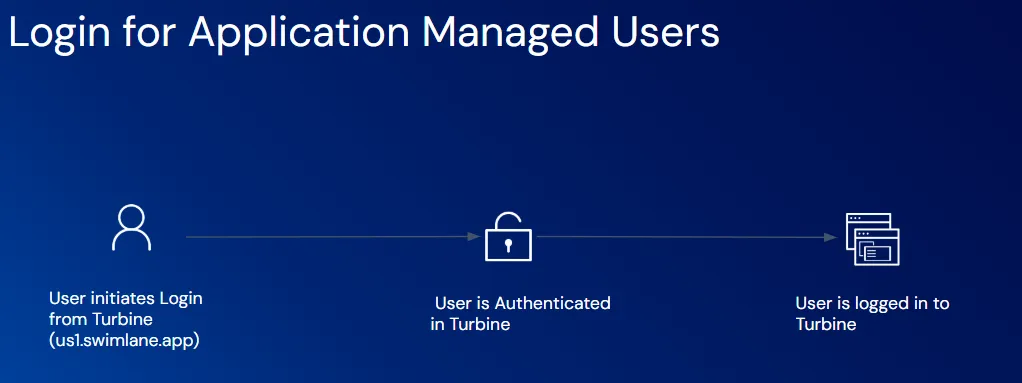
To sign in as an application-managed user:
- Enter your registered email address or username and password.
- Turbine validates your credentials.
- If Multi-Factor Authentication (MFA) is required, complete the verification.(Optional).
- Turbine validates the response, and logs you in.
Resetting a Forgotten Password
If you forget your password:
- On the login screen, click Forgot Password?.
- Enter your registered email address.
- Check your inbox for the password reset email.
- Follow the link to create and confirm a new password.
- Return to the login screen and sign in with the new password.