Navigation Basics
Swimlane Turbine is organized into workspaces and dashboards where you can view additional detail about the applications, records, and reports that you manage within Turbine.
The workspaces, dashboards, records, reports, applications, and applets, among other features in Turbine, are all permission-driven. A user must give you permission as a user, or for your role within your organization, to view or otherwise modify a specific feature of Turbine.
If you have administrator permissions on for users, groups or roles, or playbooks, you will be able to view and access them from the Admin portal. Admins then access workspaces, dashboards, and playbooks from the global navigation menu.
Profile Options
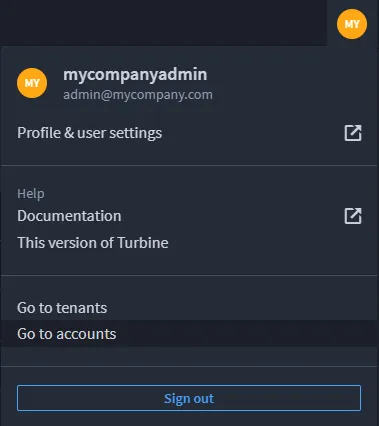
You access Profile Options from the upper-right corner of the Turbine User Interface (UI). The Profile Options sub-menu is where you can begin to complete the following basic steps:
- Profile & user settings: edit user details, set password and personal access token, and see activity
- Documentation: access Turbine platform documentation
- This version of Turbine: see Turbine version, build, and copyright information
- Admin Panel: (Admin users only) access the admin panel for the Account
- Sign out: end active user session
Global record search is also available from the upper right corner of the Turbine UI. For more information, see Search Record DataSearch Record Data.
Global Navigation Menu Options
The menu on the left side of the screen is the global navigation menu. Use this menu to navigate to the different areas of Turbine.
The menu can be minimized.
Icon | Function | Additional Information |
|---|---|---|
 | Workspaces | Click to select a workspace from a list of workspaces. |
 | Dashboards | Click to view the dashboards associated with a specific workspace. |
 | Application Records | Click to view, create, and edit records. |
 | Reports | Click to view reports. |
 | Applications and Applets | Click to access a list of applications and applets that you can manage, edit, update, etc. |
 | Orchestration | Click to access playbooks, webhooks, assets, connectors, playbook runs, and events. |
 | Management | Click to manage the administrative tasks for workspaces and dashboards. |
 | Library | Click to access the Turbine Content for drop-in content to boost your workflow. |
The icons visible in the global navigation panel are dependent upon what you have permission to view, access, create, modify, and update.
Click the Turbine logo in the upper-left corner of the UI to go to the default workspace and dashboard for your instance of Turbine.