String Concatenation
Scenario
Max is a Turbine orchestrator. He needs to automate a message to users. However, Max already knows he needs the ability to add context to a playbook input property. Therefore, the property will need to be dynamic, not static.
Max wants to use Turbine parent and nested playbooks to create the automated message that has an action containing a string concatenation to broadcast a message to Slack. He already has integrated the slack connector into his playbook, now let's watch how he does automates a message using string concatenation!
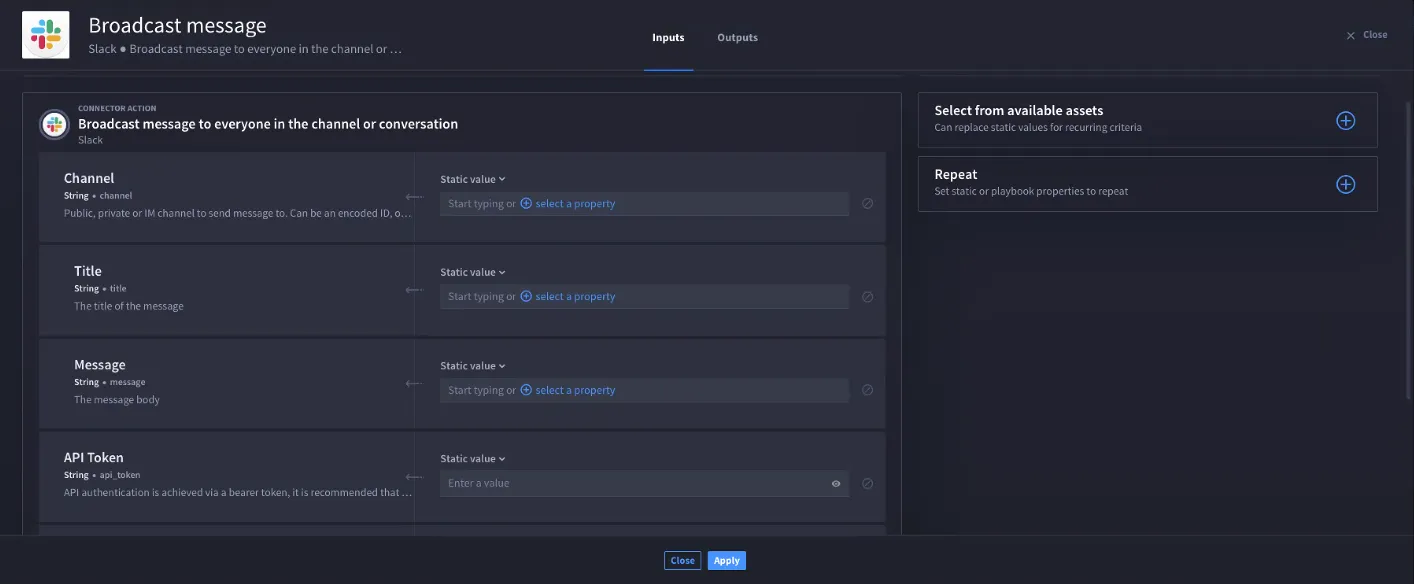
Max is configuring the Slack connector and will create the playbook input from the action.
From Action Inputs, in the Message property field, click + select a property.
Click Playbook Inputs.
If Max has added playbook inputs, the inputs display. Then, Max can select an existing input.
If Max has not added any playbook inputs yet, he will need to click Add a playbook input.
To configure a playbook input from the Action Input window, Max enters the title: Message3
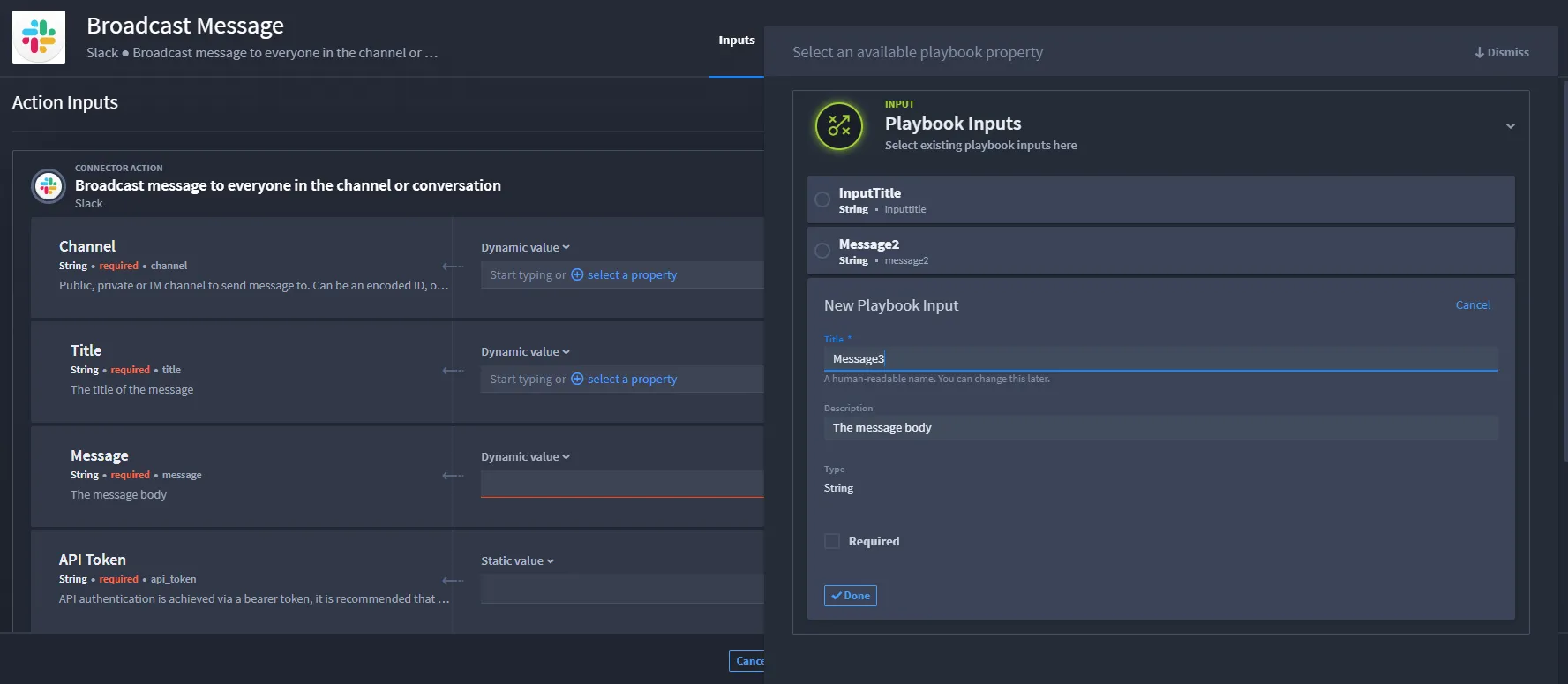
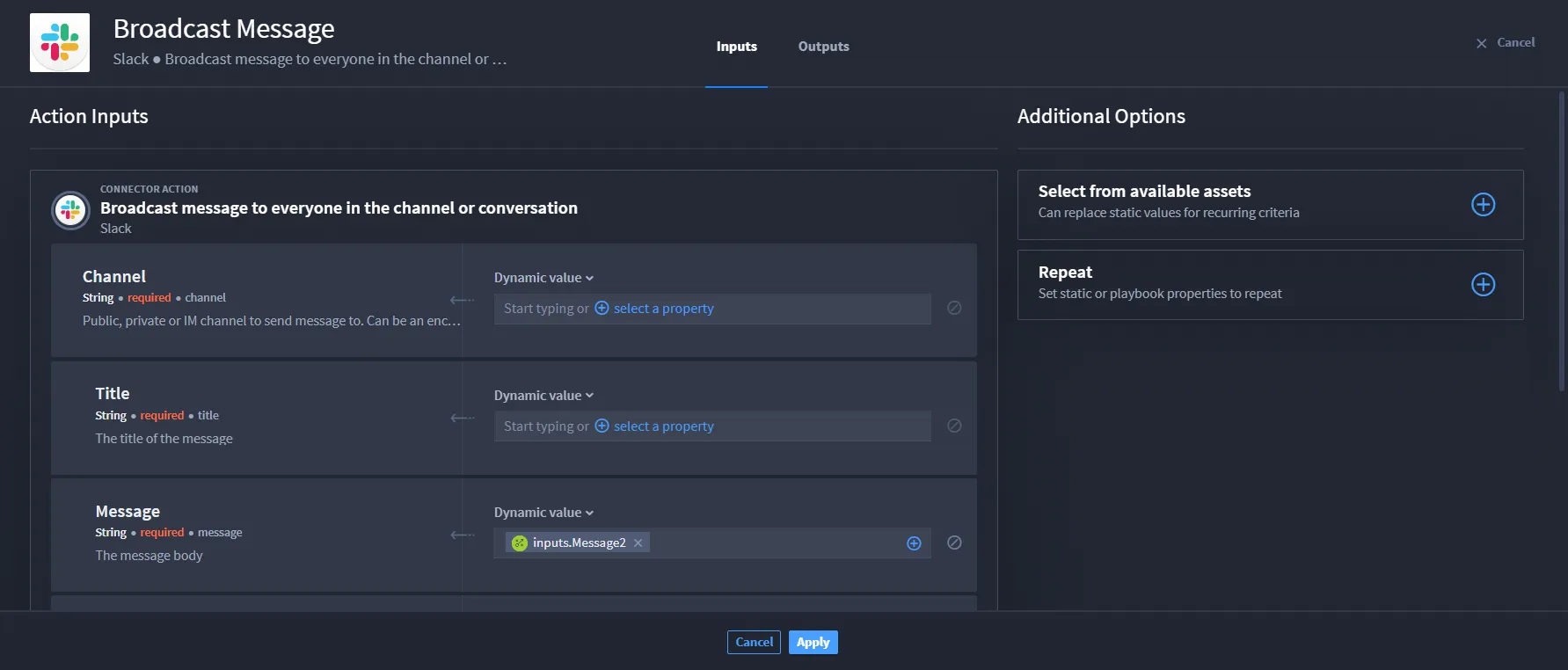
Click Done, then select the configured playbook input.
The input displays as a token in the Message field.
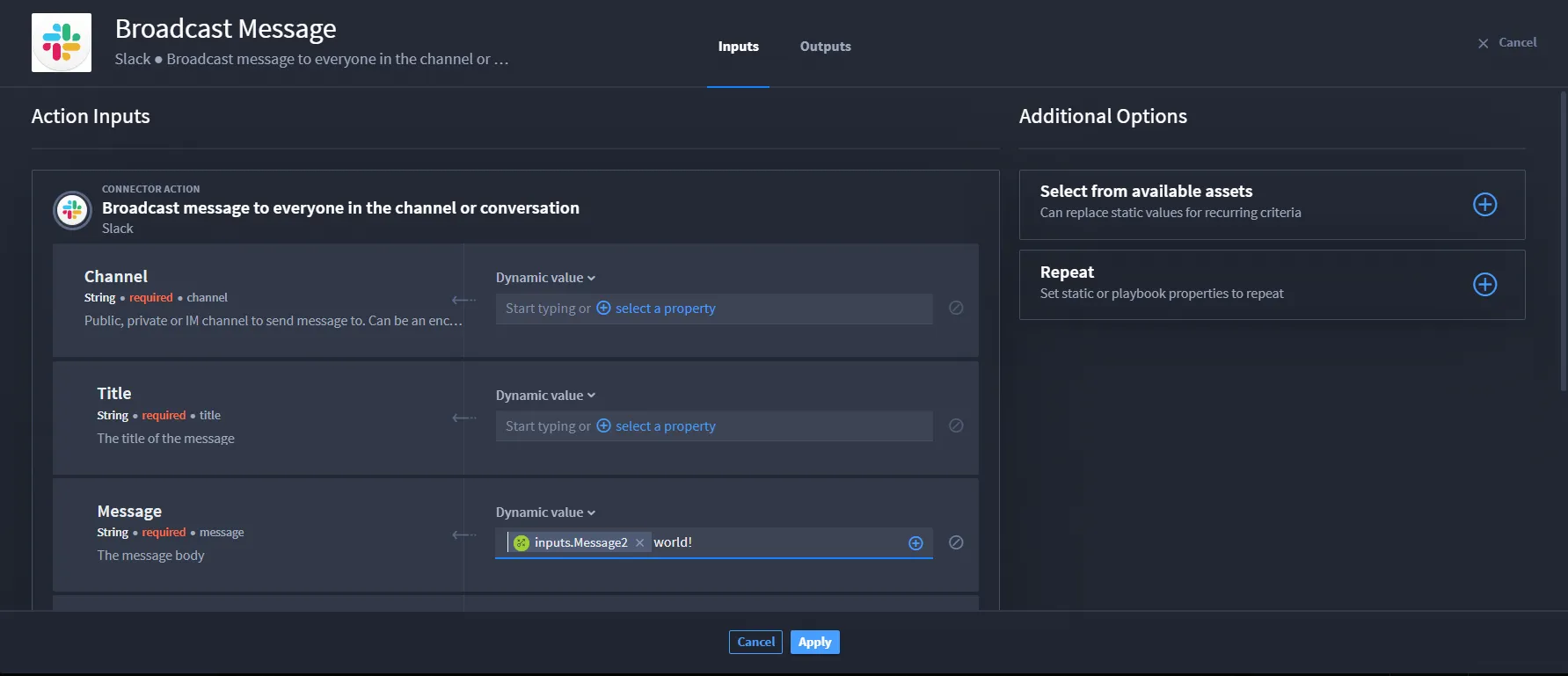
Next to the token, enter text, i.e., world!
The token and static value text display as string concatenation.
Click Apply.
Max already has the playbook with the configured string concatenation. Now he wants to create a parent playbook that will execute that nested playbook and broadcast the message to Slack.
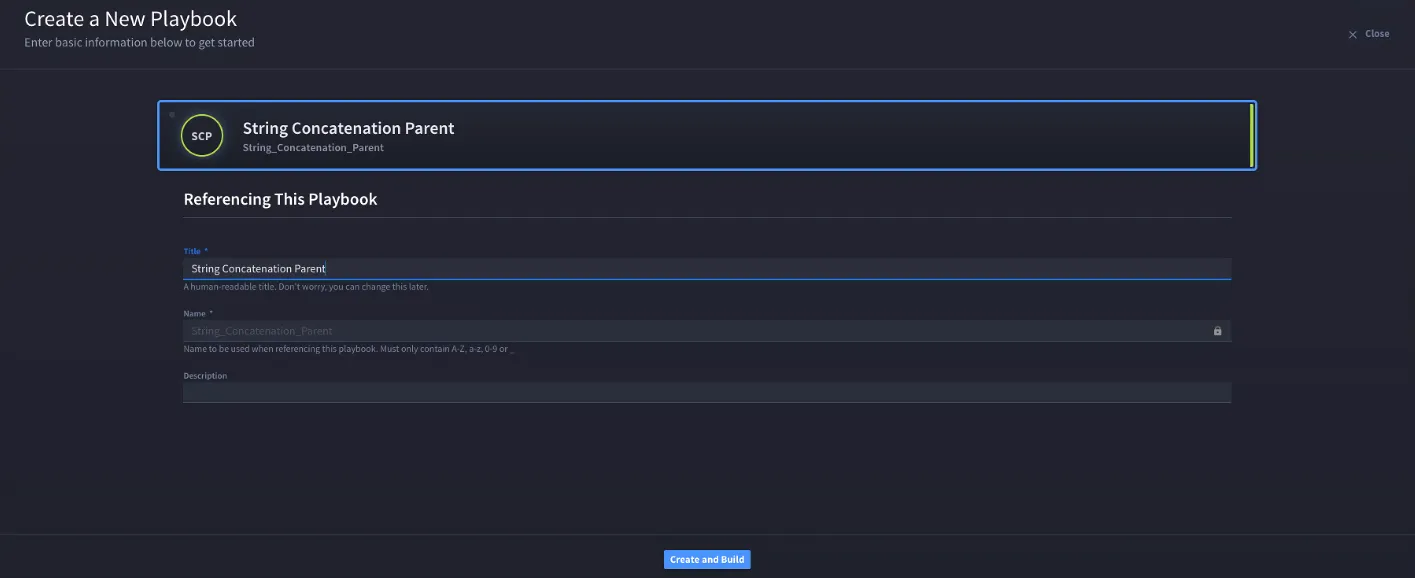
Create a new playbook.
For this scenario, Max calls the parent playbook String Concatenation Parent.
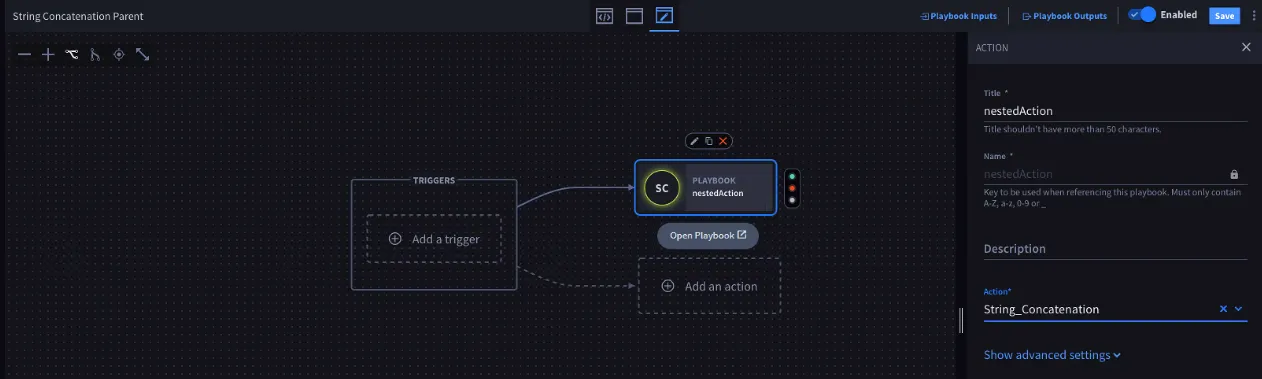
Once he creates the playbook, he adds an action.
From the Action drop-down, select the String Concatenation playbook and title it nestedAction. Max clicks Configure. The playbook input from nestedAction displays.
In the Static value field, enter Hello.
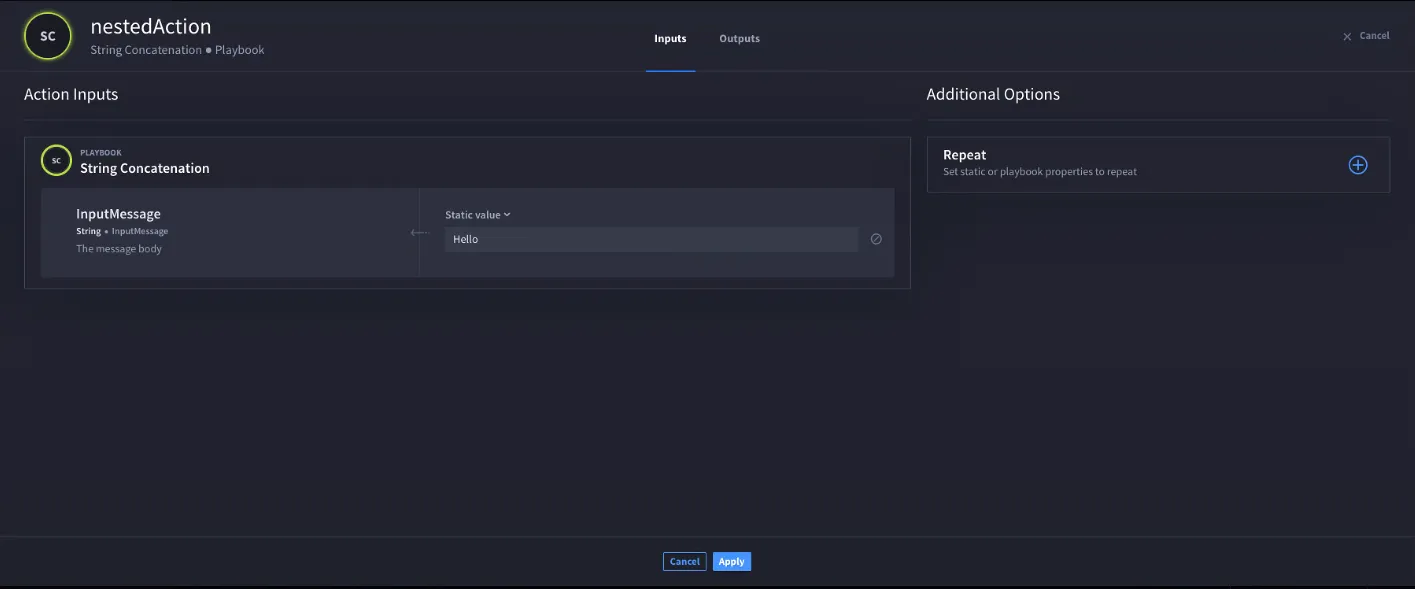
Click Apply.
This combines the static value text, Hello, with the nestedAction's message token world! that broadcasts to Slack.
Now, Max wants to confirm that the he can execute the playbook and receive the broadcast in Slack.
From String Concatenation Parent, click the vertical ellipsis icon.
Click Test.
From RUNNER, click Run.
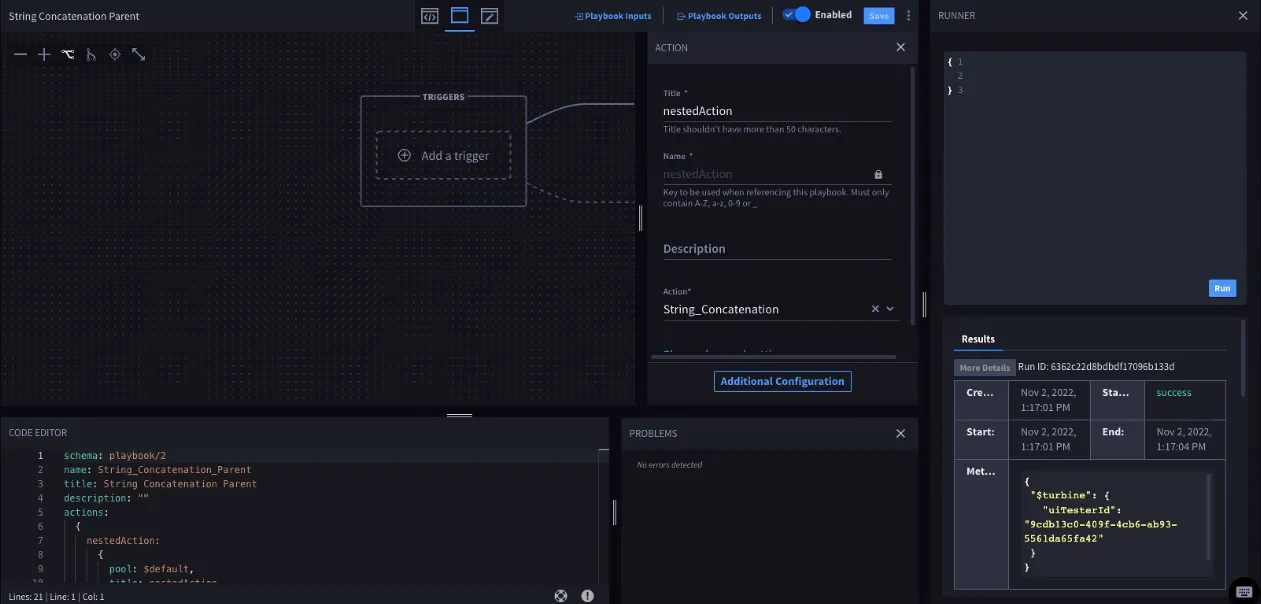
Max's test is successful!
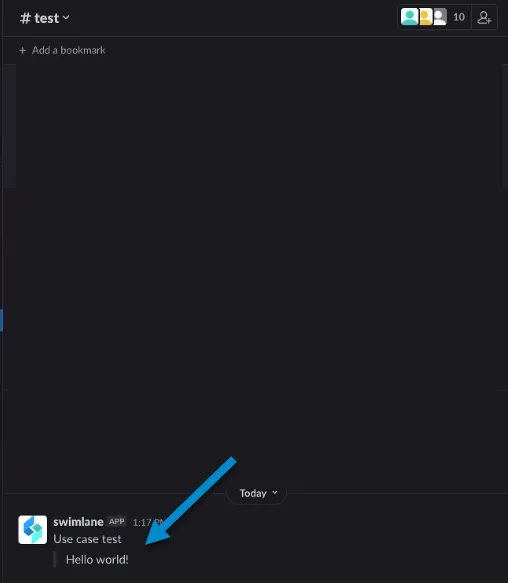
Now, he goes to Slack to verify the broadcast was received.
Navigate to Slack.
The message Hello world! displays! Max successfully ran the string concatenation.
Conclusion
Max can now use this knowledge to apply concatenation for string property types without formats in the future.