Configure String Array Condition Expressions
Turbine allows users to configure conditions between two actions by utilizing playbook inputs and/or action outputs.
Scenario
Alex wants to configure a string array in a conditional expression using the output of a JSONata action. Alex is ready to begin. He starts by adding and configuring a JSONata connector with an On Success action flow, and now he wants to add a string array conditional expression.
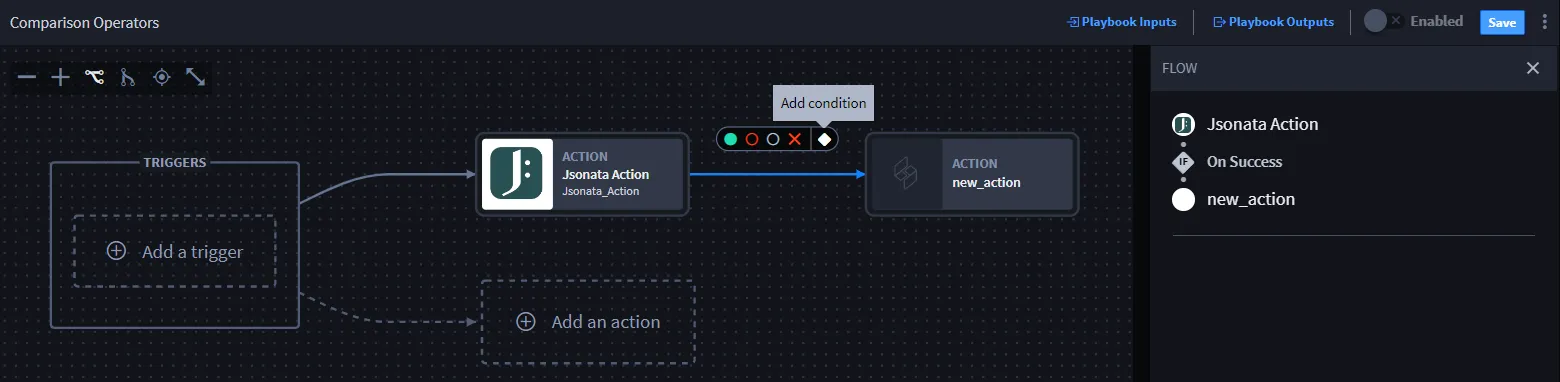
To add a condition, click the Add condition icon.
Once you click the action flow, it turns blue and the FLOW panel displays to the right
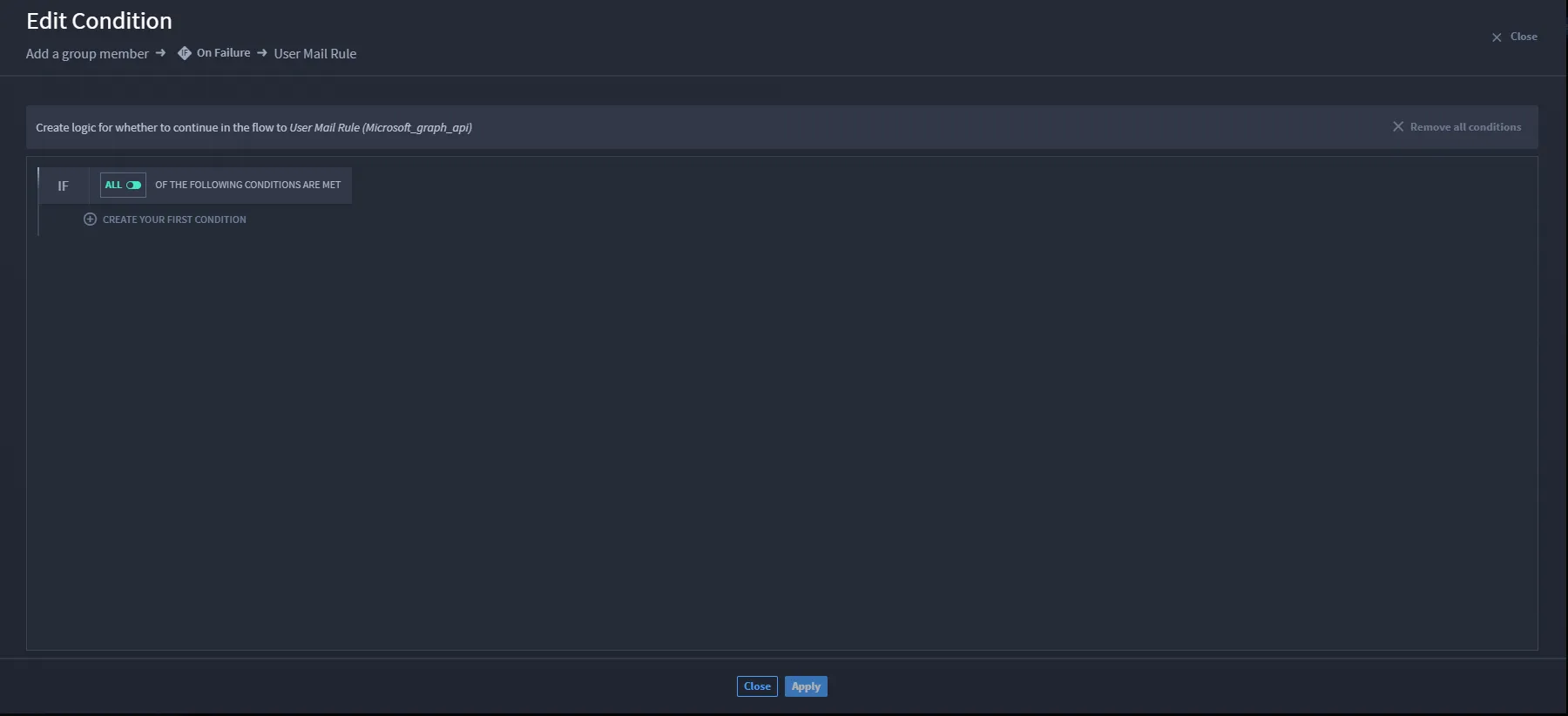
The Edit Condition window opens.
Click CREATE YOUR FIRST CONDITION.
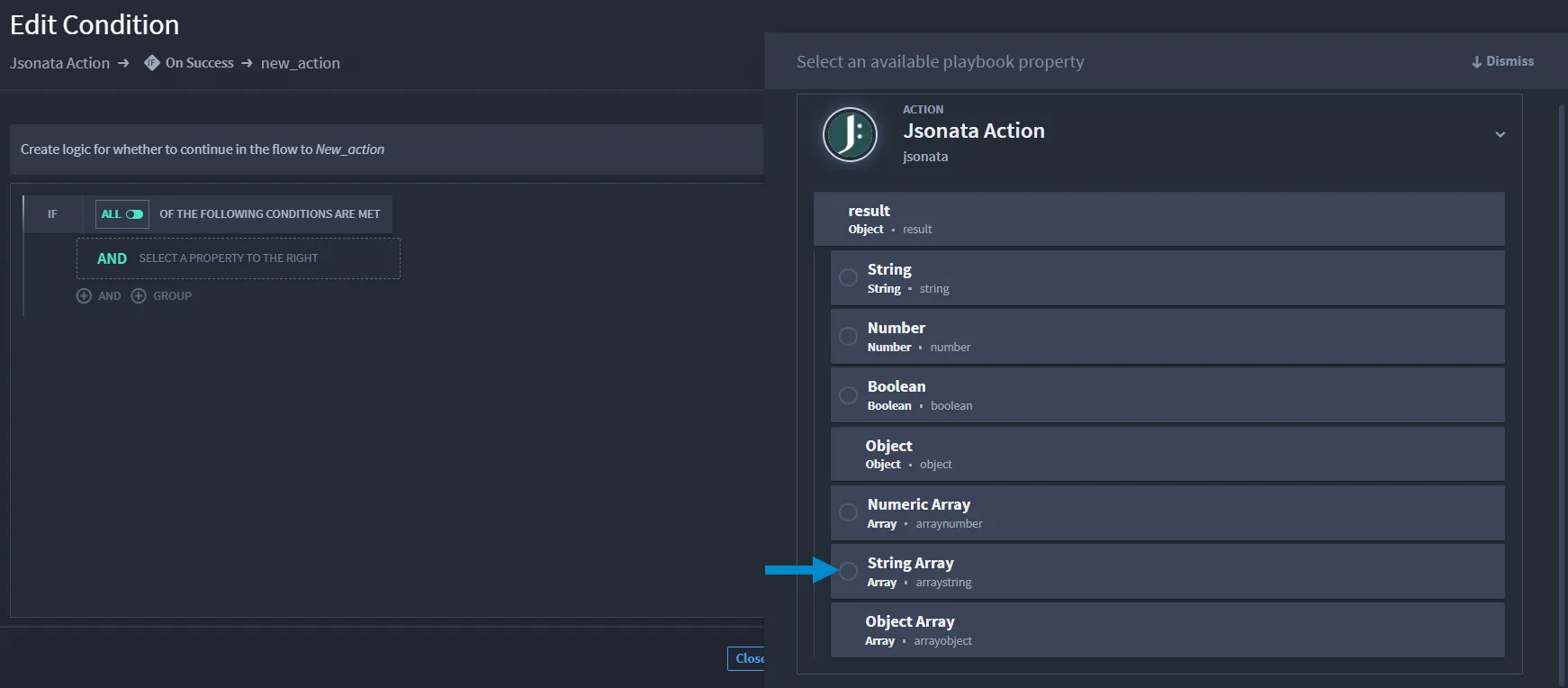
The available action/playbook properties displays. Click the property to expand the available input types.
Click String Array property.
If available, you can select more than one String Array.
The selected array with string items output shows in the condition builder.
Select the comparison operator from the drop-down menu.
After the operator drop-down, enter a value.
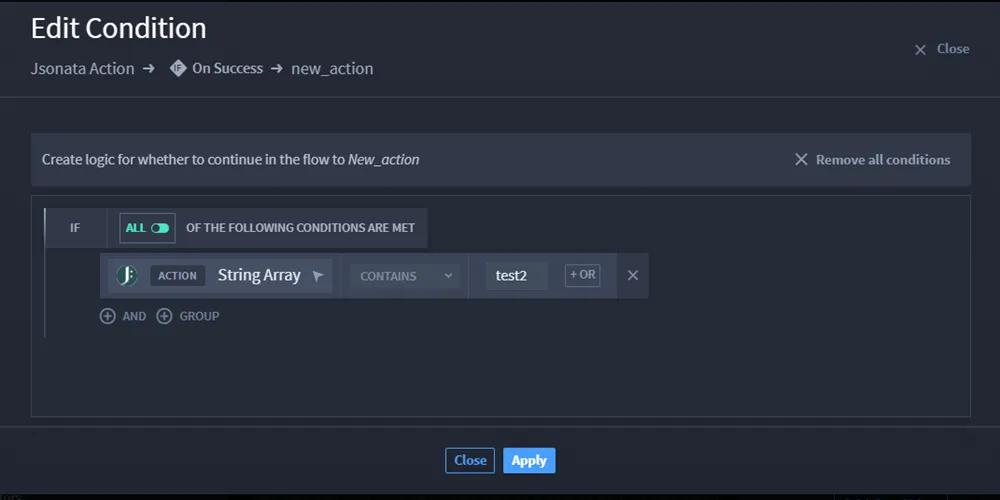
Click Apply. The window closes and the FLOW action panel shows.
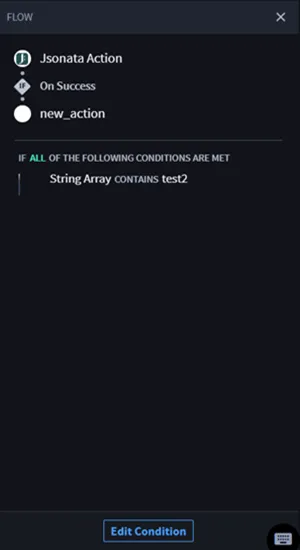
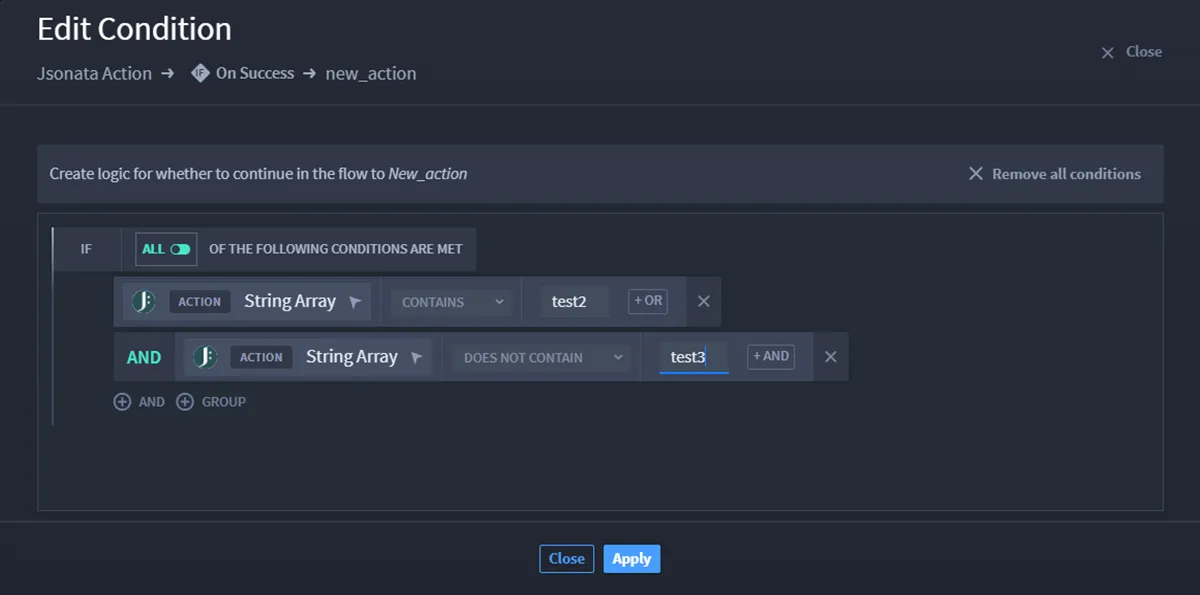
To add more conditions, click Edit Configuration to launch the Edit Condition window. You can always use the OR, AND, or GROUP buttons to further modify the condition flow.
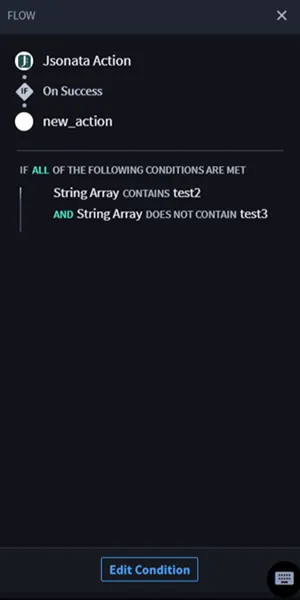
The updated, additional conditions are in the FLOW panel.
Conclusion
Alex has created a string array conditional expression!