Reference
Use a reference field to add a reference to another record, either from the current application or from another application.
For example, consider that you have an application called Address with these fields: Address, Zip Code, City, Country; and another application called Employee with these fields: First Name, Last Name. A reference field in the Employee application called "Home Address" could link to the Address application and contain the fields Address and Zip Code. When creating a record in the Employee application, a pre-existing Address record can be referenced, or a new one can be created and referenced on the spot.
When creating a reference field, you can choose from these reference types:
Field Type | Description |
|---|---|
Single-select | Use to reference a single record. |
Multi-select | Use to reference multiple records. |
Grid | Use to reference multiple records with additional, user-specified, field details. |
Create Reference Fields
To create reference fields:
From Application Builder's Field Types, click Reference and then select which Reference Type you want to create. Drag the reference field to the Form Layout and drop it in the layout area, or within a Tab or Section layout object.
Access the field's properties and complete the following fields as needed:
Field | Step | Example |
|---|---|---|
Display Name | Enter the name of the field. | User Reference |
Help Text | Enter contextual help text. You will first need to specify whether the help text will appear above or below the field in the record form, and then you can enter the text. | Review referenced fields. |
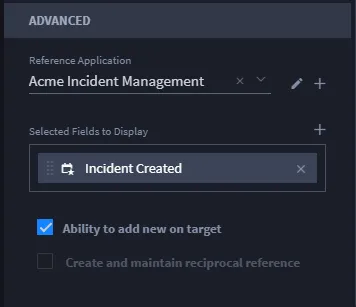
Next, consider the following advanced options in the FIELD PROPERTIES tab:
Field | Step | Example |
|---|---|---|
Create New Application to Reference | Select to open Application Builder, from which you can create a new application. | "New Application" |
Reference Application | Select the existing application you are referencing. | Employee |
Edit Application | Opens the target application for editing in a new browser window. | This field is available for Grid field types only. |
Select Fields to Display | Use to indicate the columns to display from the referenced application. | This field is available for Grid field types only. |
Ability to add new on target | Use to display a link next to the control in the record, allowing users to create referenced fields directly in the record form. | checkbox |
Create and maintain reciprocal reference | Use to select a reference field in the target application that points to this application. | checkbox |
Add specific field-level permissions by role, if needed, and then click Apply.
Create or Select an Application to Reference
You can select an existing application to reference, or you can create a new application to reference from within reference fields.
To select an existing application click Reference Application. The pull-down menu displays all applications that you have access to that contain reference fields. Select the application.
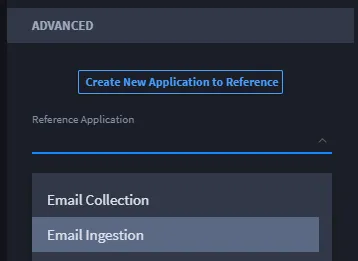
To create a new application to reference from within a reference field, create a reference field, then in the Field Properties click Create New Application to Reference.
A dialog window prompts you to create the new application. Once you create the new application, the click Create. The dialog closes, and the new application opens in a new tab in your browser. The new application is also updated in the Reference Application field.
To see the new application in a new tab in your browser, ensure that you have turned off any web browser pop-up blockers.
You can identify a specific field to reference from record creation. For more information, see Lookup and Create References within RecordsLookup and Create References within Records.
Create Reciprocal References
You can also create references that use or rely on data from other reference fields, or reciprocal references.
To create a reciprocal reference, you must first ensure that you have two applications with references set up. Then, select the target reference field's application as the Reference Application.
Once the target reference application is selected, click the Create and maintain reciprocal reference option.