Measures and Dimensions
Every chart has a number of measures and dimensions that can be visualized. The number of dimensions and measures needed for the chart is indicated by a status message in the chart preview section.
The measures and dimensions on the chart are configured through the Query tab in the chart configuration section. All of the available fields that can be selected as a measure or a dimension are listed in the left side of the query section. The right side shows the currently-selected measures and dimensions.
Measures
To add a measure to the query, either click the + button to the right of the measure in the MEASURES list, or drag and drop the measure into the marked placeholder under EDIT MEASURES. To remove a measure from the query, click the x button to the right of the measure in the EDIT MEASURES list.
Measures have an aggregate function that is used to calculate the numeric value of the data item. This function must return a number. All fields except numeric fields have one available aggregate function, Count of. Numeric fields also have Sum of, Average of, and Min of options.
To change the aggregate function for a measure, click on the measure and select the desired function from the drop-down menu.

Dimensions
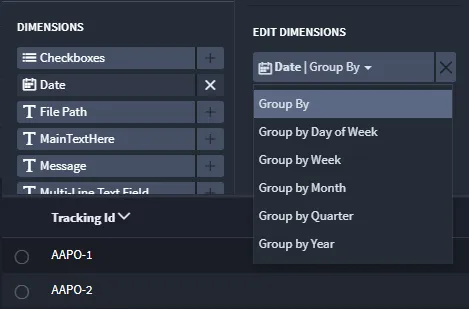
To add a dimension to the query, either click the + button to the right of the dimension in the DIMENSIONS list, or drag and drop the dimension into the marked placeholder under EDIT DIMENSIONS. Users can select as many dimensions as the chart type allows. Once all available dimension spots for the chart are filled, adding a new dimension will remove one of the existing dimensions. To remove a dimension from the query, click the x button to the right of the dimension in the EDIT DIMENSIONS list.
The order of dimensions in the query matters. To reorder a dimension, drag and drop it to the desired location in the EDIT DIMENSIONS list.
Date fields support multiple options for the Group By function. Select from: Group by Day, Group by Week, Group by Month, Group by Quarter, Group by Year, Group by Hour. The available options depend on the date field type (Date, Time, Date & Time) and the field's minimum mode setting. To change the function, click on the dimension and then re-select the desired function from the drop-down menu.