Webhooks
Term | Definition | Characteristics |
|---|---|---|
Triggers | A trigger initiates playbook processes. While a playbook can only have one trigger per flow, it can have more than one trigger and/or trigger type. Turbine currently uses several types of triggers to retrieve and/or ingest data. | Current triggers:
|
Webhooks are a type of event stream that enables products, vendors, or services to push real-time communication into Turbine. They process and enrich data from third-party services and platforms, sending it to Turbine records.
Key Benefits
- Real-Time Data Integration: Webhooks enable seamless real-time communication between external platforms and Turbine, ensuring that data flows into the system as events happen, reducing the need for polling or manual updates.
- Automation: With webhook triggers, Turbine playbooks can respond instantly to events like system alerts or user actions, streamlining incident response and enhancing workflow automation.
- Customizable Event Handling: Webhooks can be customized to handle specific events, enabling flexible automation workflows tailored to business needs.
- Efficient Data Processing: As webhook events trigger specific playbook actions, Turbine can ingest, process, and transform data efficiently, reducing manual workloads and minimizing human error.
- Scalability: Webhooks allow organizations to handle high volumes of event-based triggers without requiring constant API calls, improving scalability.
Homepage
To access webhooks, follow these steps:
- Log in to Turbine.
- From the left-hand navigation pane, click ORCHESTRATION and then click Webhooks.
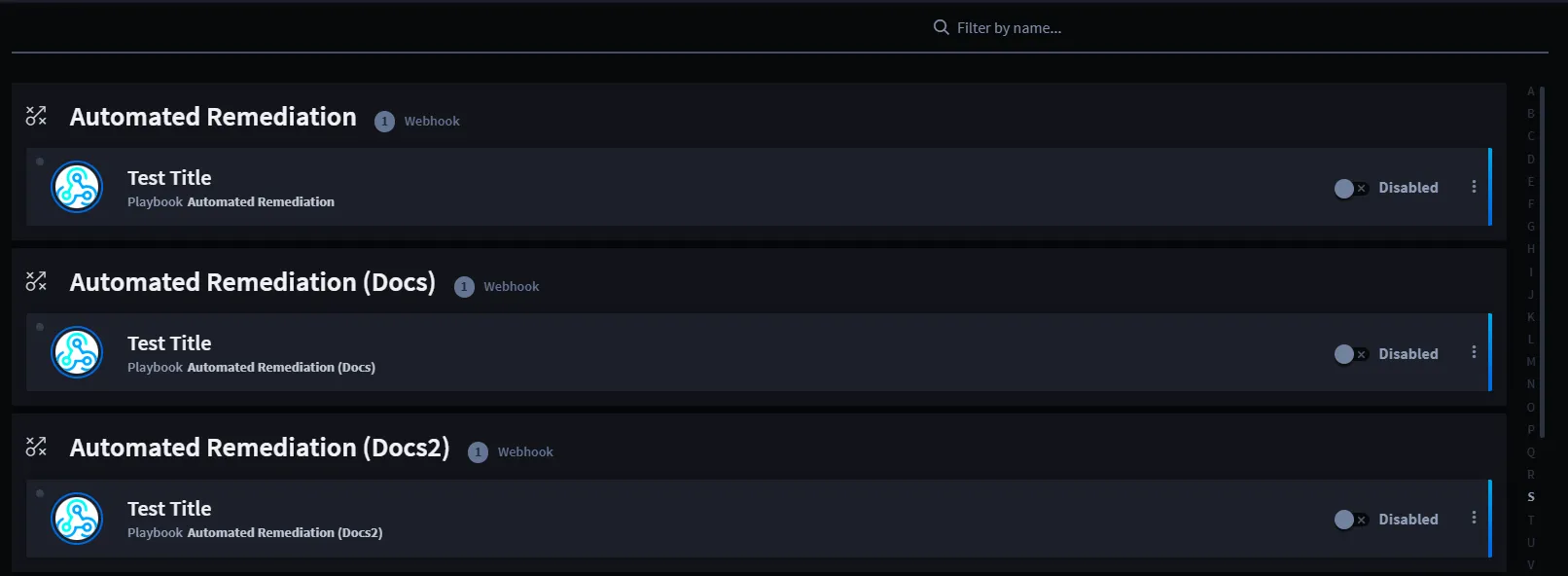
From the Webhooks homepage, a list of available (disabled or enabled) webhooks is shown, automatically sorted alphabetically and by playbook. If a playbook has more than one webhook, all of the webhooks will display under the playbook's name. You can use the features listed in the table to navigate the webhooks homepage for a faster and easier experience.
Feature | Function |
|---|---|
Filter by name | Use to filter by webhook name |
Disabled/Enabled | Toggle between the disabled (default) or enabled status |
Ellipsis icon | Click to edit the webhook in the canvas |
See Webhook TriggerWebhook Trigger for more information on creating and configuring webhook triggers.