Sharing Options of Records
You can share the records in the following four ways:
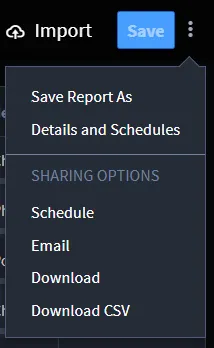
Schedule the Report
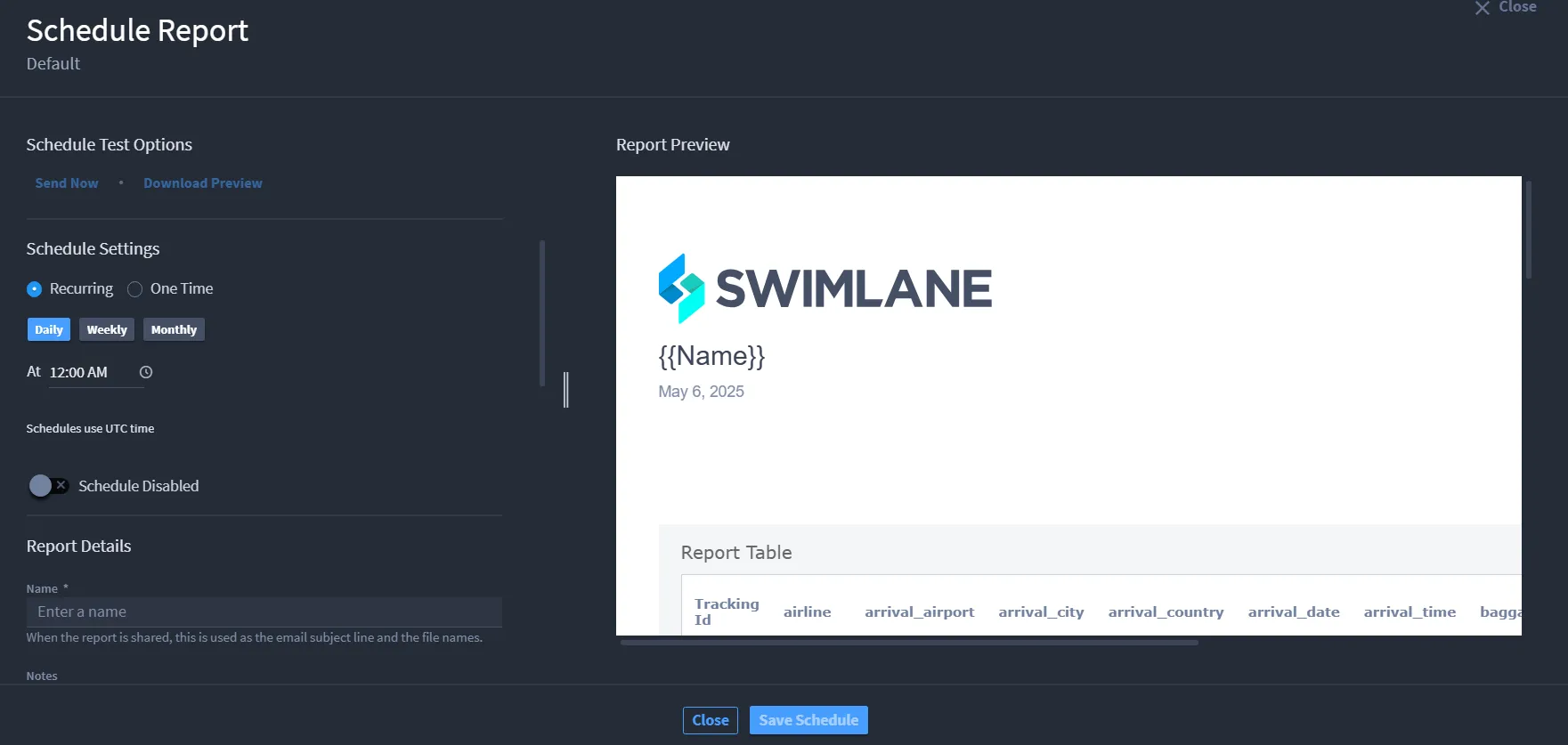
Schedule Settings
The Schedule Settings feature allows users to automate the delivery of reports based on a defined frequency and time. This functionality is designed to ensure timely access to updated report data without requiring manual intervention. You can configure reports to be delivered on a recurring basis—daily, weekly, or monthly—or select a one-time delivery.
The scheduling time is set using a time picker, and all times are interpreted in Coordinated Universal Time (UTC), ensuring consistency across time zones.
This feature is particularly useful for maintaining regular reporting workflows, keeping stakeholders informed, and reducing the need for repetitive manual report generation. Additionally, the ability to toggle scheduling on or off offers flexibility for managing report distribution as needed.
Report Details
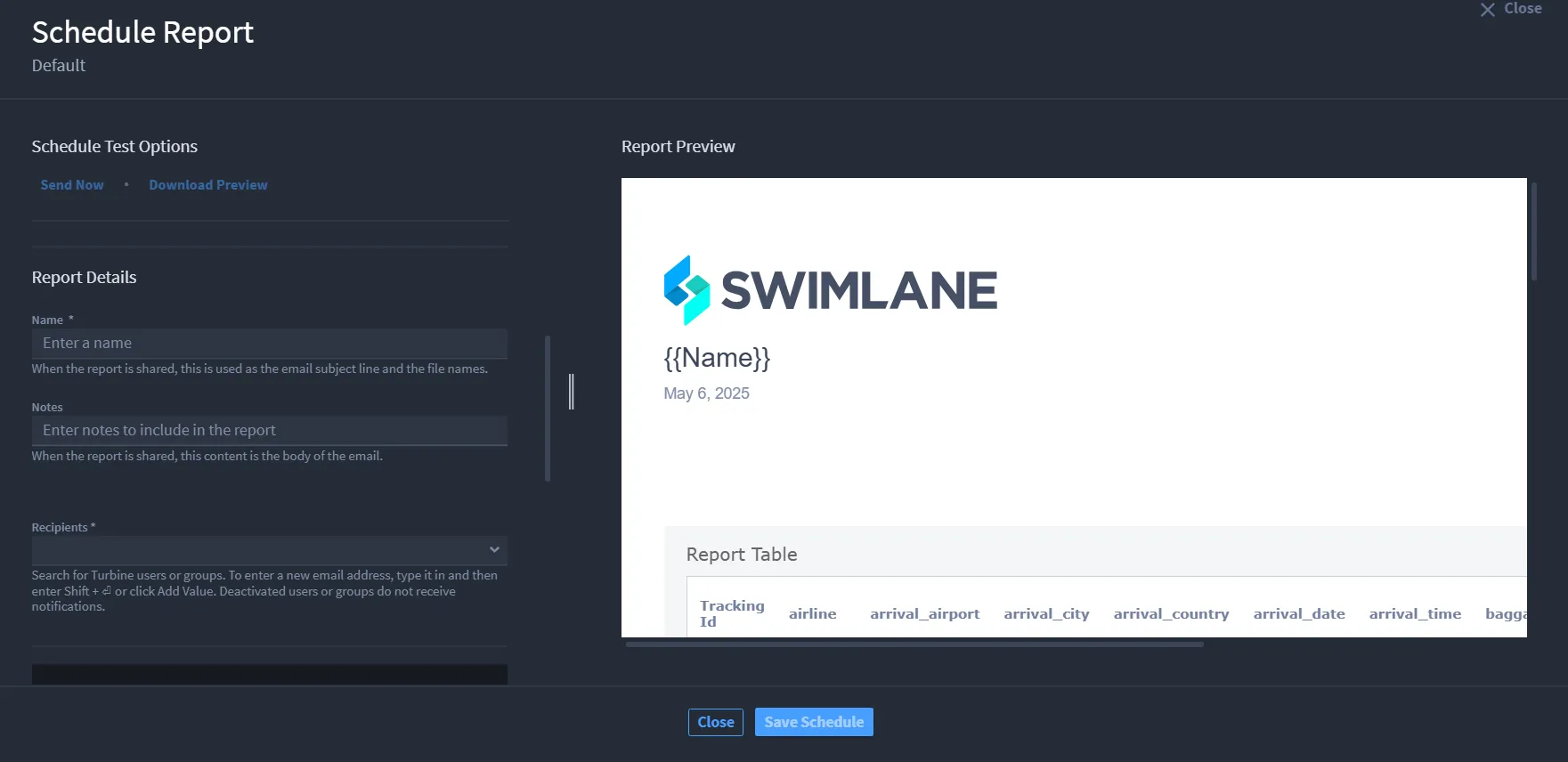
The Report Details section allows you to configure the content and distribution of a scheduled report. This section ensures that the report is appropriately named, contextualized, and sent to the correct recipients with the intended message. It includes the following fields:
- Name: This field is required and acts as the subject line of the email when the report is delivered and is also used to generate the file name of the report attachment. Providing a clear and descriptive name helps recipients easily identify the purpose of the report.
- Notes: This optional field allows users to include custom text that will appear in the body of the email when the report is shared. It is useful for adding context, explanations, or instructions related to the report content.
Recipients: This required field specifies the users or groups who will receive the report. Users can select existing Turbine users or groups from the dropdown or enter a new email address manually. New addresses can be added by typing them in and pressing Shift + Enter or clicking "Add Value." Deactivated users or groups will not receive the report.
Report Controls
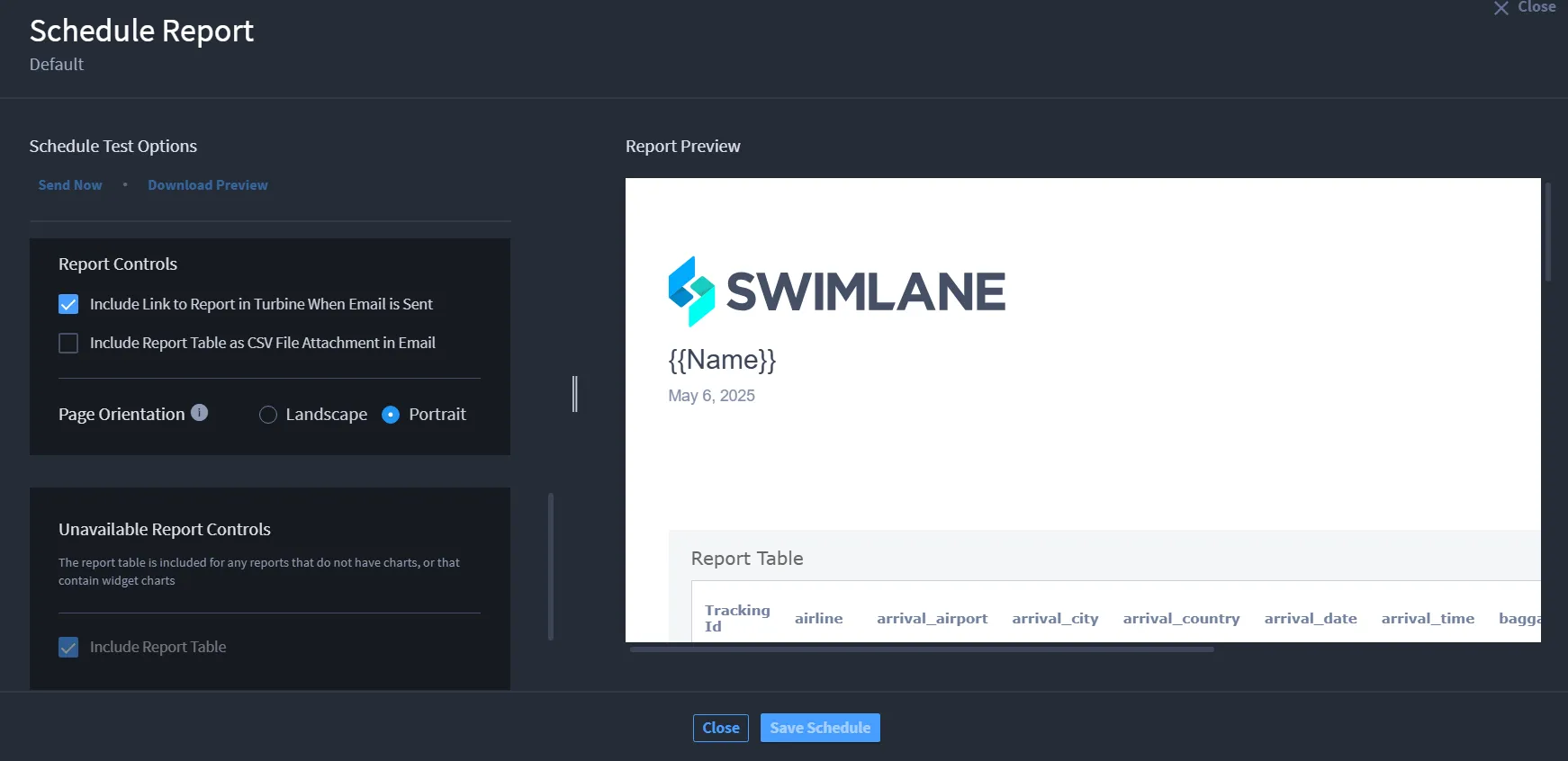
The Report Controls section allows users to customize how the report content is delivered and formatted when shared via email. These settings enhance the flexibility and accessibility of the report for recipients:
- Include Link to Report in Turbine When Email is Sent: When enabled, this option adds a direct link to the full report in Turbine within the body of the email. It provides recipients with quick access to the live report in the platform.
- Include Report Table as CSV File Attachment in Email: When selected, this option attaches the report table as a downloadable CSV file in the email. This is useful for users who prefer to analyze the data externally using spreadsheet tools.
Page Orientation: You can choose the layout for the report’s PDF format by selecting either Landscape or Portrait orientation. This setting influences the presentation of content, particularly tables and text formatting, in printed or downloaded versions of the report.
Unavailable Report Controls
The Unavailable Report Controls section informs users about conditions under which certain report elements are automatically applied or restricted.
The report table is automatically included in any report that either lacks charts entirely or contains only widget-based charts.
In such cases, the Include Report Table option is shown as selected and cannot be disabled, ensuring that meaningful data is always included in the report output even when visual charts are not available.
Header and Footer Formatting
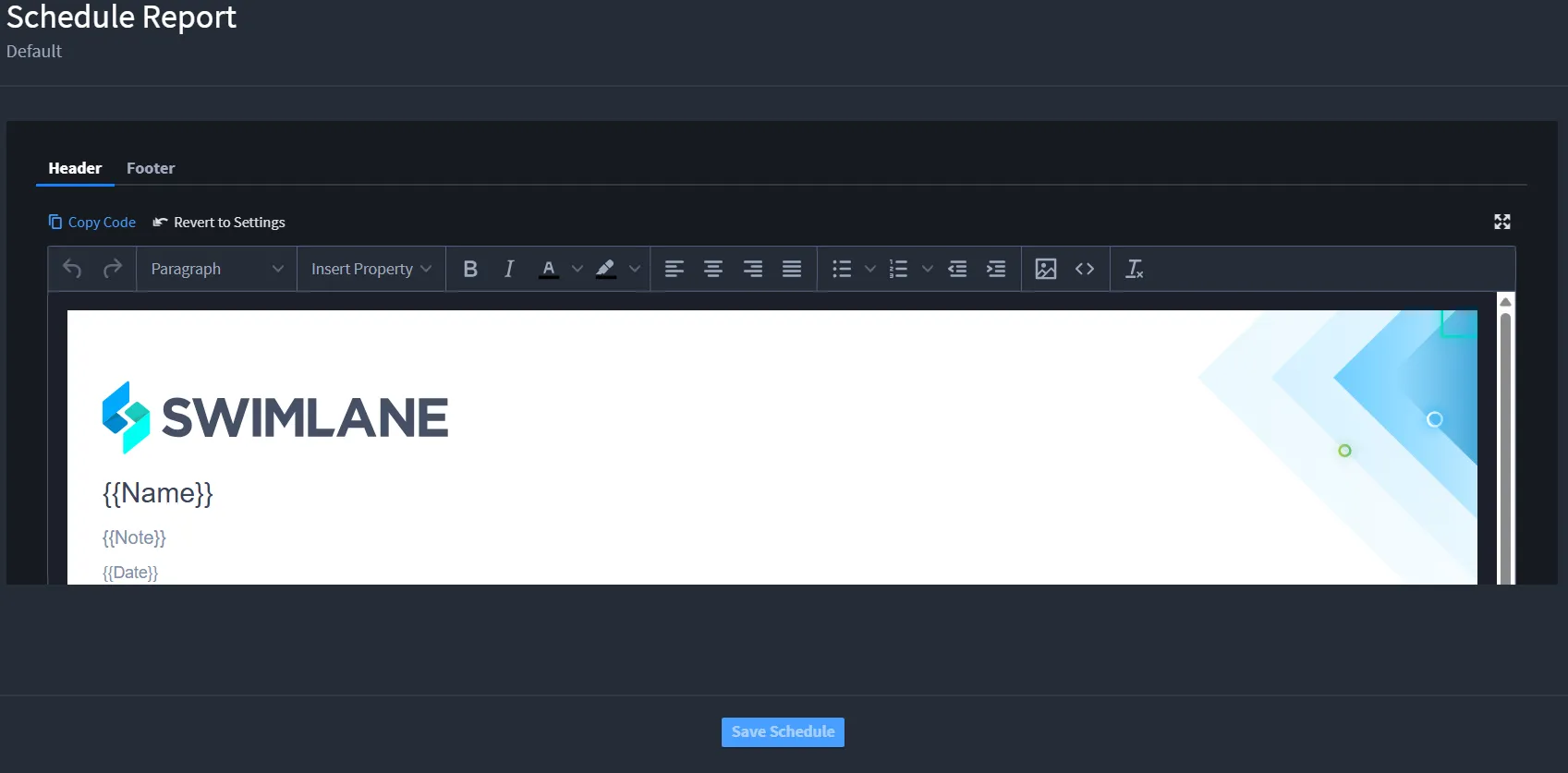
The Header and Footer Formatting section enables users to customize the visual layout and branding of scheduled reports by configuring the header and footer content. This section supports the insertion of styled text, images, or HTML elements to create a professional and consistent presentation across reports.
- Header Tab
- The Header tab allows users to define the content that appears at the top of each page in the report. Users can:
- Insert formatted text or HTML using a rich text editor.
- Add branding elements such as logos or titles to enhance visual identity.
- Use predefined formatting tools, including paragraph styles and layout controls.
- Preview the appearance of the header in the live editor.
- A "Copy Code" option is available to copy the underlying HTML or styling code, enabling reuse or version tracking. The "Revert to Settings" feature allows users to discard manual changes and return to default configurations.
Footer Tab
The Footer tab (not shown in the image but typically included) provides similar customization options for content that appears at the bottom of each report page. Common use cases include adding page numbers, disclaimers, or contact information.
These settings give you full control over the report's appearance, ensuring alignment with organizational branding and communication standards.
When a report is scheduled to be sent via email, the same configuration options from the scheduling setup apply. The following settings ensure accurate and effective delivery:
- Name: Used as the subject line of the email and the filename of the attached report.
- Notes: Included in the body of the email to provide context or explanation.
- Recipients: Specify individual users, groups, or email addresses to receive the report. Deactivated users or groups will not receive notifications.
To preview and test the report email, you can add yourself as a recipient and use the "Send Now" option.
Email reports use the same controls as scheduled reports:
- Include link to the full report in Turbine.
- Attach report table as a CSV (optional).
- Page orientation (portrait or landscape) applies to the PDF layout.
- Report table is auto-included if charts are missing or widget-based.
These settings define how the report appears and is delivered via email.
Header and footer formatting lets you customize the top and bottom sections of the report using rich text or HTML. The same settings apply to both scheduled and emailed reports, supporting branding, titles, dates, and notes.
Download the Report
For downloads, the report name is used as the file name, and notes are included in the PDF content.
Users can optionally attach the report table as a CSV file.
Page orientation settings apply, and table inclusion follows the same chart-based logic.
Download CSV Report
Click Download CSV to export the report data in CSV format. This file can be easily shared or used for further analysis in spreadsheet tools.
Share via URL
You can now share customized record list views using URLs. As you modify filters, charts, column selections, or color rules in a record list, these settings are automatically encoded in the page URL.
This allows you to:
- Bookmark the current record view for future reference
- Share the link with others to ensure consistent viewing
- Use the same URL in dashboards, tickets, or documentation