Publishing an Applet
3 min
An Applet can be published to the Turbine Library as content that can be shared across your Turbine account. The publishing process includes:
- Publish as New Content (V1)
- Publish as a New Version of Existing Content (V1+) (including handling merge conflicts if a remote repository has been configured)
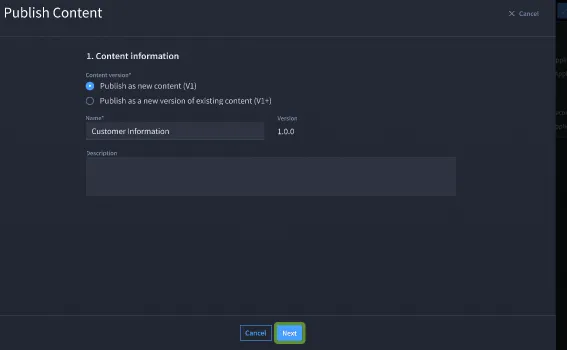
Publish as New Content (V1)
This process applies when the applet is being published for the first time.
Steps:
- Open the applet settings menu and select Publish Applet .
- In the Publish Content window:
- Select Publish as New Content (V1).
- Provide a name and description for the content.
- Click Next.
- Select Content to Publish:
- All the applet components (workspaces, playbooks, reports, etc.) will be listed. Check the components to be included in the package.
- Click Next.
- Review Content:
- Review the selected content and check for potential issues.
- If everything looks good, click Next.
- Summary:
- Confirm the details: version (1.0.0), content name, description, and publish message.
- Click Publish.
- Success:
- A success message confirms that the applet has been published as new content.
- The new content is now available in the content library.
Publish as a New Version of Existing Content (V1+)
This scenario applies when you need to update an already published applet package.
Steps:
- n the Publish Content window:
- Select Publish as a new version of existing content (V1+).
- From the list, choose the package you want to update.
- Click Next.
- Select Content to Publish: Review Changes:
- You can see list of dependent entities related to this component, such as assets, connectors, other referenced components. All the playbook components are listed.
- You can select to publish all related entities to this component, or select individual entities to publish.
- Once you've made your selection, Click Next.
- Review Changes:
- Review the selected content and check for potential issues.
- Click Next.
- Publish Content Summary:
- Add the correct Confirm the new version number for this update. User can indicate whether this update is a major/minor/patch in SEMVER format. (for example, 3.0.0 -> 4.0.0).
- Edit the default publish message to provide more details related to this new version update. (we show a generic default message here) Provide a detailed publish message (what was changed and why).
- Click Publish.
- Merge Conflicts (if applicable):
- Merge Conflicts may occur if a remote repository has been configured to sync with the content in your Turbine Library.
- If conflicts are detected between the local changes and the remote repository, a Merge Conflicts screen appears.
- You have two options:
- Keep Library Changes (retains local changes).
- Keep Remote Changes (keeps remote repository changes).
- Click Apply to resolve conflicts.
- Success: The updated content is now published, and a confirmation message appears.
You can navigate to the User Content library to verify the applet package has been published.