No Record Linking Applied Button Disabled Use Cases
Scenarios
Max is a Turbine orchestrator (Level 2 or 3) and wants his playbook to parse URL output results from the VirusTotal connector to a record Incident application. He wants to use Turbine's application record integration to link records through playbook outputs.
For this use case, there are two issues that could keep Max from successfully linking records. Let's see what happens when Max runs across both issues when the No record linking applied button is disabled and how to resolve them before successfully linking records.
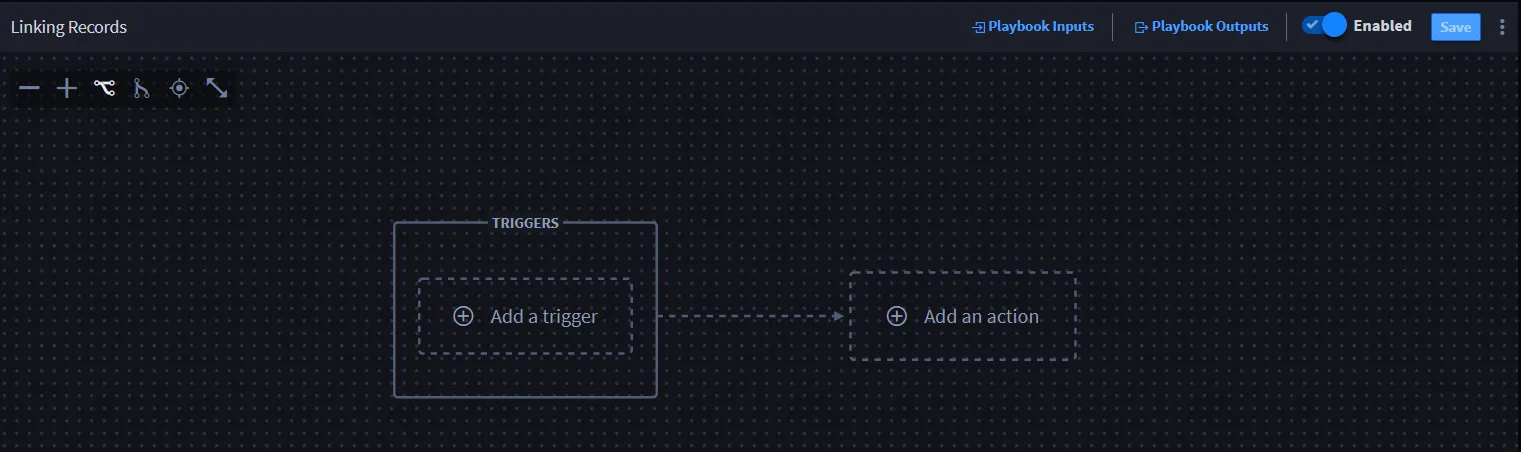
First, he creates a playbook and names it Linking Records.
This playbook name is for the sake of the use case example. You can name the playbook according to whatever outcome/action you are trying to create.
Use Case 1
Issue: The No record linking applied button is disabled
Cause: There is no record event/record action trigger
Max has created the Linking Records playbook and is now ready to link App A to the playbook via playbook outputs.
- In the Linking Records playbook, click Playbook Outputs.
- On Playbook Outputs, click the Application Mapping tab.If Max has not promoted any playbook outputs, he sees the There are no mappings yet message.
- To map the promoted playbook outputs to an application, click Select Existing Application.
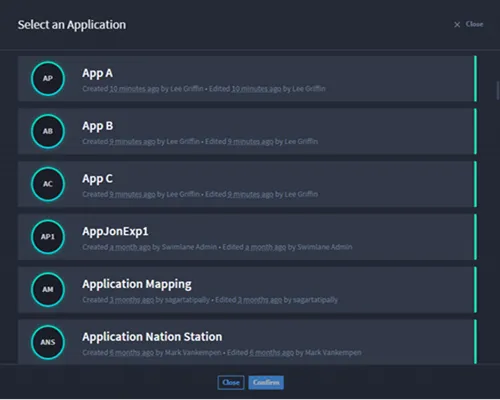
On Select an Application, click the application to which you want to map the playbook outputs, and then click Confirm.
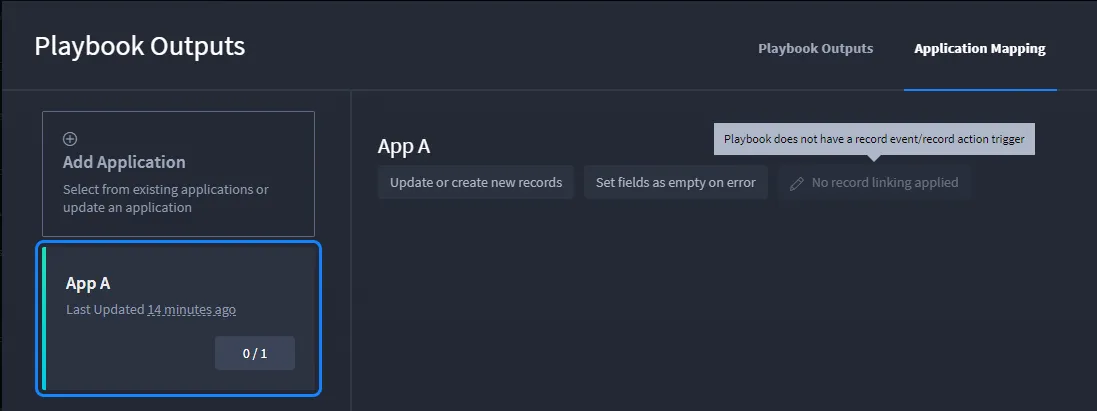
From Playbook Outputs, the No record linking applied button is disabled.

Hover over the No record linking applied button.
Max sees the Playbook does not have a record event/record action trigger tooltip.
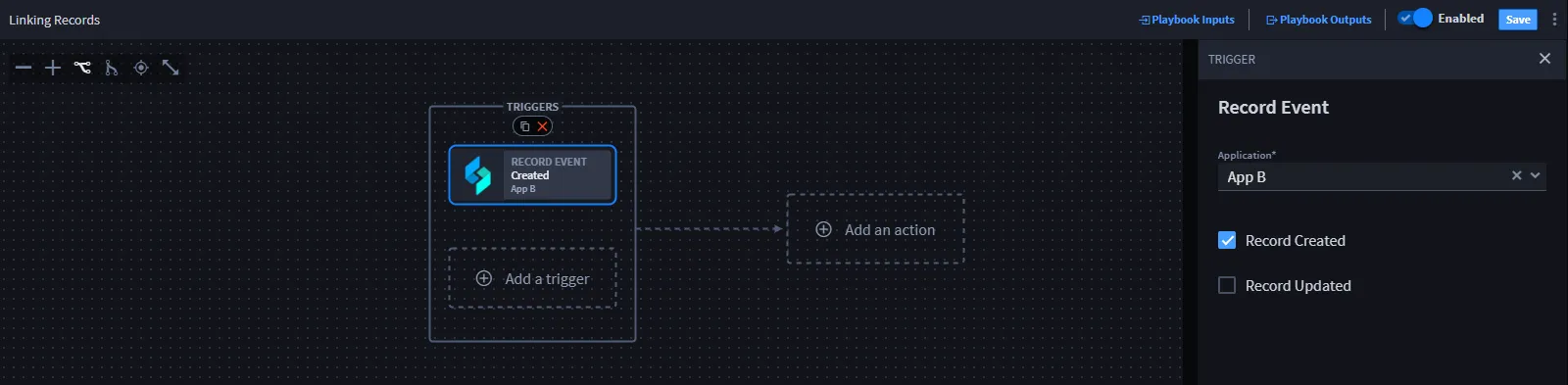
Oh no! Max needs to resolve this issue by enabling record linking. To do this, he closes the window and returns to the playbook to add a record event trigger.
From the Application drop-down, select the application whose records should trigger the playbook (App B in this example) and to which created/updated records in the mapped application(s) (only App A in this example) should be linked.
- Click Playbook Outputs.
- On Playbook Outputs, click the Application Mapping tab.Because Max has added the record event trigger, he now has the ability to select which application to map to the promoted playbook outputs.
- To map the promoted playbook outputs to an application, click Select Existing Application.
On Select an Application, click the application to which you want to map the playbook outputs and then click Confirm.
Max selects App A.
From Playbook Outputs, the No record linking applied button is enabled.
Conclusion
Max successfully enabled the record linking button. Now, he needs to link the records. To do this, he navigates to Linking Records use case.
Use Case 2
Issue: The No recording linking applied button is disabled
Cause: The triggering application does not have a reference field for the application to which the playbook outputs are being mapped
Max created the Linking Records playbook. Ready to link App A to the playbook via playbook outputs. He's verified that he already has a record event trigger. He's already mapped App A to the playbook outputs, just like Use Case 1. However, the No record linking applied button is still disabled.
Let's see why and how to resolve it!
Max selects App A.
From Playbook Outputs, the No record linking applied button is disabled.
Hover over the No record linking applied button.
Max sees the No applications exist that have reference fields linked to the App A application tooltip.
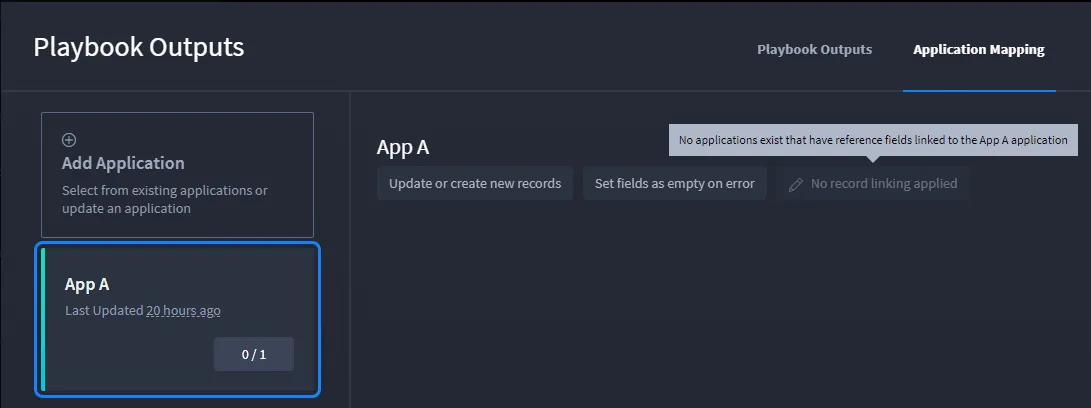
In this scenario, App B has a reference field; however, it does not reference App A. Therefore, Max cannot link the records in application mapping. Oh no! Max needs to enable record linking by updating the reference fields in the selected application.
- Navigate to APPLICATIONS & APPLETS.
Open App B.
Max notices that the FORM LAYOUT section does not contain a Reference field type.
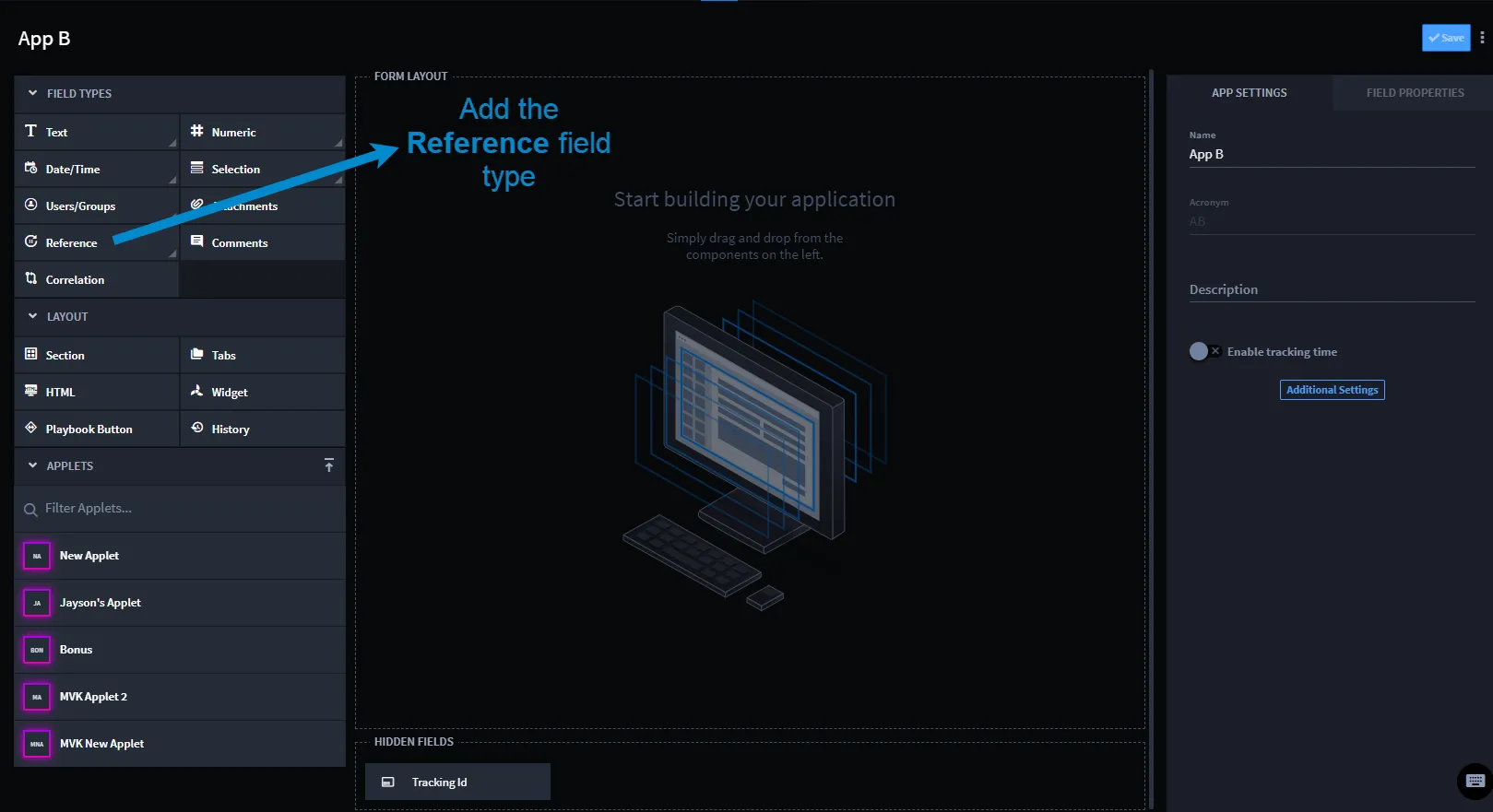
- Click and drag the Reference field type to the FORM LAYOUT section.
- Add a name.
In the Reference Application drop-down, select App A.
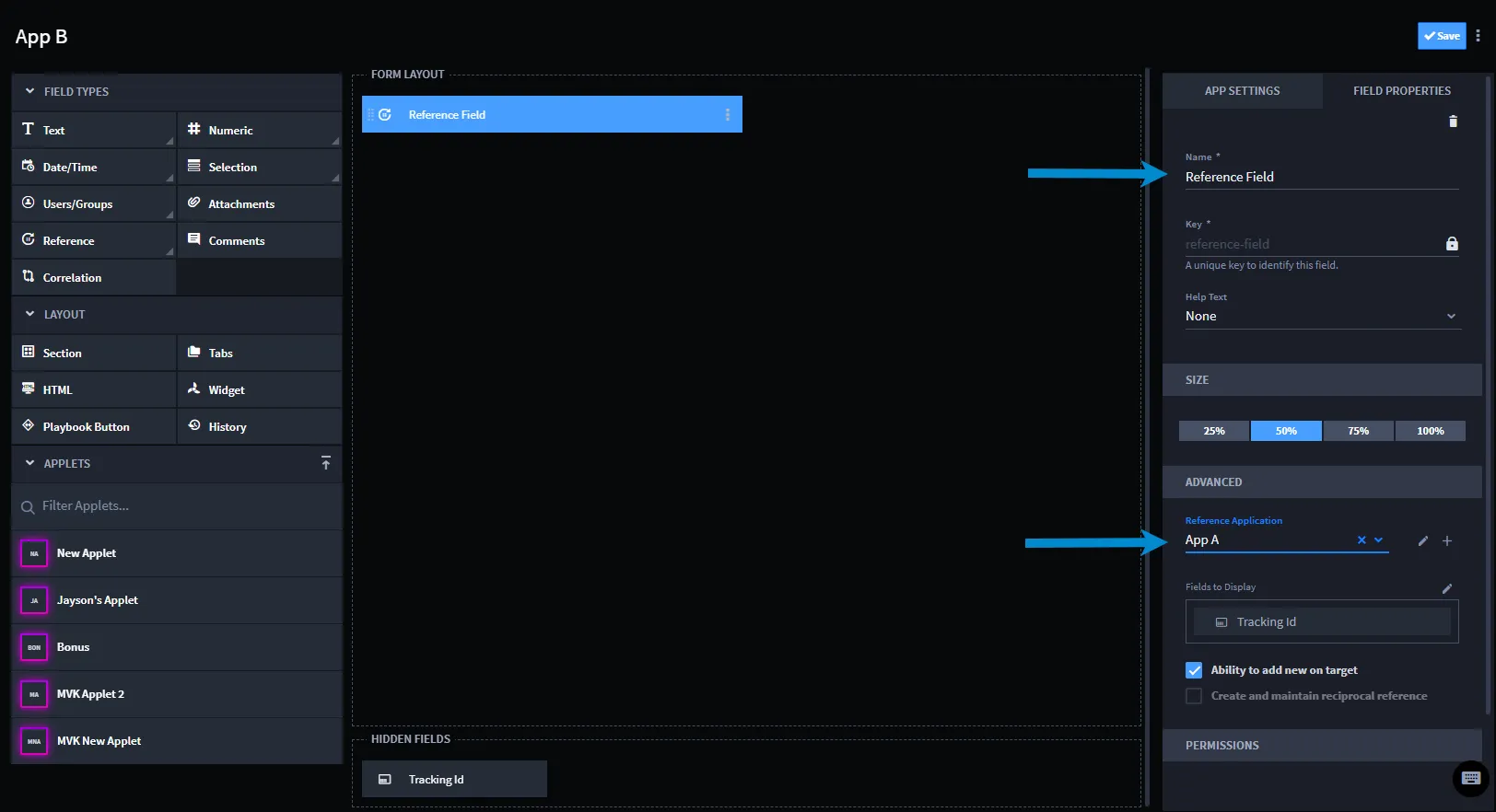
Now App B has a reference field type and is mapped to App A.
- Max navigates back to the playbook.
- On Playbook Outputs, click the Application Mapping tab.If Max has not promoted any playbook outputs, he sees the There are no mappings yet message.
- To map the promoted playbook outputs to an application, click Select Existing Application.
On Select an Application, click the application to which you want to map the playbook outputs and then click Confirm.
Max selects App A.
From Playbook Outputs, the No record linking applied button is now enabled.
Conclusion
Max successfully enabled the record linking button. Now, he needs to link the records. To do this, he navigates to Linking Records use caseLinking Records use case.