Hero AI Companion
The Hero AI Companion allows Swimlane Turbine users to interact with Hero AI, Swimlane’s Agentic AI SecOps companion. The Hero AI Companion can answer questions about the private data in the customer’s tenant or cybersecurity topics. For example, you may ask, “What cases involve user Mary Jane in the last two weeks?” or “How should I remediate CryptoLocker?"
If you are viewing an application record, Hero will recognize the context of the case, enabling you to ask questions like “Summarize this case for me,” or “What other issues have occurred with this host in the past week?”
The Hero AI Companion is behind a feature flag and must be enabled. To enable this feature, contact Swimlane Support. Once enabled, the Hero AI icon will appear at the top-right corner of the application/screen.
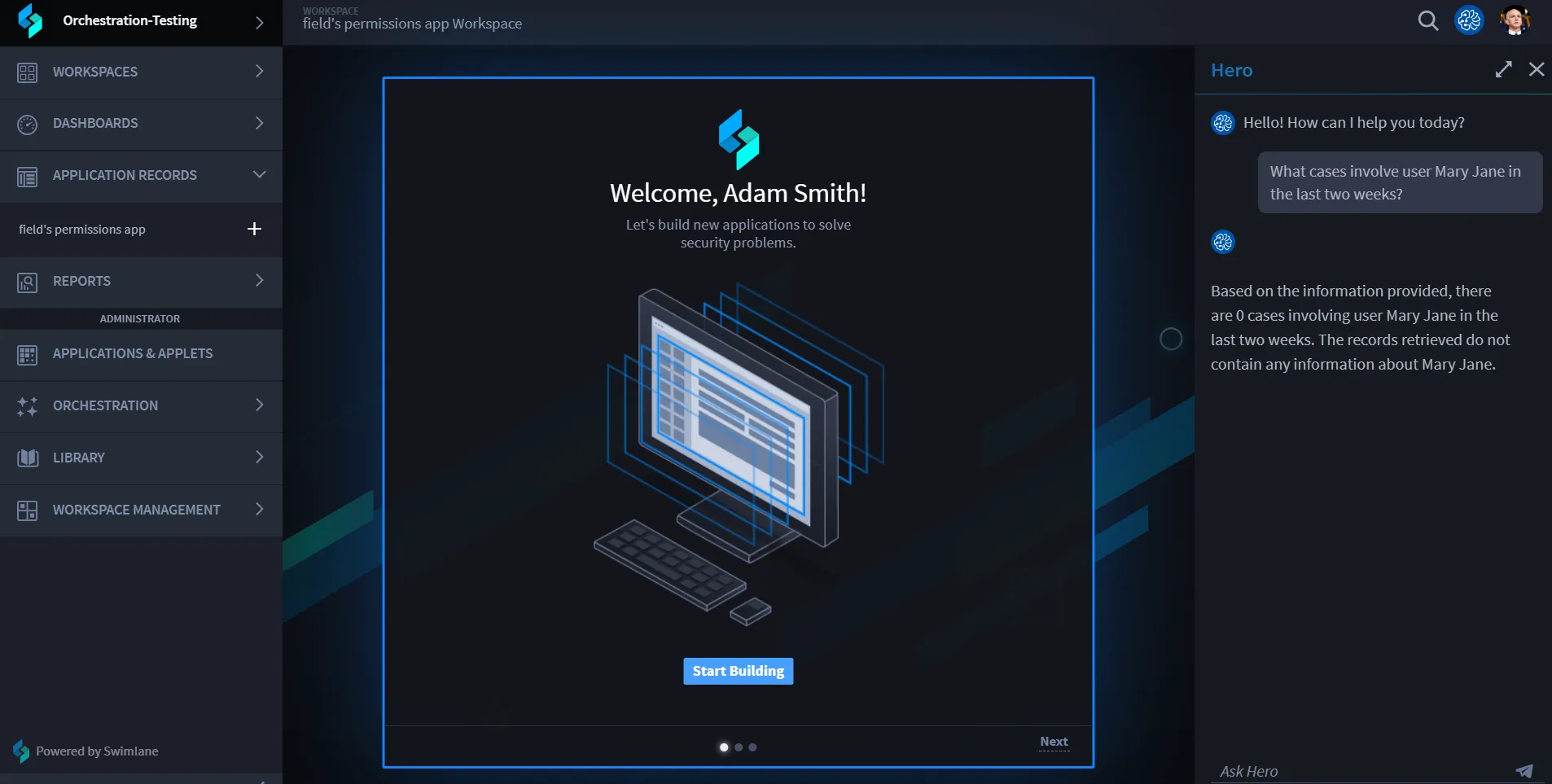
The Hero AI Companion is able to read application records, butt cannot yet update records or access other Swimlane Turbine features such as Playbooks or Components.
See the Hero AI Companion in action in this demo video.
Uses of the Hero AI Companion
The Hero AI Companion offers robust features to simplify record management and optimize data access, enabling users to work more efficiently and securely:
Efficient Record Access
Hero AI eliminates the need for time-consuming manual filtering by allowing users to ask direct questions about the data they need. The system generates precise links to the desired records or pages, ensuring users can quickly access relevant information without navigating through complex menus or datasets. By clicking on these links, users are seamlessly directed to the exact data they require, saving time and minimizing errors.
Record Context
If you are viewing an application record, Hero will understand the context of the current record. So you can ask questions about "this case," "this user," or "this host" and Hero will understand what you mean.
Conversations
The Hero AI Companion understands conversation context, so you can ask follow-up questions such as "can you give me a shorter answer" or "tell me more about those cases." Conversations last as long as the window is open and are reset when you close a window. To limit token usage and maintain clarity, conversation context is typically limited to the most recent five prompts and responses.
When a Hero AI response includes a large number of matching records, it displays a preview of up to five records along with the total count. To help you view all results, Hero AI now provides a link that opens a full report in the Swimlane UI.
This report includes all matching records with the same filters applied. You can interact with the report as usual — sort, export, or save it — just like any manually created report view.
This makes it easy to explore complete results without needing to manually recreate the same view.
RBAC
The Hero AI Companion inherits the RBAC settings of the user chatting with Hero. If a user cannot read an application or field then Hero will also not be able to view that application or field.
Hero AI Companion Windows
The Hero AI Companion icon is located at the right top of the screen. Click on it to open a window where you can ask your questions. The Hero AI Companion offers two window sizes:
- Full-Screen Mode: Expands the window to occupy the entire screen, ideal for tasks requiring detailed focus or extended use.
- Docked Mode: Docks the chat window on the right side of the screen, providing a compact view suitable for multitasking, viewing current record context, or when limited screen space is available.
Note: Once the window is closed, the conversation history is cleared. If the user navigates to a different screen, the Companion stays open, and the conversation context is preserved. However, the history is cleared if the page is refreshed or the Companion is closed.
Configure Hero AI Visibility Settings
Application visibility settings provide precise control over the data Hero Companion can access. Entire applications or specific fields can be toggled on or off, controlling which data Hero can access to answer questions For example:
- Applications and fields that the AI chatbothat Hero can access can be configured by enabling the visibility toggle option.
- Restricted fields can be kept hidden even if the application itself is accessible.
Configure Applications
Users have the ability to configure whether an application is visible to Hero AI through a toggle button available on the App Settings Page. For newly added applications, the visibility toggle should be turned on by default to enable Hero access. When the toggle is enabled, the Description Field becomes mandatory, ensuring that Hero understands the purpose of the application. A good description is important in helping Hero correctly answer questions about the application and its fields.
You can use the following template to create a good application description that will best help Hero answer questions about the application:
The *[Application Name]* ([Application Acronym]) application is designed to [state the purpose]. It contains information about [describe the data or records stored in the application]. Each record in [Application Acronym] includes [list the main data fields and their formats]. This application is commonly used to [describe a use case]. [Conventions or terminology for this application that are not a part of general knowledge].
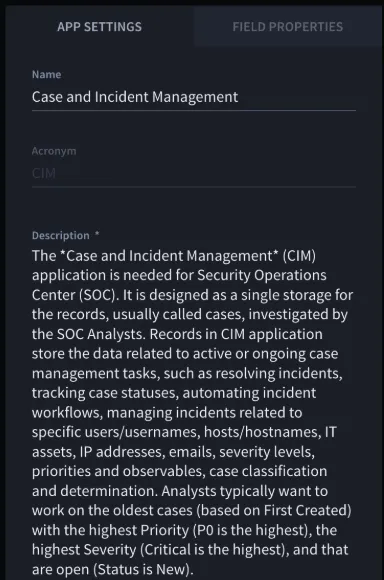
An example from the Case and Incident Management application from the SOC Solution BundleSOC Solution Bundle.
The Case and Incident Management (CIM) application is needed for Security Operations Center (SOC). It is designed as a single storage for the records, usually called cases, investigated by the SOC Analysts. Records in CIM application store the data related to active or ongoing case management tasks, such as resolving incidents, tracking case statuses, automating incident workflows, managing incidents related to specific users/usernames, hosts/hostnames, IT assets, IP addresses, emails, severity levels, priorities and observables, case classification and determination. Analysts typically want to work on the oldest cases (based on First Created) with the highest Priority (P0 is the highest), the highest Severity (Critical is the highest), and that are open (Status is New).
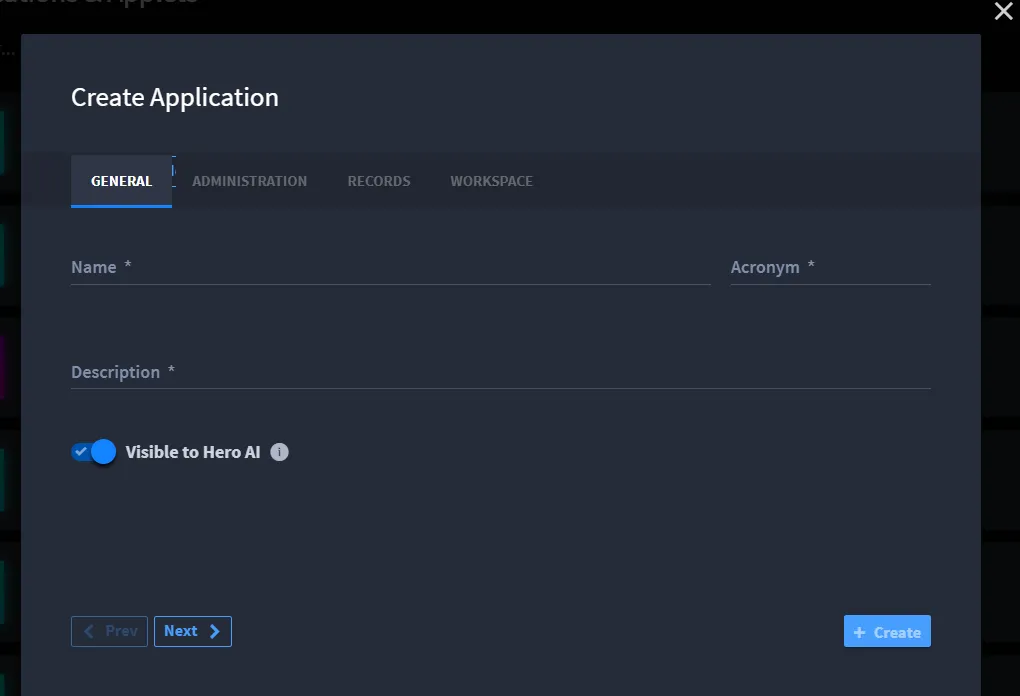
To turn on the Visible to Hero AI toggle:
- Navigate to APPLICATION & APPLETS-> Create a New Application.
- In Create Application window, the Visible to Hero AI is by default toggled ON.
- Note: Description field is mandatory.
- In new APPLICATION -> APP SETTINGS -> toggle on Visible to Hero AI.
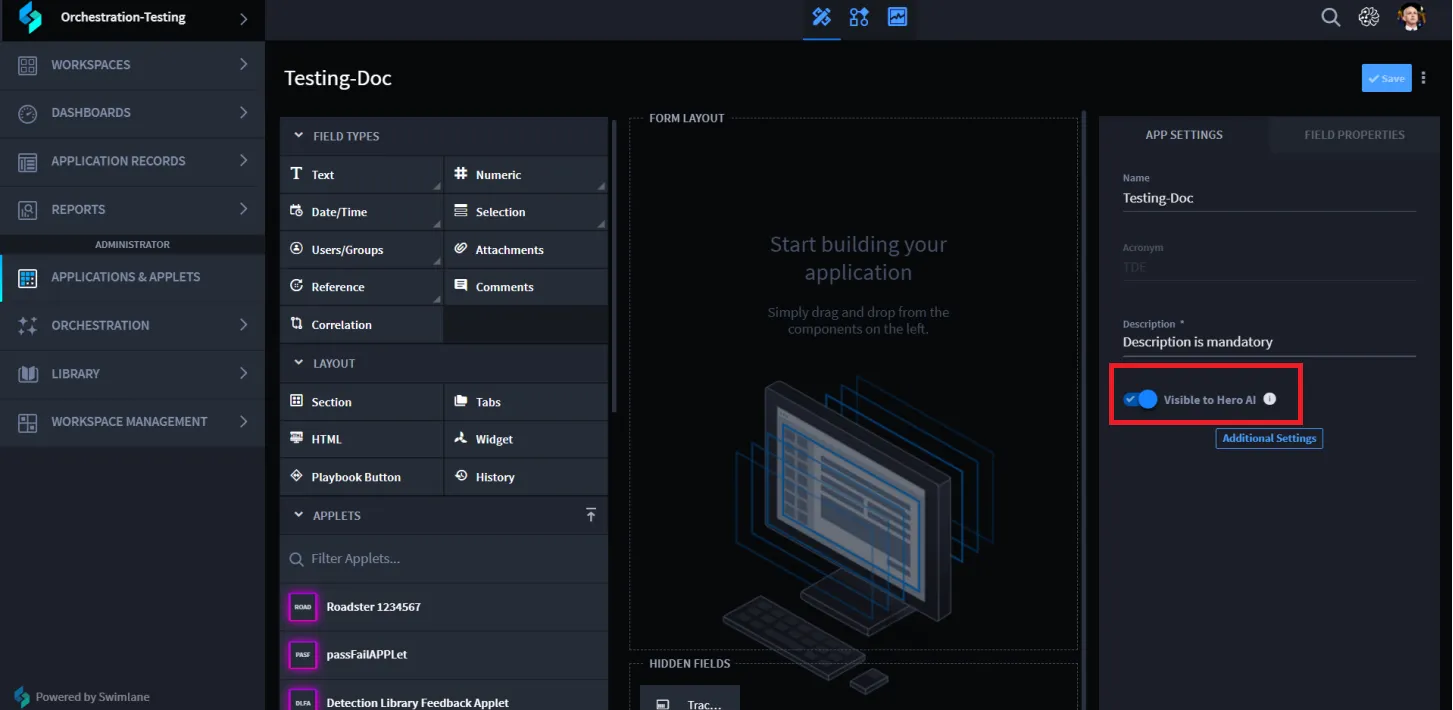
- The Description field is mandatory if you toggle on the Visible to Hero AI.
Note: If the "Visible to Hero AI" toggle is turned off for an application, it cannot be turned ON for fields for that application.
Configure Fields
Users can configure the visibility of individual fields to Hero AI using a toggle button available on the Field Properties Page. This new toggle allows for granular control, ensuring that sensitive fields remain hidden if required. By default, fields are set to not be visible to Hero. When the Hero AI toggle is enabled, the Description Field becomes mandatory, requiring users to provide relevant information about the field for better context.
Good field descriptions are short, preferably one sentence and include the meaning and sample values for the field.
An example of a field description for a Vulnerability ID field:
The primary CVE ID of the vulnerability. Value Format: CVE-YYYY-XXXXX.
Sample Value: CVE-2019-12345.
To turn on the Visible to Hero AI toggle:
- Drag and drop the required field in the FORM LAYOUT.
- Click on the field. In FIELD PROPERTIES window, toggle ON the Visible to Hero AI.
Note: By default the Visible to Hero AI toggle is off. The description field is mandatory.
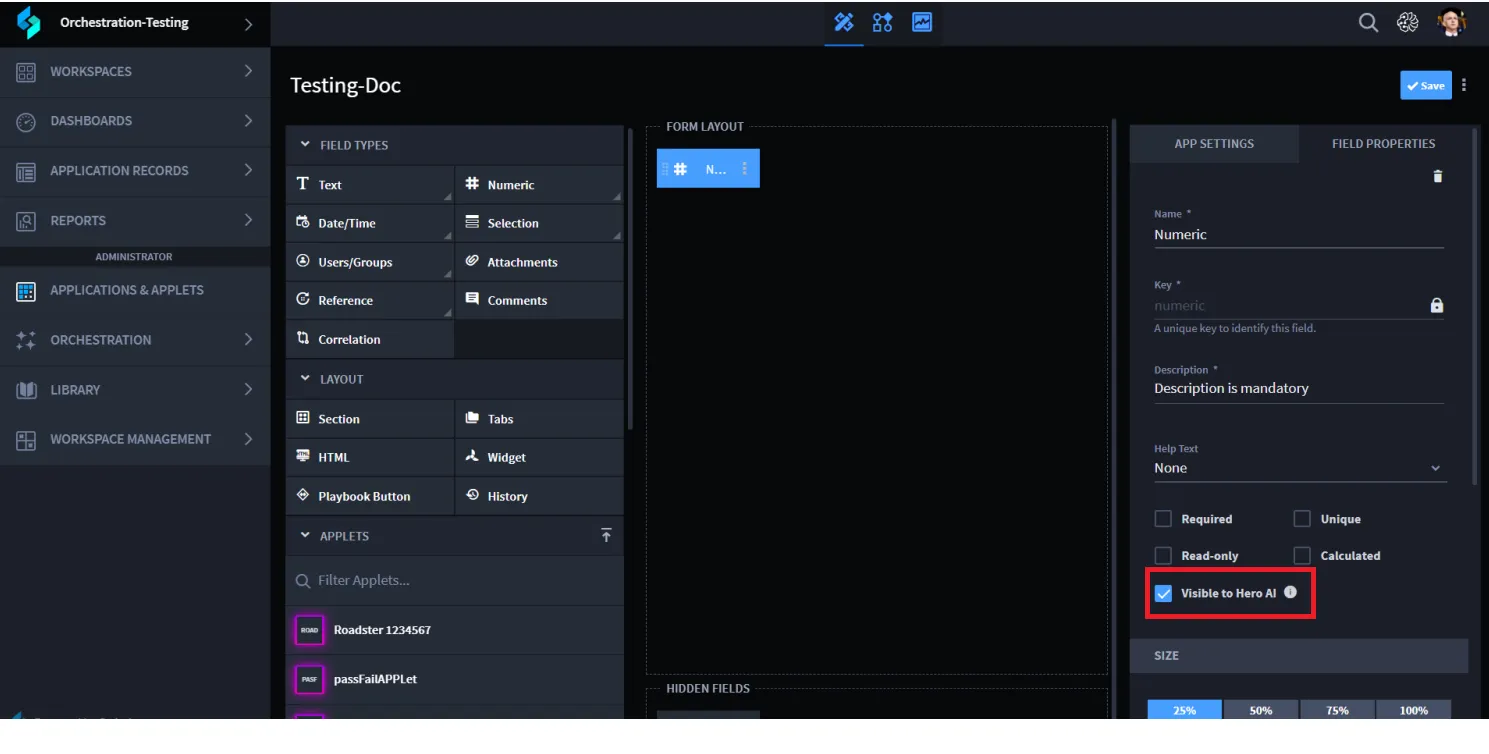
By strategically using these toggles, organizations can help Hero give better answers by only accessing essential fields. Controlling which applications and fields are available to Hero also helps organizations align Hero AI's functionality with their policies and data governance standards.
Visibility Logic Table
The Visibility Logic Table explains how the combination of Application Visibility Toggle and Field Visibility Toggle determines Hero AI's access to specific data:
Application Visibility Toggle | Field Visibility Toggle | Resulting Hero AI Visibility | Explanation |
|---|---|---|---|
Enabled | Enabled | Enabled | Both the application and specific field are turned on, allowing Hero AI full access to the data. |
Enabled | Disabled | Disabled | The application is visible, but the specific field is restricted, preventing Hero AI from accessing that field's data. |
Disabled | Enabled | Disabled | The application itself is restricted, so even if the field is marked as visible, Hero AI cannot access any data from the application. |
Disabled | Disabled | Disabled | Both the application and the specific field are restricted, ensuring no access for Hero AI. |
Thumbs Up/Down Functionality and Feedback Options
Hero AI allows users to provide quick and meaningful feedback on AI-generated responses using the thumbs up and thumbs down icons displayed beneath each reply. These tools help continuously improve the accuracy, clarity, and usefulness of responses within the platform.
Thumbs Up – Positive Feedback
Click the thumbs up icon of the response:
- Accurately answers your question
- Is helpful, clear, or complete
- Matches the expected format or logic
This positive feedback reinforces good results and helps the AI learn what works best for users.
Thumbs Down – Negative Feedback
Click the thumbs down icon of the response:
- Is partially correct, incorrect, or irrelevant
- Is difficult to understand due to formatting
- Doesn’t match the context or logic of your request
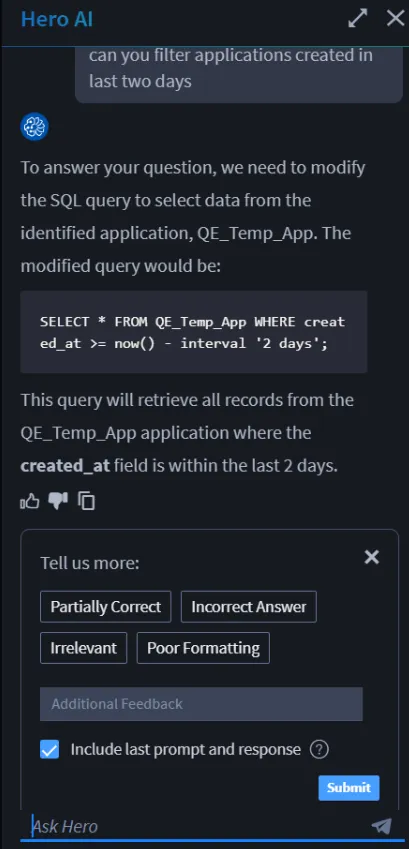
After clicking thumbs down, a feedback panel appears where you can specify what went wrong using one or more of the following options:
Feedback Options:
- Partially Correct: The response includes some useful or accurate information but is incomplete or contains minor issues.
- Incorrect Answer: The response is wrong or doesn’t apply to your question.
- Irrelevant: The response doesn’t address your prompt or goes off-topic.
- Poor Formatting: The answer is hard to read, poorly structured, or not formatted according to expectations (e.g., broken code blocks or missing syntax).
You can also enter specific notes in the “Additional Feedback” field to give more context. For example:
“This SQL syntax doesn't work in MySQL. It should use DATE_SUB() instead of interval.”
Include Last Prompt and Response
By default, the feedback panel includes a checkbox labeled “Include last prompt and response.” When checked, this ensures your original question and the AI’s response are submitted together with your feedback. This gives reviewers the full context and improves the quality of future responses.
Use Case Example
Scenario:
You ask:
"Can you filter applications created in the last two days?"
Hero AI replies with:
SELECT * FROM QE_Temp_App WHERE created_at >= now() - interval '2 days';
Problem:
You notice that the syntax is not compatible with your SQL environment (for example, MySQL) and that the explanation lacks detail about the created_at field.
Action:
You click thumbsdown, select:
- Incorrect Answer
- Add a note:
“Use DATE_SUB() instead. Clarify created_at field type.”
You leave Include last prompt and response checked and click Submit.
Your feedback helps improve the assistant’s understanding of SQL dialect differences and promotes clearer explanations in future interactions.