Flows and Conditions
Action flows allow you to control the sequence and execution of actions within a playbook. They specify what should happen after each action based on whether it was successful, failed, or simply completed. These flows are essential for building dynamic, conditional logic within Swimlane playbooks.
Types of Action Flows
Turbine supports the following action flows:
- On Success: Executes the next action if the preceding action completes successfully.
- On Failure: Executes the next action if the preceding action fails.
- On Complete: Executes the next action once the preceding action completes, regardless of its success or failure.
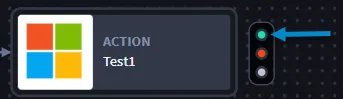
The Action Flow icon has three types that determine whether the next action should occur on the success, failure, or general completion of the preceding action.
Every action has an Action Flow icon. The table below details icon information for different types of flows.
Position in Icon | Color | Action Flow Types / Tool Tip |
|---|---|---|
Top (On Success) | Green | On Success |
Middle (On Failure) | Red | On Failure |
Bottom (On Complete) | Grey | On Complete |

Add Action Flows
- Add an action to the playbook.
- Configure the action. See Create Actions and Configure InputsCreate Actions and Configure Inputs for more information.
- Hover over the action to display the Action Flow icon. Click the On Success, On Failure, or On Complete action flow type as required.
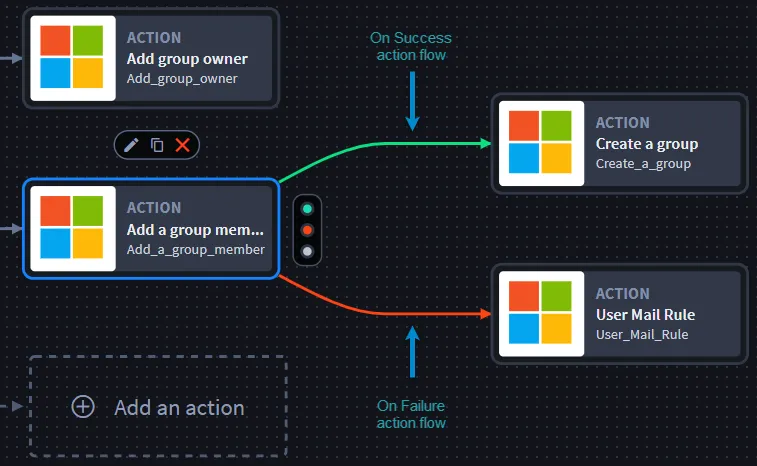
Important! An action can have multiple action flows. The example below shows an action with both On Success and On Failure flows.
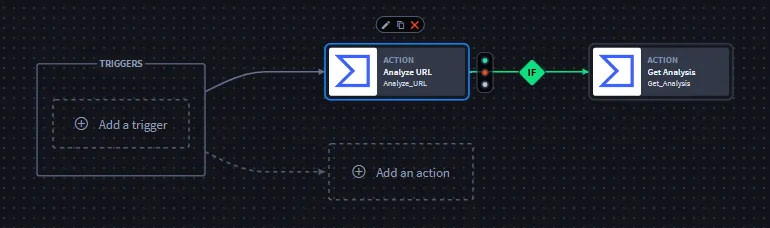
Once you have created an action flow, it's time to configure it.
Playbook Condition Builder
Now that you have an action flow set up, use the Playbook Condition Builder to define when and how each action should execute based on specific conditions. The table below explains the icons and meanings of the action flow controls.
Action Flow Control Icons
Action Flow Icons | Meaning |
|---|---|
 | On Success: Executes the next action if the preceding action is successful. |
 | On Failure: Executes the next action if the preceding action fails. |
 | On Complete: Executes the next action after the preceding action completes, regardless of the outcome. |
 | Delete Condition: Removes the selected condition. |
 | Configure Condition: Opens the configuration panel to edit the condition. |
 | Add Condition: Adds a new condition to the action flow. |
 | Remove Condition: Deletes the condition from the action flow. |
Configure Conditional Expressions
Conditional expressions allow you to create dynamic flows within playbooks by setting up conditions that control which actions execute based on specific criteria. Here’s what you can do:
- Create and configure conditions between playbook actions using comparison operators.
- Build conditions with minimal code.
- Use conditions to execute actions that adapt based on incoming data criteria.
Comparison Operators
Comparison operators are used to compare values in conditional expressions. The table below lists the operators and available options.
Comparison Operators | Options |
|---|---|
Null Comparison Operators | Is defined / Is not defined |
Boolean Comparison Operators | Is true / Is false |
String Comparison Operators | Matches / Matches (case insensitive) / Does not match / Does not match (case insensitive) |
String Array Operators | Contains / Contains (case insensitive) / Does not contain / Does not contain (case insensitive) |
Numeric Comparison Operators | Is greater than / Is greater than or equal to / Is less than / Is less than or equal to / Is equal to / Is not equal to |
Numeric Array Operators | Contains / Does not contain |
Read-Only Condition Panel
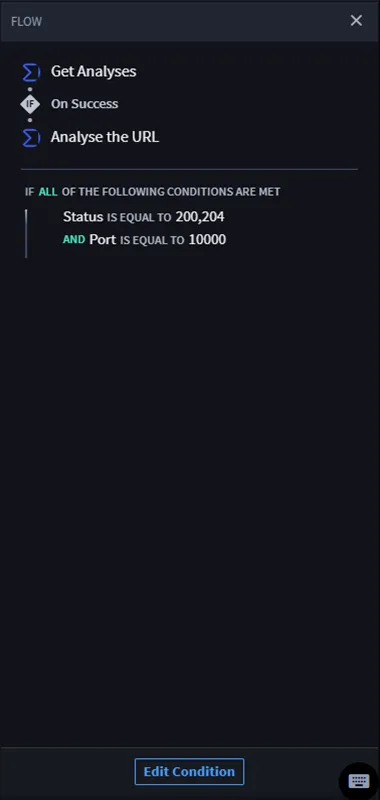
In a playbook, you can view the configured conditional logic to understand how actions will execute. Clicking on a condition line displays the flow.
In the FLOW view, you can see the workflow of conditions. Click Edit Condition to modify the expression as needed.