Creating a New User Dashboard
1 min
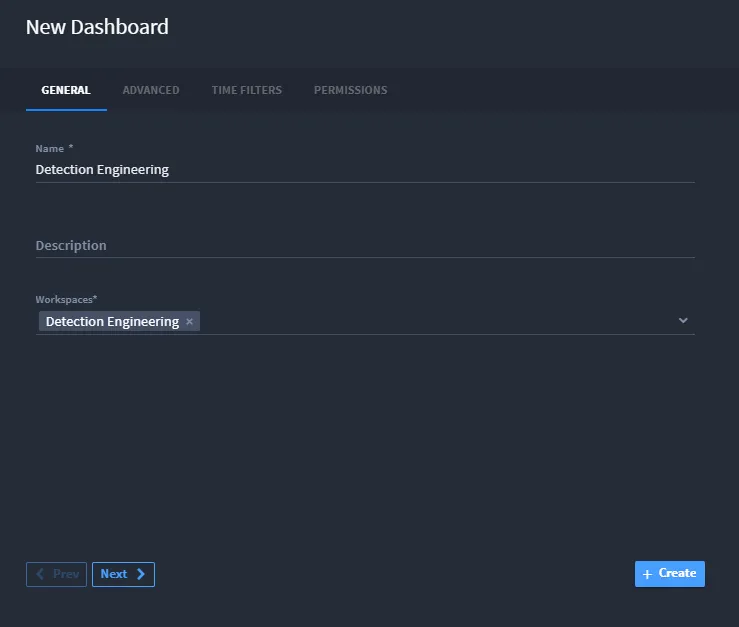
To create a new dashboard:
- Select New from the dashboard toolbar or if you are an admin, go to Management > Dashboards, then click New Dashboard.
- Enter a name, optional description, and assign one or more workspaces. The current workspace is selected by default.
- In the Advanced tab, enable the Timeline switch if needed, then configure Min Timeline Date and Max Timeline Date. This feature will be deprecated in a future release. It is recommended to use the dynamic filters available directly on the dashboard instead.
- In the Time Filters tab:
- Under Date Fields, configure default date filtering behavior by selecting a global date field for each application.
- Under Dashboard Defaults, assign a default time range . These filters apply globally unless overridden at the card level.
- In the Permissions tab, choose whether the dashboard is personal or assign roles with access rights.
To edit a dashboard and add a schedule:
Go to Management > Dashboards and click the edit icon next to the dashboard you want to edit or open the dashboard and select Edit Settings.