Correlation
You can correlate records within a single application within Swimlane Turbine. Upon ingestion of new application records, Turbine compares the new record to previous records that have correlation keys.
Record Correlation executes two tasks:
- Compares correlation key fields across records in a single application, looking for configurable similarities.
- Updates a correlation field in the associated records.
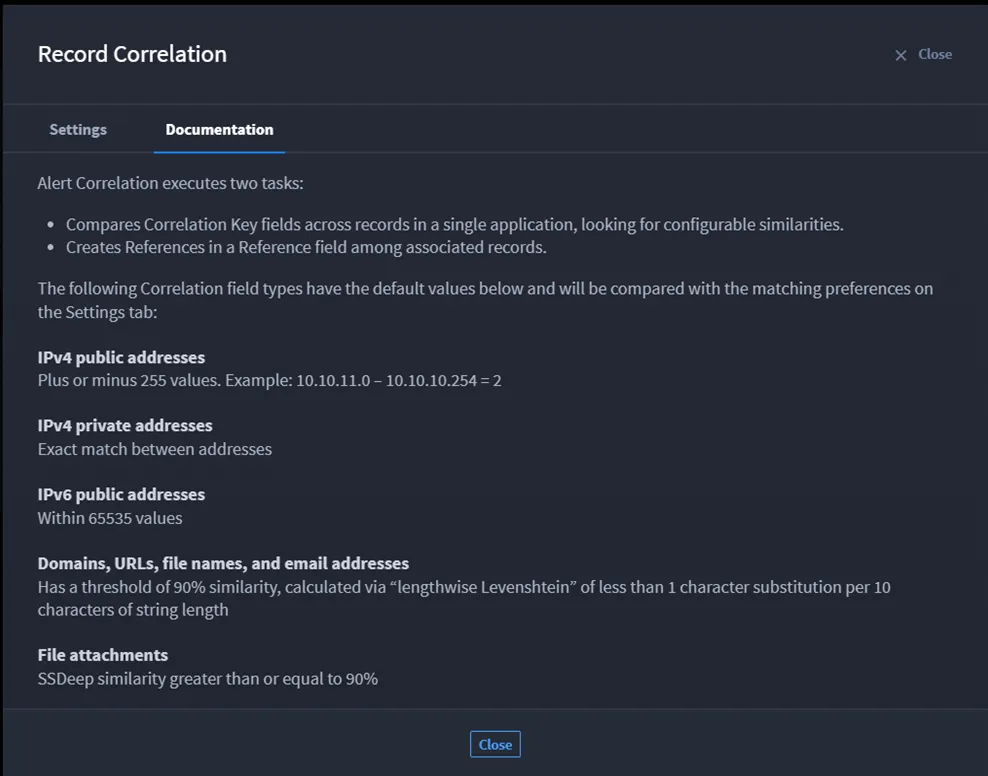
The following correlation field types have the below default configurations and will be compared with the matching preferences on the Settings tab:
Correlation Field Type | Value and Default Information |
|---|---|
IPv4 public addresses | Plus or minus 255 values. Example: 10.10.11.0 – 10.10.10.254 = 2 |
IPv4 private addresses | Exact match between addresses |
IPv6 public addresses | Within 65535 values |
Domains, URLs, file names, and email addresses | Has a threshold of 90% similarity, calculated via “lengthwise Levenshtein” of less than 1 character substitution per 10 characters of string length |
List elements | Lists of raw text strings as well as ipv4_public, ipv6_public, domain, url, email, md5, sha1, sha256, ssdeep, filename list values. |
File attachments | Fuzzy hash similarity greater than or equal to 90% |
Configure Record Correlations
To configure record correlations in your application, complete the following steps.
Begin by creating an application.
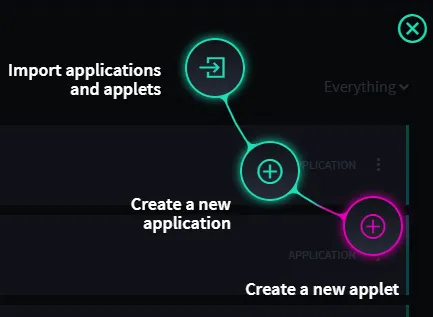
- Select the plus icon, and then select Create a new application.
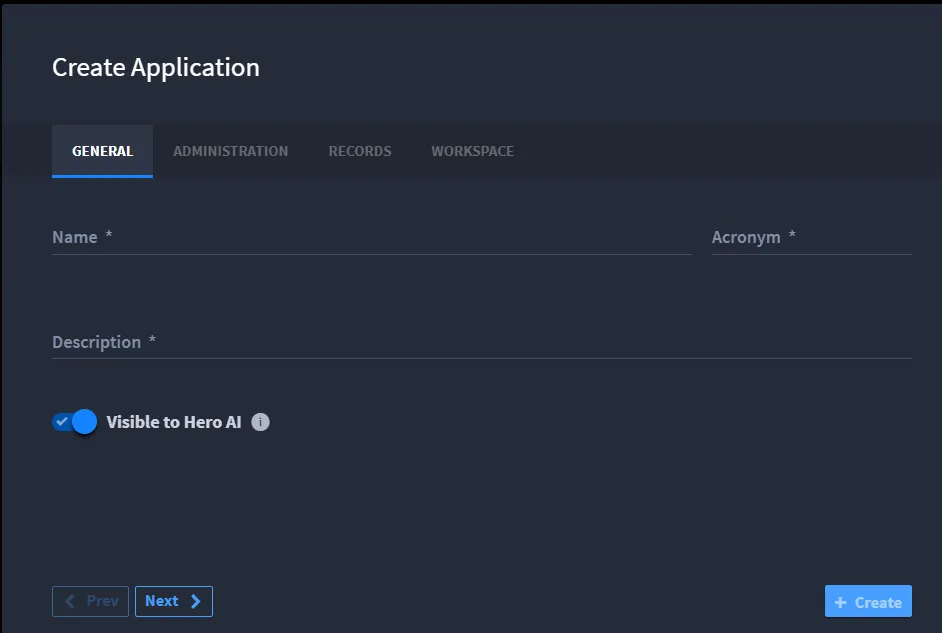
- On the Create Application screen, complete the Name field. You can select the GENERAL, ADMINISTRATION, RECORDS, or WORKSPACE tabs to provide more information, or use the Next and Prev buttons to navigate through tabs.
- Select +Create a new application.
- The application opens in the application builder. The Form Layout section will be empty.
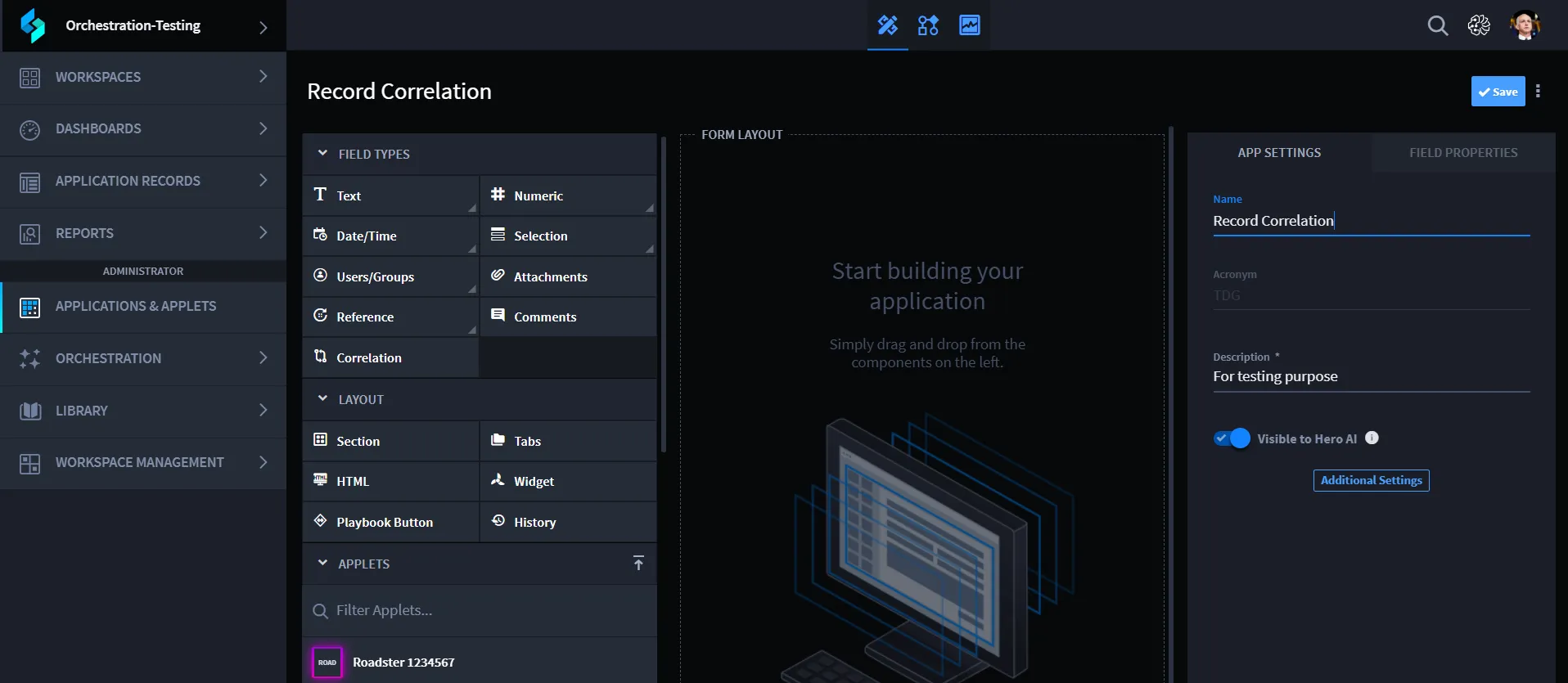
- In the Form Layout section, add the following field types: Text, IP, URL, and Correlation.
- Tip: To access the IP and URL field types, select the arrow in the bottom-right corner of the Text field type.
- The form will now include all required field types for correlation. At this point, record correlation is enabled. The field named Correlation Results will display matched results.
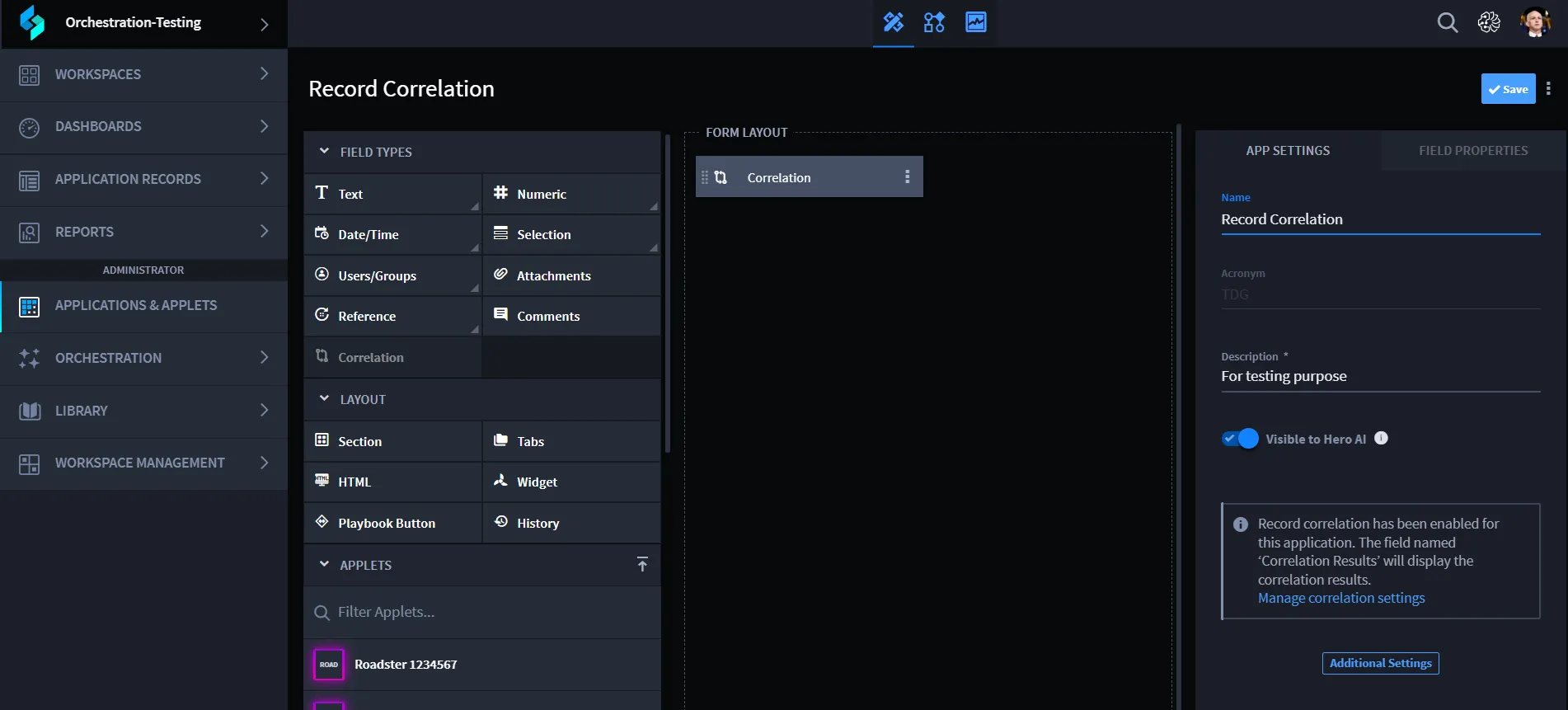
- Select Manage correlation settings. This opens the Record Correlation window.
- For information about how correlation works and default matching behavior for certain field types, select the Documentation tab.
- After reviewing the information, return to the Settings tab.
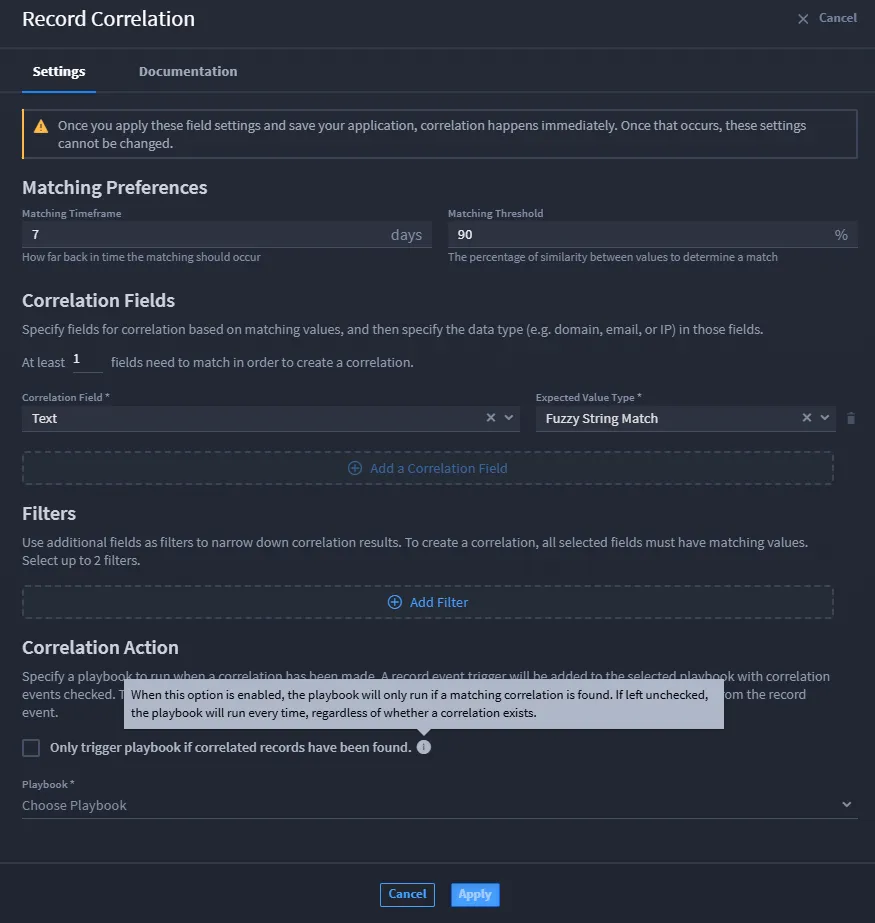
- Configure the following matching preferences:
- Matching Timeframe: Specify how far back in time (in days) the system should check for matches.
- Matching Threshold: Enter the percentage of similarity required to determine a match.
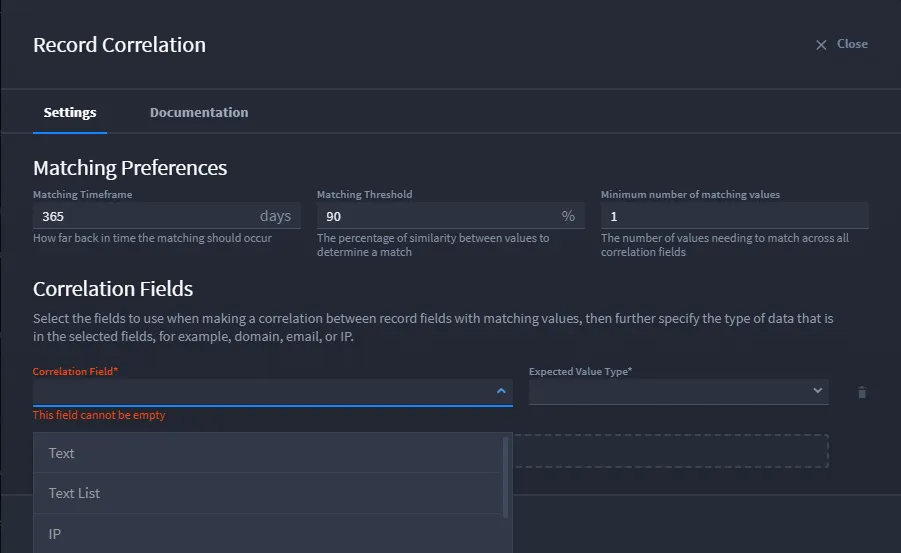
- From the Correlation Field list, select a field to use for matching.
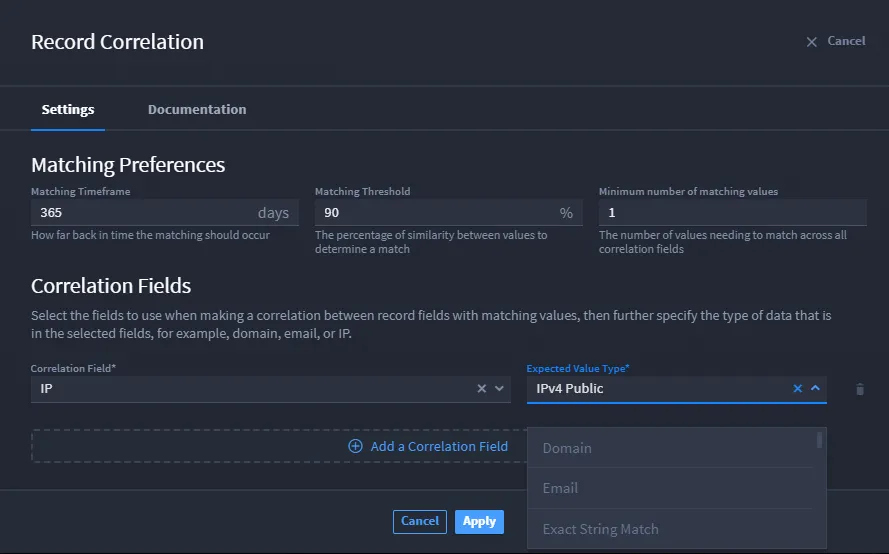
- From the Expected Value Type list, select the value type (for example, domain, email, or IP).
- To apply filters that refine the results further, select a field from the Filters section. You can define up to two filters.
- In the Correlation Action section, choose the playbook to run when a correlation is found.
- (Optional) Select the Only trigger playbook if correlated records have been found checkbox to limit execution to matched cases only. If not selected, the playbook will always run.
- Select either a Classic or Canvas playbook:
- Classic: Triggers the selected playbook as usual.
- Canvas: Choose a flow from the Select a flow list, or select +Create new to define one.
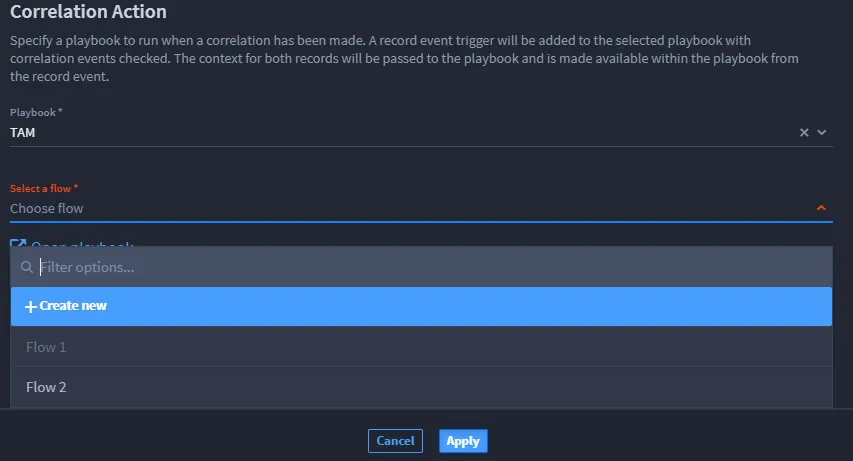
- Select Apply to save your correlation settings.
Once you apply these correlation settings and save your application, correlation will begin immediately. However, correlation fields can be edited later as needed.
Attachments Not Linked in Correlation in Turbine On-Prem
In Turbine Platform (TP), the attachment correlation functionality is not working as expected. When correlation is configured for attachments in an application, the attachments are not being linked or correlated across records.
Steps:
- Connect to the PostgreSQL pod: kubectl exec -it postgresql-0 -- bash
- Switch to the postgres OS user: su postgres
- Connect to the PostgreSQL database: psql
- Execute the following SQL commands to create the TLSH comparison function: CREATE OR REPLACE FUNCTION public.tlsh_compare(TEXT, TEXT) RETURNS INTEGER AS '/usr/lib/postgresql/14/lib/tlsh_psql.so', 'pg_tlsh_compare' LANGUAGE C;
- Verify the function is available by listing functions in the public schema:
   SELECT * FROM pg_extension;
   SELECT routine_name AS function_name FROM information_schema.routines WHERE routine_type = 'FUNCTION' AND routine_schema = 'public';