Configure Inputs in Condition Expressions
Turbine allows users to configure conditions between two actions by utilizing playbook inputs and/or action outputs.
Scenario
Alex wants to configure a conditional expression using playbook property inputs. Alex already has created a playbook and selected an action. She can now configure the action input by adding a condition.
To add a condition, from an action, click the Add condition icon. Once Alex clicks the action flow, it turns blue and the FLOW panel displays to the right. The Edit Condition window opens.
Click CREATE YOUR FIRST CONDITION.
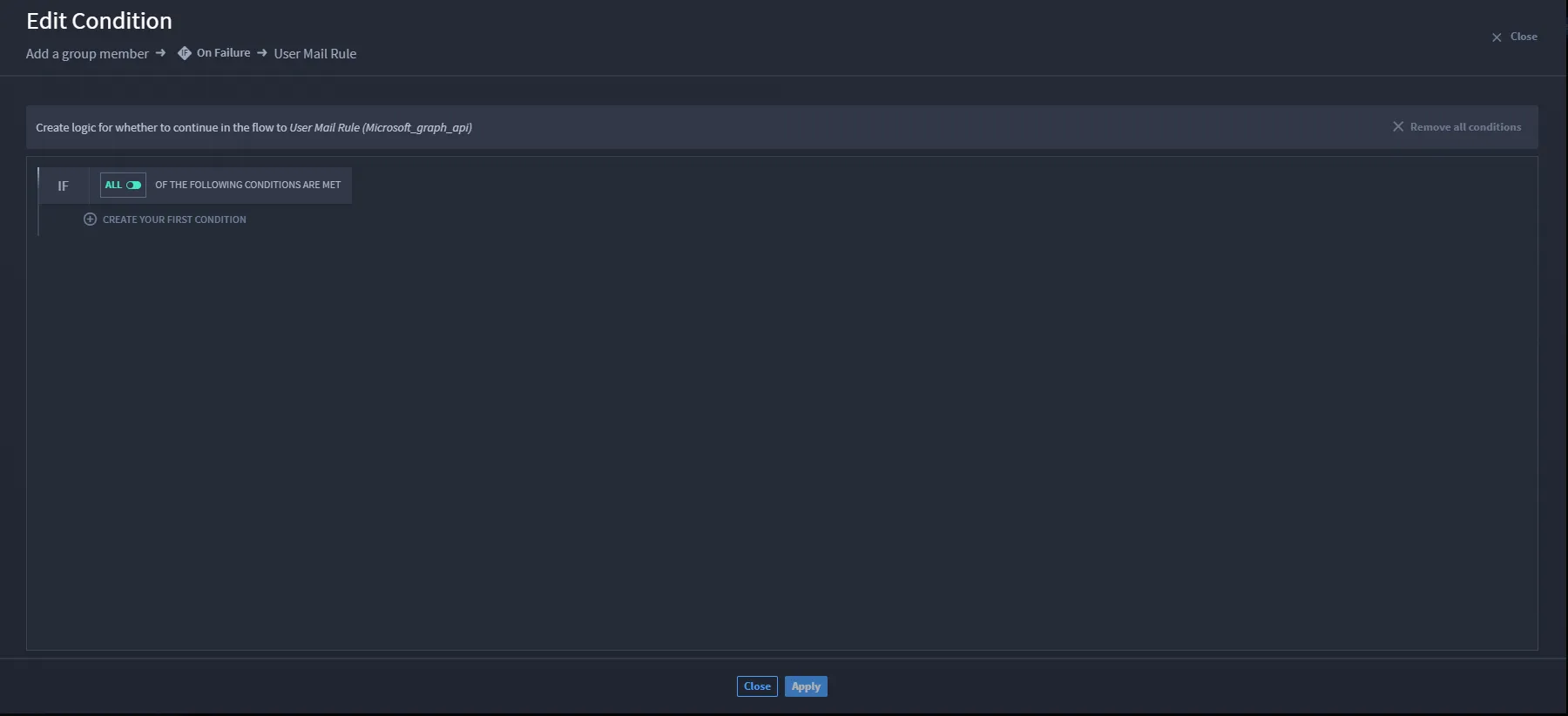
The available action/playbook properties display.
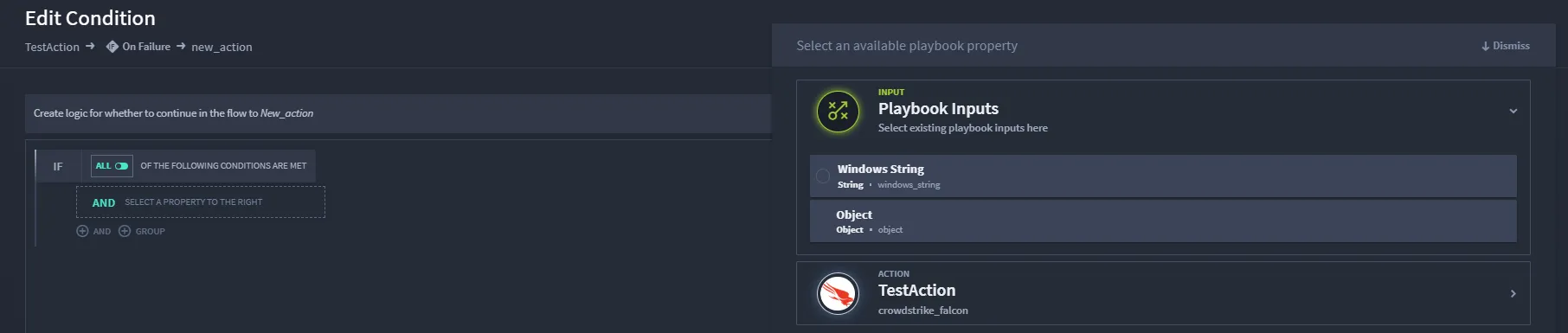
Select the desired input.
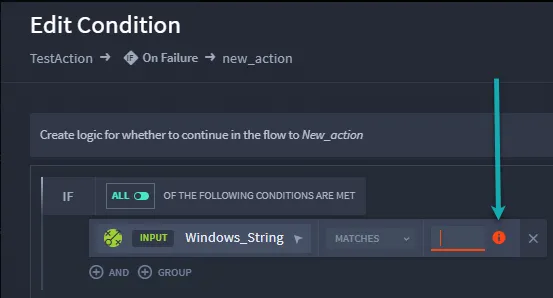
Complete any remaining fields/data for the expression. Any required fields left blank, display in red information icon.
Enter a value.
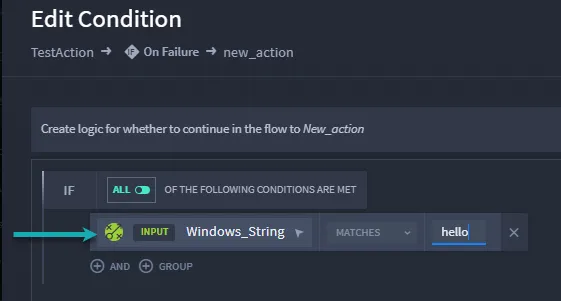
Should you want to change a selected property, simply click property to open the playbook property panel. To delete a condition, click the X on the condition line. To leave the condition builder, click Close at the bottom or top of the Edit Condition window.
Click AND or GROUP or APPLY to further configure the condition expression.
Click Apply to save changes.
You can only add and configure one condition at a time.
To configure an On Failure or On Complete action flow, start from the Action Flow Condition Control, and click the On Failure or On Complete action. Follow the steps above.
Conclusion
Alex has completed configuring his playbook inputs on a condition between two actions!